Round Module Builder (RMB) Service Mode Screens
-
N87838-UN-26FEB10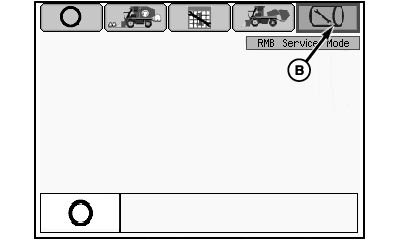
N87843-UN-02MAR10Mode Management Screen
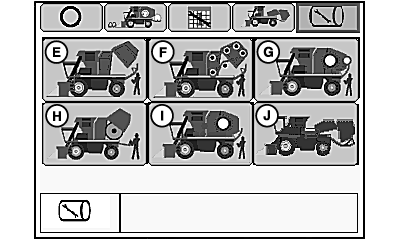
N87844-UN-01MAR10RMB Service Mode Selection Screen
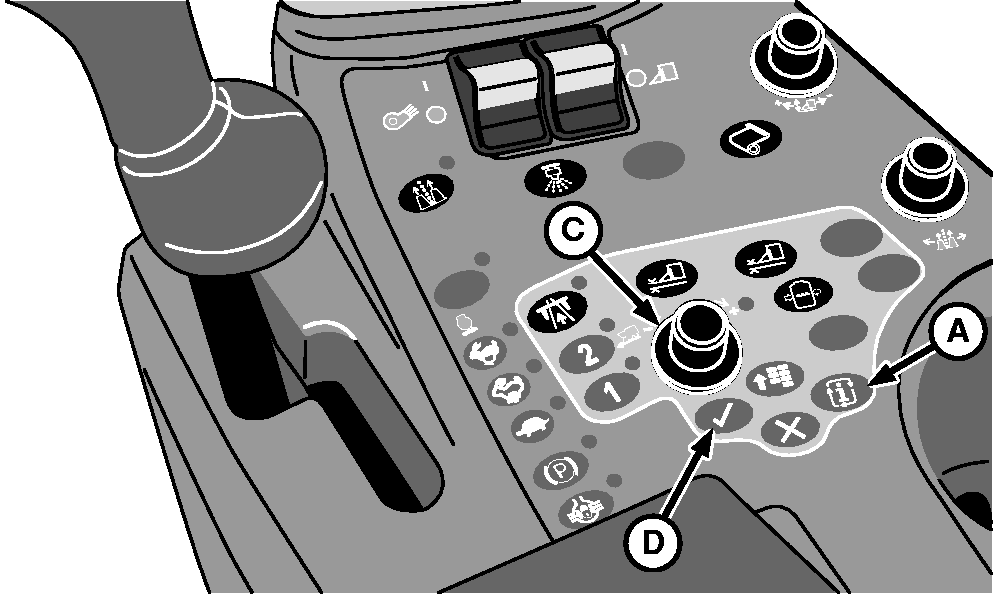
A - Mode Select Button
B - RMB Service Mode Icon
C - Selection Dial
D - Confirm Button
E - RMB Service Setup Mode
F - RMB Belts Service Mode
G - Manual Wrap Mode
H - Manual Eject Mode
I - Feeder Cleanout Mode
J - Feeder Belt Service Mode
Press mode select button (A) on control console to display mode management screen on armrest display unit (ADU). -
Highlight RMB service mode icon (B) using selection dial (C).
-
Press confirm button (D). RMB service mode selection screen appears on ADU.
-
Rotate selection dial to highlight desired service mode (E—J).
-
Press confirm button to activate selected service mode.
RMB Service Setup Mode
IMPORTANT:
N88030-UN-02MAR10
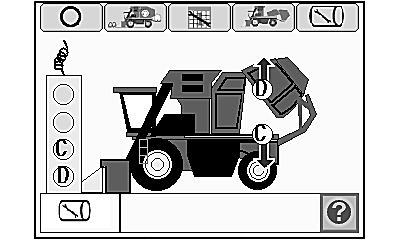
Service Setup Mode Functional Diagram

N88031-UN-02MAR10
Tether Control Operation Instructions
Round Module Builder must be locked down to activate this service mode.The RMB service setup mode is used to place the module builder gate in the cradle. When the gate is in the cradle the operator or technician can safely access the RMB belts and other components for service.
-
Lock down round module builder.
-
Select and activate RMB service setup mode from mode selection menu.
-
Press confirm button on control console to display tether control operation instructions. Press confirm button again to return to functional diagram screen.
-
Remove power module tether control from storage bracket on front side of power module.
-
Press button D on tether control to place module builder gate in cradle.
-
Press button C on tether control to return gate to closed position.
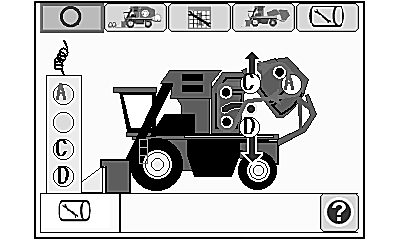
RMB Belts Service Mode
NOTE:
N88032-UN-02MAR10
RMB Belts Service Mode Functional Diagram

N88033-UN-02MAR10
Tether Control Operation Instructions
RMB service setup mode must be used to place gate in cradle before servicing RMB belts.-
Using RMB service setup mode, place gate in cradle.
-
Select and activate RMB belts service mode.
-
Press confirm button on control console to display tether control operation instructions. Press confirm button again to return to functional diagram screen.
-
Press button C on tether control to raise rockshaft and relieve belt tension.
-
Press button D on tether control to lower rockshaft.
-
Press button A on tether control to operate belts.
Manual Wrap Mode
IMPORTANT: Manual eject procedure must be performed following manual wrap process so machine does not attempt to wrap or feed cotton into the chamber after manual wrap.
N93514-UN-11JUL11
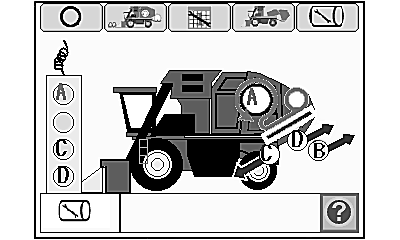
Manual Wrap Mode Functional Diagram

N93515-UN-11JUL11
Tether Control Operation Instructions
This function allows the operator to wrap a bale manually.-
Select and activate manual wrap mode from RMB service selection screen.
-
Press confirm button on control console to display tether control operation instructions. Press confirm button again to return to functional diagram screen.
-
Press button A on tether control to operate the belts.
-
Press button C on tether control to engage wrap.
-
Press button D on tether control to disengage wrap.
Manual Eject Mode
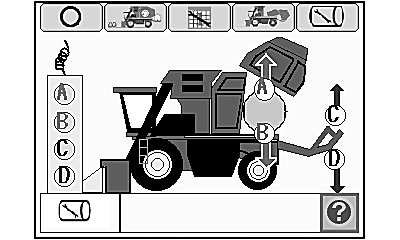
IMPORTANT: Position handler (as shown) so it does not contact gate or machine damage can occur.
N88036-UN-02MAR10
N88037-UN-02MAR10
-
Select and activate manual eject mode from RMB service selection screen.
-
Press confirm button on control console to display tether control operation instructions. Press confirm button again to return to functional diagram screen.
-
NOTE: Gate cannot be raised from closed position unless handler is lowered enough to allow gate to clear.
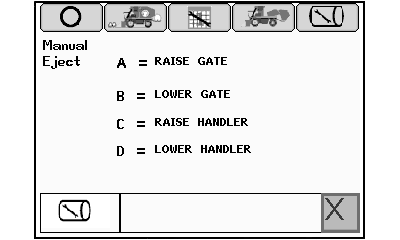
Press button A on tether control to raise gate.
-
Press button B on tether control to lower gate.
-
Press button C on tether control to raise handler.
-
Press button D on tether control to lower handler.
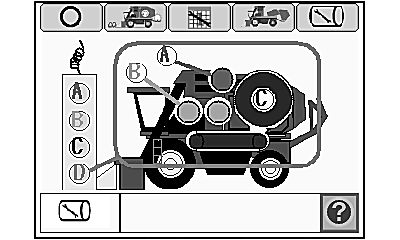
Feeder Cleanout Service Mode
N88038-UN-02MAR10
Feeder Cleanout Service Mode Functional Diagram
N88039-UN-02MAR10
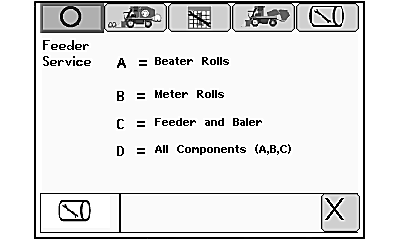
Tether Control Operation Instructions
This function allows the operator to clean and service accumulator and feeder.-
Select and activate feeder cleanout service mode from RMB service selection screen.
-
Press confirm button on control console to display tether control operation instructions. Press confirm button again to return to functional diagram screen.
-
Press button A on tether control to run beater rolls.
-
Press button B on tether control to run meter rolls.
-
 CAUTION: Feeder belt turns at forming speed even when engine
is running at slow idle.
CAUTION: Feeder belt turns at forming speed even when engine
is running at slow idle.Press button C on tether control to run feeder and module builder.
-
NOTE: To run all components, engine must be running at full speed to assure all components are feeding at appropriate speeds.
Press button D on tether control to run all components (A, B, and C).
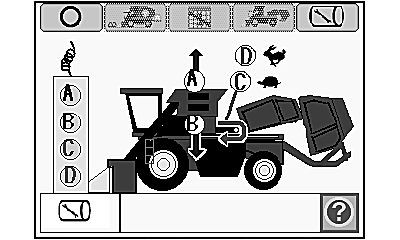
Feeder Belt Service Mode
N88040-UN-02MAR10
Feeder Belt Service Mode Functional Diagram

N88041-UN-02MAR10
Tether Control Operation Instructions
This function allows the operator to service feeder belts in the round module builder.-
Select and activate feeder belt service mode from RMB service selection screen.
-
Press confirm button on control console to display tether control operation instructions. Press confirm button again to return to functional diagram screen.
-
Press button A on tether control to raise extension.
-
Press button B on tether control to lower extension.
-
Press button C on tether control to set feeder belt to service speed.
-
Press button D on tether control to set feeder belt to forming speed.
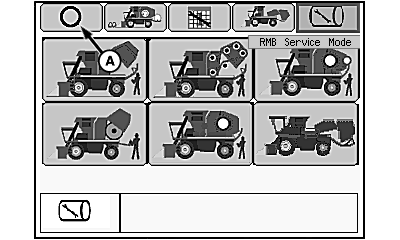
Exit RMB Service Mode
N88029-UN-02MAR10
N87846-UN-26FEB10
A - Exit Icon
B - Selection Dial
C - Confirm Button
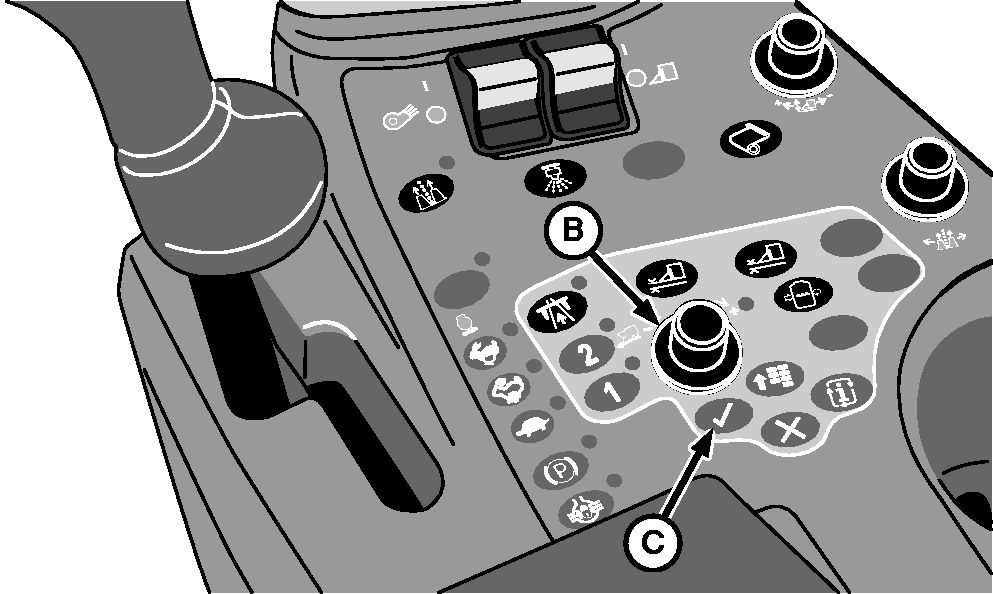
Highlight exit icon (A) using selection dial (B).Press confirm button (C). Exit icon appears in lower left-hand corner of screen.
|
DP99999,0000771-19-20110712 |