Header Height Control Initial 10 Second Response Rate Adjustment
N88480-UN-23APR10
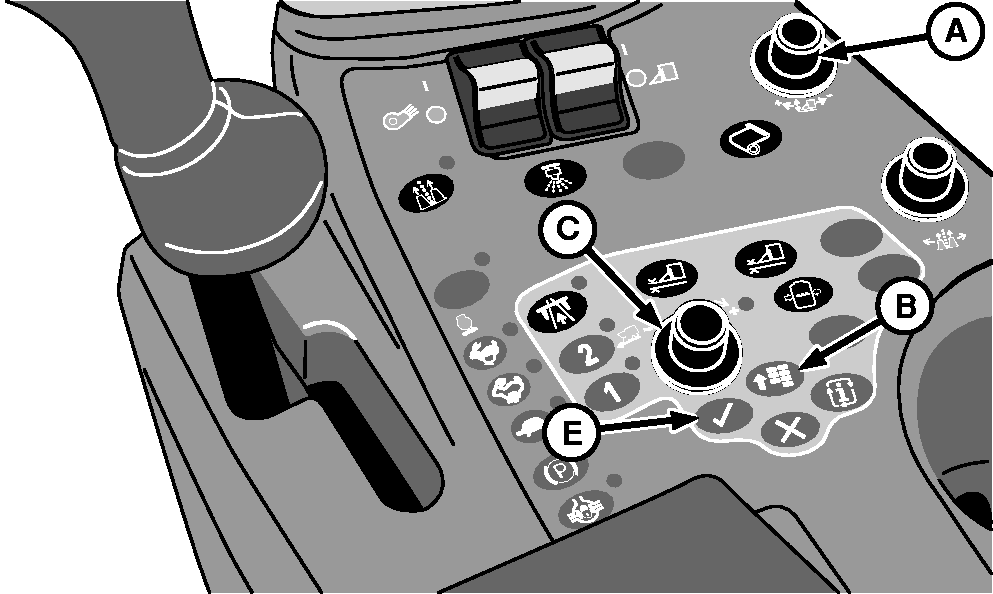
Control Console
N95851-UN-19DEC11
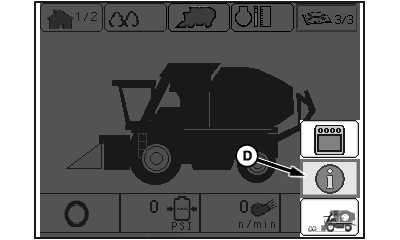
Main Menu Screen
N88085-UN-11MAR10
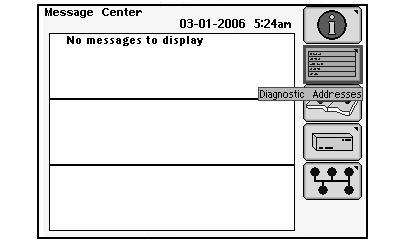
Message Center Screen
A - Response Rate Dial
B - Menu Button
C - Selection Dial
D - Info Icon
E - Confirm Button
When first entering the row, abrupt changes in ground height may require a faster or slower header response rate, depending on the rate preset using response rate dial (A).
During the first 10 seconds after activation, the header height control system uses a separate internal rate setting. This initial rate setting can be set to a value different from the normal response rate. After 10 seconds of operation, the system reverts to the normal preset rate.
If field conditions result in excessive row unit movement or bounce when entering the row, decrease the initial response rate setting in small increments until desired performance is achieved. Likewise, if the row units do not respond quickly enough, increase the initial response rate setting.
The initial 10 second response rate setting is stored in diagnostic address 114. Change the initial response rate setting as follows:
-
Press menu button (B) on control console. Main menu screen appears on display unit.
-
Highlight info icon (D) using selection dial (C) and press confirm button (E). Message center screen appears.
-
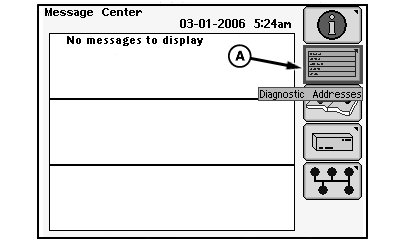
N88111-UN-11MAR10Message Center Screen
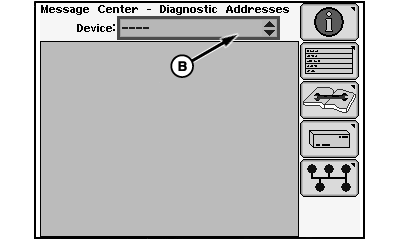
N88481-UN-23APR10Device Selection Screen
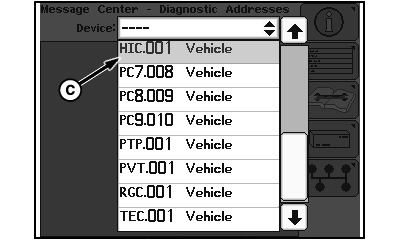
N88482-UN-23APR10Device Drop-down Menu
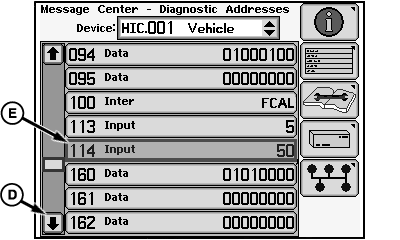
N88483-UN-23APR10Diagnostic Addresses Menu
A - Diagnostic Address Icon
B - Device Drop-down Box
C - Device Identifier
D - Down Arrow
E - Diagnostic Address 114
Highlight diagnostic address icon (A) on message center screen and press confirm button. Device selection screen appears on display. -
Highlight device drop-down box (B) and press confirm button. Device drop-down menu appears.
-
Highlight device identifier HIC.001 (C) and press confirm button. Device diagnostic addresses menu appears.
-
Highlight down arrow (D) and press confirm button to scroll menu until diagnostic address 114 (E) appears on display.
-
Highlight address 114 and press confirm button. Diagnostic address input screen appears.
-
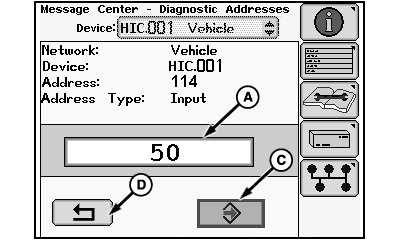
N88484-UN-23APR10Diagnostic Address Input Screen
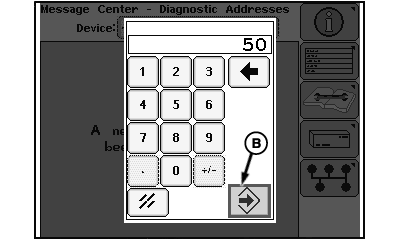
N88485-UN-23APR10Data Entry Keypad Screen
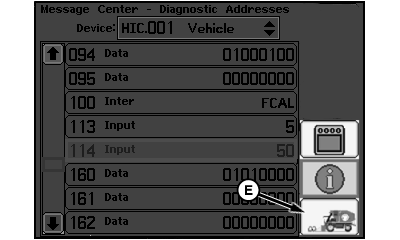
N88486-UN-26APR10Main Menu Screen
A - Input Box
B - Enter Icon
C - Enter Icon
D - Return Icon
E - Harvest Mode Icon
Highlight input box (A) and press confirm button. Data entry keypad screen appears. -
NOTE: A value from 0 to 100 can be entered. A higher number results in faster header response.
Enter desired initial response rate value using data entry keypad screen, then highlight enter icon (B) and press confirm button. Display returns to diagnostic address input screen.
-
When desired setting appears on screen, highlight enter icon (C) and press confirm button to save new setting.
-
Highlight return icon (D) and press confirm button to return to diagnostic addresses menu screen.
-
Press menu button on control console to return to main menu screen. Highlight harvest mode icon (E) and press confirm button to return to harvest mode display.
|
DP99999,00007DB-19-20111219 |