Rear Camera System (If equipped)
N96848-UN-06FEB12
N96849-UN-06FEB12
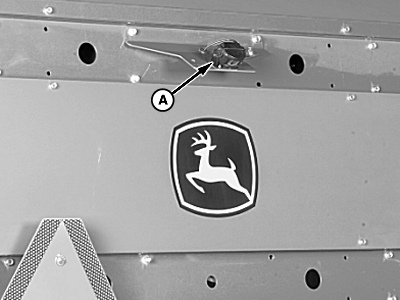
A - Camera
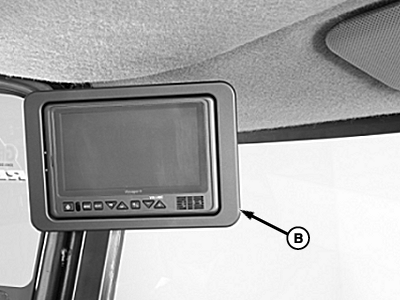
B - Video Monitor
The optional rear camera system includes two cameras on the rear of the machine and a video monitor in the cab. The primary rear camera (A) is mounted at the top of the wrap box near the center of the machine. A second camera is mounted inside the module gate frame to view the module wrap process. The video monitor (B) is mounted in the cab at the top of the left-hand corner post.
System Operation
-
The normal view displayed on the monitor is from the camera mounted on the upper rear of the machine. To display the view from the alternate camera, press camera view button (A) on the multifunction control handle.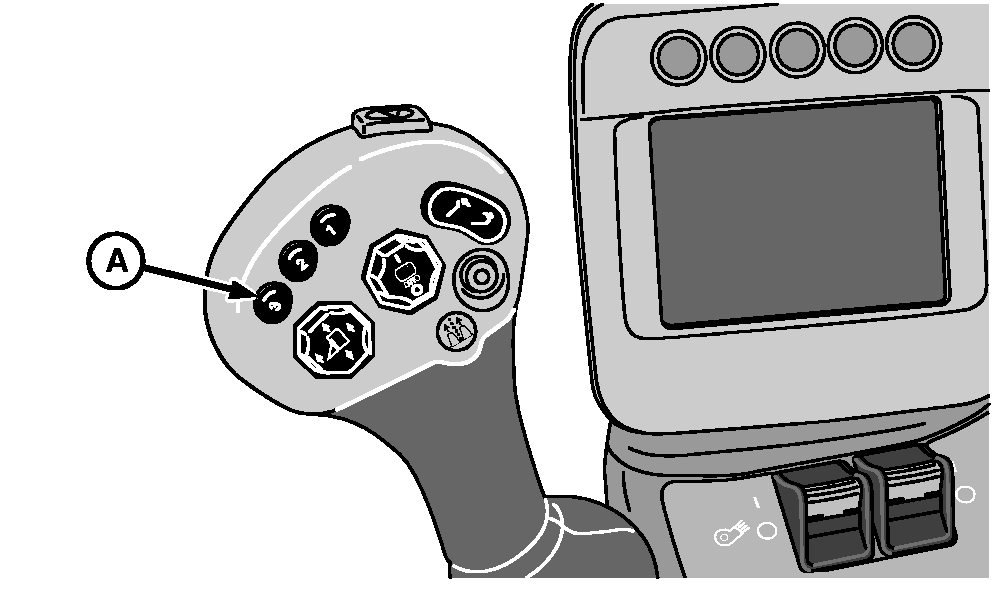
N94855-UN-21SEP11 -
After a time delay of 10—15 seconds, the view changes. The monitor displays the alternate camera view for a preset time of approximately 10 seconds, then switches back to the normal view. To display alternate view longer, press and hold camera view button.
-
The preset view time can be reset by changing the setting in diagnostic address 110 in control unit CAB001 using the armrest display unit.
Video Monitor Operation
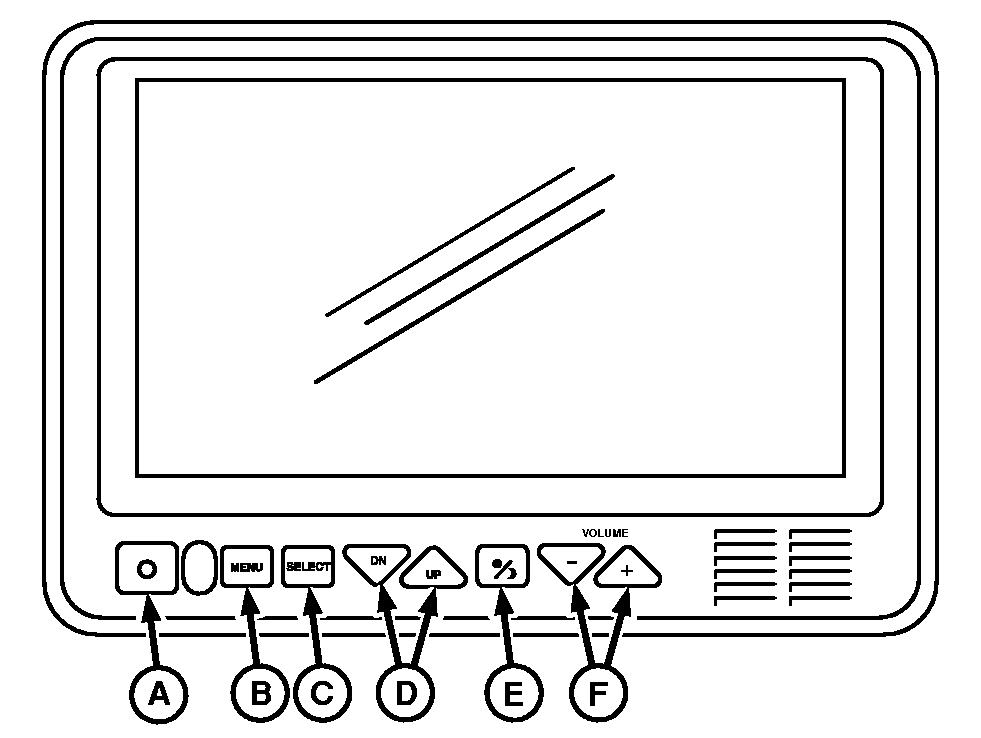
N95066-UN-29SEP11
A - Power Button
B - Menu Button
C - Input Source Select Button
D - Up-Down Buttons
E - Day-Night Button
F - Volume Control Buttons
Following is a brief description of the function of the buttons on the video monitor. Refer to the manual provided with the system for further information.-
Power Button (A)
Press button to turn monitor on and off. When machine key switch is in ON position and monitor is OFF, red power button is dimly lit. When monitor is ON, all buttons are lit.
-
Menu Button (B)
This button is used to access monitor main menu. Press button again to exit menu mode or wait for time-out. Time out occurs approximately 8 seconds after last button press.
-
Input Source Select Button (C)
This button scrolls through monitor input sources (CH1, CH2, CH3, CH4, Split Screens). Button also activates modes or option settings highlighted on main menu. When display is in SCAN mode, pressing select button stops scan and shows current input. Monitor displays “Pause” to show that scan was interrupted. Pressing select button again reactivates scan.
-
UP and DN Buttons (D)
Primary use UP and DN buttons is to adjust camera view upward or downward. Secondary function is to scroll through main menu functions or options.
-
Day-Night Button (E)
This button toggles monitor between day, night, and auto modes of display backlight compensation. In night mode, screen backlighting is dimmed to a preset level that is more suitable for low light operation.
-
Volume Control Buttons (F)
Primary use of buttons is to decrease or increase speaker volume. Secondary use is to adjust level indicated by a bar graph at bottom of screen in certain menu modes.
|
DP99999,0000828-19-20120214 |