Radio Controls—Premium Radio
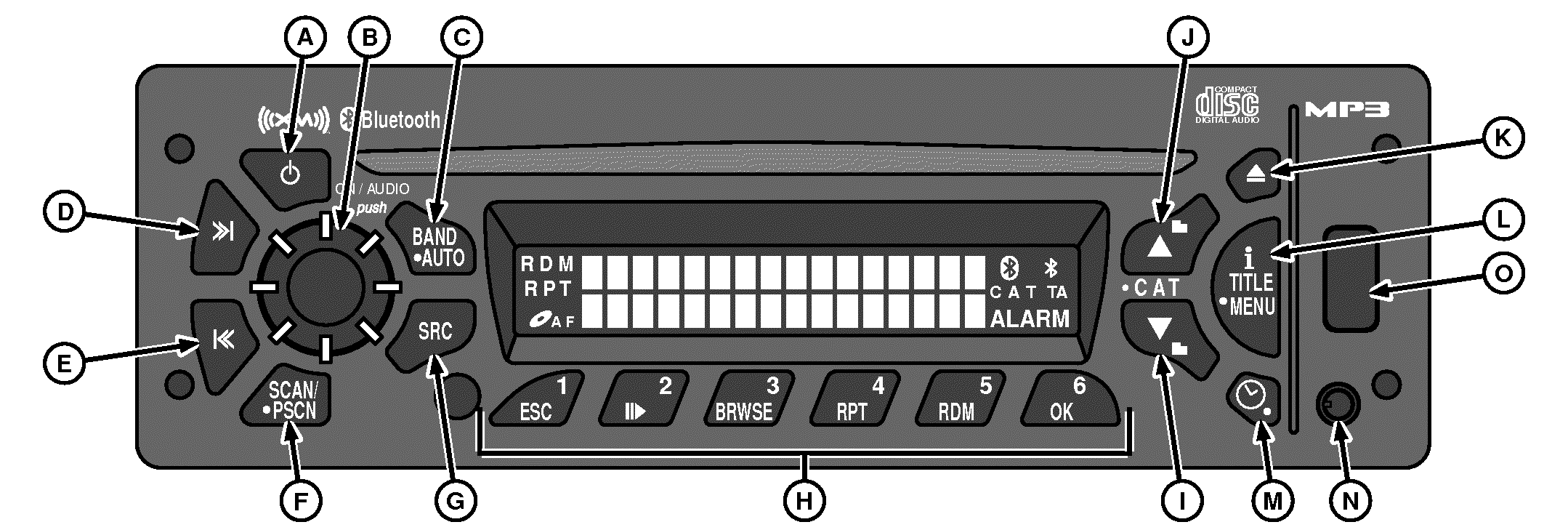
H97605-UN-12AUG10
A - Power Button
B - AUDIO Dial
C - BAND/AUTO Button
D - TUNE/SEEK (Forward) Button
E - TUNE/SEEK (Reverse) Button
F - SCAN/PSCAN Button
G - SRC Button
H - Preset Buttons (1—6)
I - Folder Down Button
J - Folder Up Button
K - Eject Button
L - i Title Menu Button
M - Clock/Alarm Button
N - Auxiliary (AUX) Input
O - USB Port
General Radio Functions:
Radio is equipped with:
- One AM band with 6 AM preset channels
- Two FM bands with 12 FM preset channels
- Three satellite bands with 18 preset channels
- One weather band with 6 WX preset channels
Adjusting Volume:
Rotate AUDIO dial clockwise to increase volume and counterclockwise to decrease it.
One-Hour Timer:
With key switch OFF, press power button or AUDIO dial to activate one-hour timer.
Receiver will turn OFF after one hour.
Pressing power button or AUDIO dial again reactivates one-hour timer.
Display:
Radio displays time of day when OFF.
BAND/AUTO Button:
Band/AUTO button toggles through FM1, FM2, AM, SAT1, SAT2, SAT3 and (Weather) WX.
SEEK Button:
Press buttons (>> or <<) to switch to a radio station on the next higher/lower frequency, press >> or << buttons respectively and hold briefly.
Audio mutes during SEEK UP/DOWN process. Pushing either button (>> or <<) while the radio is finding a station, the tuner stops at the frequency tuned at the time you pressed the button. SEEK mode ends when a tunable station is reached or SEEK is canceled. Radio returns to original station if SEEK is canceled.
NOTE: If SEEK does not find a tunable station it continues searching until canceled.
Cancel Seek by doing one of the following:
- Switch modes
- Change bands
- Press SCAN/PSCAN button
- Press any preset button
- Press and hold BAND/AUTO button
- Turn OFF power
NOTE: Quickly pressing SEEK button causes radio to ”tune” or search for the next higher or lower frequency and radio stops on that frequency even if no station is found. Holding SEEK button longer than half a second initiates the ”SEEK” function. ”SEEK” function stops at the next higher/lower frequency with a strong radio signal and stops at that station.
AUTO STORE:
Auto Store temporarily stores the six strongest stations onto push buttons 1—6. Press and hold BAND/AUTO button for more than two seconds or until a beep is heard and AUTO STORE appears on display. Pressing and holding BAND/AUTO button again cancels AUTO STORE, and original presets will be restored. AS is displayed while AUTO STORE is active. Pressing BAND/AUTO button will not affect other bands. Pressing BAND/AUTO button while listening in one radio mode will not effect presets in any other mode.
SCAN/PSCAN:
Press SCAN/PSCAN button to scan all stations on the band you are using. When a strong frequency is found, radio will play for eight seconds before continuing to scan. To end scan, press SCAN/PSCAN button again. Radio will beep and display SCAN plus the frequency currently tuned.
Press SCAN/PSCAN button for more than two seconds to scan the preset stations on the band you are using. Radio will play that station for eight seconds and continue scanning. Display shows PSCAN, the frequency, preset number, and current band. Preset scan continues until SCAN/PSCAN button is pressed again.
Setting Preset Stations:
- Turn receiver ON.
- Select desired band (FM1, FM2, AM, SAT1, SAT2, SAT3).
- Tune to desired listening station.
-
Push desired preset button (1—6) and hold for more than
two seconds to store selected station.
NOTE: When station has been set to preset number, a beep and
preset number is visible.
- Repeat process for each remaining preset station buttons.
Pressing preset button later tunes radio to previously selected station.
Auxiliary (AUX) Mode:
NOTE: When using an external device connected through auxiliary input, pressing ”i Title/Menu” button will have no effect.
In the Front AUX mode, you can play external audio devices connected via the auxiliary input port on the front of the radio. When an external device is connected and turned ON, you will be able to listen to it. Front AUX mode will not be available if no device is connected to the AUX input port on the front of the radio.
NOTE: Rear AUX Input port is located on the right-hand storage panel. Remove dust cover to access port and insert jack of from device or adapter cable.
In the Rear AUX Mode, you can play external audio devices connected via the auxiliary input port on the right-hand storage panel. When an external device is connected and turned ON, you will be able to listen to it. To enable AUX mode, press SRC button until ”REAR AUX” appears on display.
Setting Clock:
Radio can be set to a 12/24 Hour Time Format. The 12 hour mode distinguishes between AM and PM. The 24 hour mode operates as military time.
- Turn key switch ON.
- Press and hold ”i Title/Menu” button for more than two seconds or until Menu appears on display.
- Press OK button to enter into clock submenu.
- Turn AUDIO dial or press up/down arrow buttons to change to SET TIME.
- Press OK button to enter set mode.
- Turn AUDIO dial or press up/down arrow buttons to change between 12-hour or 24-hour format.
- Press OK button to select one.
- Display changes to clock configuration, causing hour digits to flash.
- Rotate AUDIO dial or press up/down arrow buttons to change hour digit. Rotating AUDIO dial clockwise and pressing up arrow button increases hour digit. Rotating AUDIO dial counterclockwise and pressing down arrow button decreases hour digit.
- Press OK button causes minute digits to flash. Rotate AUDIO dial or press up/down arrow buttons to change minute digits. Rotating AUDIO dial clockwise and pressing up arrow button increases minute digit. Rotating AUDIO dial counterclockwise and pressing down arrow button decreases minute digits.
At any point in the time set process, not pressing a button or rotating AUDIO dial within eight seconds cancels the time set mode and returns radio to normal operation keeping whatever setting changes have been made. Pressing power button or band buttons sets the clock at whatever time you have selected.
Clock is displayed when key switch is ON and radio is OFF. With radio and ignition OFF, the display is blank.
Setting the Alarm:
- Turn radio ON.
- Press and hold ”i Title/Menu” button for more than two seconds or until Menu appears on display.
- Turn AUDIO dial or press up/down arrow buttons to change to SET ALARM.
- Press OK button to enter alarm submenu.
- Press OK button to turn ON or OFF alarm.
- Alarm icon turns ON when enabling alarm.
- Turn AUDIO dial or press up/down arrow buttons to change to SET TIME.
- Press OK button. Hour digits for alarm time flash. Format will be the same as set for the clock (12 or 24-hour mode).
- Rotate AUDIO dial or press up/down arrow buttons to change hour digit.
-
Rotating AUDIO dial clockwise or pressing up arrow button increases
hour digit. Rotating AUDIO dial counterclockwise or pressing down
arrow button decreases hour digit.
NOTE: If SET MUS is chosen, alarm sound will be whatever you
were listening to when the radio was turned OFF. For example: if listening
to FM, alarm heard will be the FM station last listened to. If that
station is no longer available, alarm sounds a medium priority tone
for two minutes before changing to a high priority tone. If listening
to an AUX input, a CD or other media and there is no longer AUX input
or CD available, alarm will turn radio ON instead.
- Press OK button. Minute digits for alarm time flashes.
- Rotate AUDIO dial or press up/down arrow buttons to change minute digits.
- Rotating AUDIO dial clockwise and pressing up arrow button increases minute digits. Rotating AUDIO dial counterclockwise and pressing down arrow button decreases minute digits.
- Press OK button to set alarm time. After this you will be prompted to select between SET MUS (Music) or SET TONE.
-
Press OK button once desired item is selected.
NOTE: If SET TONE is chosen, alarm sounds a medium priority
tone for two minutes before changing to a constant high priority tone.
-
Press OK button again to set volume of alarm tone or music.
NOTE: When OK button is pressed, VOLUME appears on display and
actual volume of tone or music is heard.
-
To increase volume, rotate AUDIO dial clockwise or to decrease
volume, rotate AUDIO dial counterclockwise.
NOTE: If you do not press any button or rotate AUDIO dial within
eight seconds during alarm set process, alarm clock setup cancels
and radio returns to normal operation keeping whatever setting changes
have been made.
-
Press OK button again to finish and return display to normal
operation.
NOTE: ALARM icon appears on display to indicate that alarm is
active.
Turning Alarm OFF:
When alarm is triggered, press and hold CLOCK/ALARM button until ALARM icon disappears on display.
NOTE: If alarm is not turned OFF, it will automatically shut OFF after 63 minutes. Radio returns to mode (ON or OFF) it was in before alarm went OFF.
Activating Snooze Mode:
Press any button for less than two seconds when alarm sounds. SNOOZE appears on display for three seconds and alarm will be postponed for nine minutes.
NOTE: If any button is pressed during the three seconds, radio returns to mode it was in before alarm sounded.
Playing Compact Disc (CD):
- Turn radio ON.
-
Insert disc partway into CD slot and with label side up. CD
player will automatically pull disc in. Radio displays CD READING
and CD icon followed by track number and elapsed time until first
track is played. CD begins playing.
NOTE: CD must be loaded into CD player. If no CD has been loaded,
option will not be available and go to next available source. If no
available source radio will remain on Rear AUX.
If CD is ejected and not removed within 15 seconds, CD will reload but will not start playing until SRC button is pressed.
-
CD Mode Displays:
Press the ”i Title/Menu” button to toggle between different display views:
- Artist Name
- Song Name
- Album Name
CD information including disc and track title is shown on display when track starts to play. If there is more information than can appear on display at one time, display advances every two seconds until all the information has appeared.
-
Press SRC button to play CD.
If a CD has been loaded, CD icon remains ON until CD has been ejected. CD READING appears on display followed by track number and elapsed time.
NOTE: If a CD is ejected and not removed within 15 seconds, CD reloads but does not start playing until SRC button is pressed.
- Press Eject button to remove CD from player.
Button Functions:
SEEK Button >>:
- Press button for less than two seconds to forward to next track.
- Press and hold button to fast forward, when released CD plays.
SEEK Button <<:
- Press button for less than two seconds to go to beginning of current track.
- Press button within first ten seconds of track, player goes to previous track.
- Press and hold button to fast forward, when released CD plays.
- Press button again within the first second to go to beginning of previous track.
- Press and hold button to fast reverse. Release button and disc begins playing.
PAUSE/PLAY Button:
- Press button to pause a CD. ”PAUSE” is displayed and audio is muted.
- Press button again to resume playing.
RPT (REPEAT) Button:
- Press button to repeat track currently playing. ”Track Repeat” is displayed.
- Press button again to stop repeating.
RDM (RANDOM) Button:
- Press button to activate random track selection. RDM icon is displayed and indicates that tracks on the loaded disc will be played randomly.
- Press button again to stop random track selection.
TRACK SCAN/PSCAN:
- Press button for less than two seconds to scan tracks on a disc. After playing eight seconds of current track, player will go to next track.
- When all tracks on disc have been scanned, SCAN ends and playback begins with first track in SCAN.
- Press button again to deactivate scan.
Using iPod®:
This radio is capable of controlling and playing music from an iPod. It is not recommended to connect a 3G iPhone® or iPod Touch® to radio. Insert iPod USB cable connector into the radio USB connector (other end connected to iPod). iPod READING appears on display. Insert 3.5 mm Audio cable connector to radio Aux input jack connector (other end connected to iPod 3.5 mm audio jack connector). If Audio cable is not connected, radio displays FRONT AUX JACK UNPLUGGED. After all connections are made, and radio has finished reading iPod, iPod will begin playing. Elapsed time and track number is displayed. Play begins from current track played on iPod and continues sequentially through all tracks from iPod last selected mode. After playing last track of iPod last selected mode, play stops and radio displays iPod Menu.
NOTE: Music is controlled through iPod and not through radio when an iPod is only plugged into the auxiliary (AUX) input.
To remove iPod USB cable connector simply pull the device. Radio returns to previous mode/source.
-
SEEK Button >>:
- Press button for less than two seconds to forward to next track.
- Press and hold button to fast forward.
- Release button and track continues to play.
-
SEEK Button <<:
- Press button for less than two seconds to go to beginning of current track.
- Press button within first ten seconds of track, player goes to previous track.
- Press button within first 14 seconds to go to beginning of previous track.
- Press and hold button to fast reverse. Release button and track begins playing.
- ESC Button: Press button to exit or go back to previous menu when on a menu.
-
PAUSE/PLAY Button:
- Press button to pause a track, ”PAUSE” is displayed and audio is muted.
- Press button again to resume playing track.
-
BRWSE (BROWSE) Button: Press BRWSE
button to enter to iPod menu and the following options.
- Scroll and select with AUDIO dial.
- Turn right to increase or left to decrease and press AUDIO dial to confirm selection.
-
RPT (REPEAT) Button: If button is
pressed a second time REPEAT ALL TRACKS is displayed and RPT icon
remains ON. Same folder/playlist (iPod last selected mode) continues
to play until RPT button is pressed again. If RPT is pressed a third
time, REPEAT OFF is displayed. Function will be OFF and RPT icon turns
OFF. Then display returns to default setting.
- Press button once to repeat current track. RPT icon and REPEAT ONE TRACK are displayed.
- Same file continues to play until RPT button is pressed again.
-
RDM (RANDOM) Button: Press RDM button
again to reach SHUFFLE OFF.
- Pressing button activates shuffle tracks, albums, or OFF selection. RDM icon on display indicates that this feature is ON.
- Press button again to cancel SHUFFLE TRACKS or SHUFFLE ALBUMS.
- OK Button: Press OK button when on a menu to confirm selection.
Satellite Service (US and Canada):
When XM™ logo appears on your radio, it is satellite radio compatible. XM satellite radio services offer more than 100 channels of digital quality audio programming and can be heard uninterrupted across the contiguous United States.
A service fee is required to receive satellite broadcasts. For more information, contact XM at www.xmradio.com or by phone at 1-800-852-XMXM (9696) .
To activate integrated or external satellite radio:,
Furnish your satellite radio provider with the satellite radio’s electronic serial number. To find electronic serial number complete the instructions that follow.
If your satellite radio provider is XM Satellite Radio:
- With ignition and radio ON, press BAND/AUTO button and select XM1, XM2, or XM3.
- Tune your radio to channel 0 and the 8-digit serial number appears.
Setting up Hands Free (Bluetooth™):
This radio has hands free capabilities through Bluetooth technology. Up to 16 mobile phones can be saved to this radio at one time.
NOTE: Only one phone can be paired and in use at a time. Ensure device being paired is Bluetooth capable and has been enabled.
-
Press and hold ”i Title Menu” button until a beep is heard.
-
Rotate AUDIO dial or press up/down arrow buttons.
-
When HANDS FREE appears on display, press OK button.
-
Rotate AUDIO dial or press up/down arrow buttons and select ON.
-
Press OK button.
NOTE: Bluetooth Status icon appears on radio display.
Add Phone:
-
Rotate AUDIO dial or press up/down arrow buttons.
-
Watch display and select ADD PHONE by pressing OK button.
NOTE: When ADDING PHONE appears on display, radio is scanning for Bluetooth devices. Ensure that paired Bluetooth device has been set to add a device and is searching for DEA355 Radio.
After three minutes, if no phone was added, radio will display NO PHONE FOUND.
-
ADDING PHONE appears on radio display for three seconds and Bluetooth icon blinks up to three minutes.
-
Use PIN number 0000 to connect to radio.
NOTE: When mobile phone is successfully added to radio, PHONE CONNECTED appears on radio display first line. Radio display second line shows Bluetooth phone name for three seconds.
Edit Phone:
-
Rotate AUDIO dial or press up/down arrow buttons and when EDIT PHONE appears on display, press OK button.
-
Radio displays a list of mobile phones added.
NOTE: If 16 phones have been stored, ADD PHONE option is disabled until a phone is deleted.
-
To delete a mobile phone, rotate AUDIO dial or press up/down arrow buttons to select desired mobile phone, then press OK button.
-
Phone will be deleted, and radio display will go to previous menu display.
Answer Phone:
-
To accept incoming call, press OK button.
-
To reject incoming call, press ESC button.
Call Transfer:
If a call is in progress:
- Press PAUSE/PLAY button to allow system to transfer call to mobile phone.
- Radio will display ”CALL TRANSFERRED”.
USB Mode:
This radio is capable of controlling and playing audio via USB devices (less than 1 GB in size) with the following audio formats: MP1, MP2, MP3 (VBR), WMA (ver 9 and VBR) and ACC (MPEG4 and M4A). This radio will be able to read and play a maximum of 50 folders and play lists. Long files, folders, or a combination can reduce the number of files and folders that can be played. If your device contains more than 50 folders or 11 folder levels, the radio only lets you access and navigate the maximum number and ignores additional items.
- Insert USB device fully into USB connection.
- USB READING appears on display and audio begins playing.
Type of file, elapsed time, and track number are displayed. Play begins from first track and continues sequentially through all tracks. After playing the last track of the last folder, play continues at the first track of the first folder or root directory.
NOTE: When playing MP3 or WMA files, press ”i Title Menu” button to toggle between different radio on display views.
- Track Number
- Artist Name
- Song Name
- Album Name
- Folder/PLST Name
Button Functions:
SEEK Button >>:
- Press button for less than two seconds to forward to next track.
- Press and hold button to fast forward.
- Release button and track continues to play.
SEEK Button <<:
- Press button for less than two seconds to go to beginning of current track.
- Press button within first ten seconds of track, radio goes to the previous track.
- Press button within first 14 seconds to go to beginning of previous track.
- Press and hold button to fast reverse. Release button and track begins playing.
PAUSE/PLAY Button:
- Press button to pause a track, ”PAUSE” is displayed and audio is muted.
- Press button again to resume playing track.
|
iPod is a trademark of Apple, Inc. iPhone is a trademark of Apple, Inc. iPod Touch is a trademark of Apple, Inc. XM is a trademark of SIRIUS XM Radio Inc Bluetooth is a trademark of Bluetooth SIG |
RG53986,0001302-19-20120926 |