Setup 1-Up Display
1.
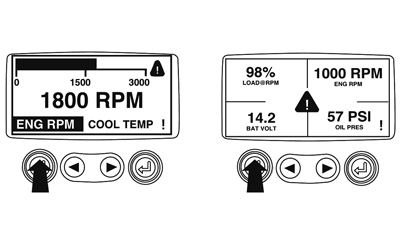
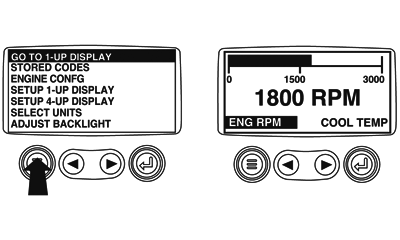
Starting at the single or four engine parameter display touch the "Menu Button".
|
|
|
|
GB52027,000055C -19-23OCT08-1/14
|
|
2.
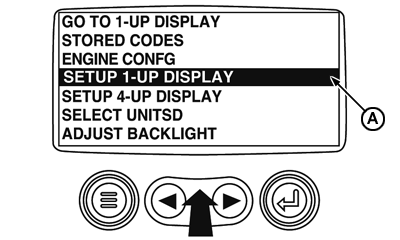
The main menu will pop up on the display. Use the "Arrow Buttons" to scroll through the menu until the "Setup 1-up Display" is highlighted.
A-Setup 1-Up Display icon
|
|
|
|
GB52027,000055C -19-23OCT08-2/14
|
|
3.
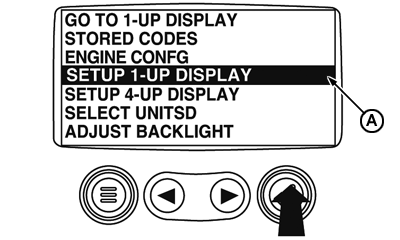
Once the "Setup 1-up Display" menu item has been highlighted touch the "Enter Button" to access the "Setup 1-up Display" function.
4.
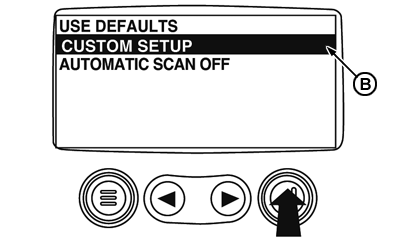
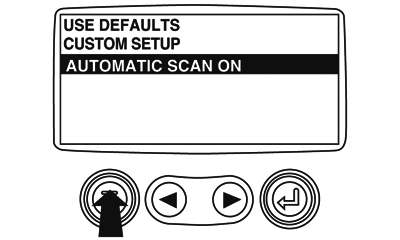
Three options are available for modification of the 1-Up display.
a.
Use Default:
This option contains a set of engine parameters: Engine Hours, Engine RPM, System Voltage, Battery voltage, % Engine load at current RPM, Coolant temperature, Oil Pressure.
b.
Custom Setup:
This option allows for the modification of what parameters, the number of parameters and the order in which the parameters are being displayed.
c.
Automatic Scan:
Selecting the scan function will cause the 1-Up Display to scroll through the selected set of parameters one at a time, momentarily pausing at each.
|
A-Setup 1-Up Display icon
|
|
|
GB52027,000055C -19-23OCT08-3/14
|
|
5.
Custom Setup:
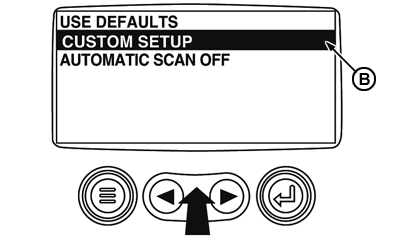
To perform a custom setup of the 1-Up Display, use the arrow buttons to scroll to and highlight "Custom Setup" on the display.
B-Custom Setup icon
|
|
|
|
GB52027,000055C -19-23OCT08-4/14
|
|
6.
Touching the "Enter Button" will display a list of engine parameters.
B-Custom Setup icon
|
|
|
|
GB52027,000055C -19-23OCT08-5/14
|
|
7.
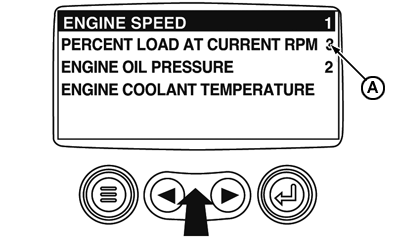
Use the "Arrow Buttons" to scroll to and highlight a selected parameter (parameter with a # symbol to right of it).
A-This number indicates the order of display for the parameters and that the parameter is selected for display.
|
|
|
|
GB52027,000055C -19-23OCT08-6/14
|
|
8.
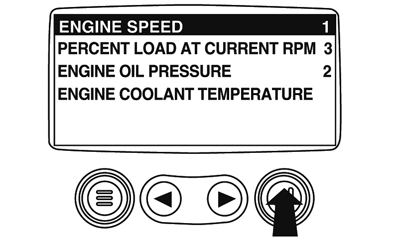
Touch the "Enter Button" to deselect the selected parameter removing it from the list of parameters being displayed on the 1-up display.
|
|
|
|
GB52027,000055C -19-23OCT08-7/14
|
|
9.
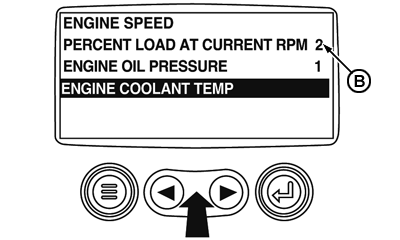
Use the "Arrow Buttons" to scroll and highlight the desired parameter that has not been selected for display.
B-Note that the numbers now indicates the new order of display the parameters.
|
|
|
|
GB52027,000055C -19-23OCT08-8/14
|
|
10.
Touch the "Enter Button" to select the highlighted parameter for inclusion in the Single Engine Parameter Display.
11.
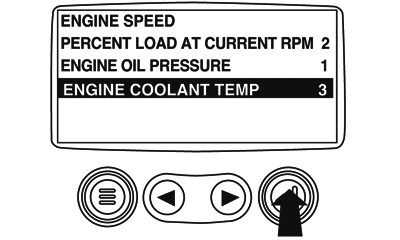
Continue to scroll and select additional parameters for the custom 1-Up Display. Touch the "Menu Button" at any time to return to the "Custom Setup" menu.
|
|
|
|
GB52027,000055C -19-23OCT08-9/14
|
|
12.
Automatic Scan:
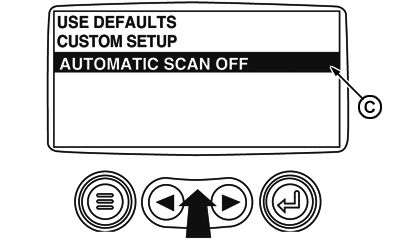
Selecting the scan function will cause the 1-Up Display to scroll through the selected set of parameters one at a time. Use the "Arrow Buttons" to scroll to the "Automatic Scan" function.
C-Automatic Scan icon
|
|
|
|
GB52027,000055C -19-23OCT08-10/14
|
|
13.
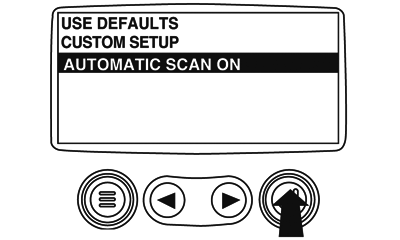
Touching the "Enter Button" toggles the "Automatic Scan" function on.
|
|
|
|
GB52027,000055C -19-23OCT08-11/14
|
|
14.
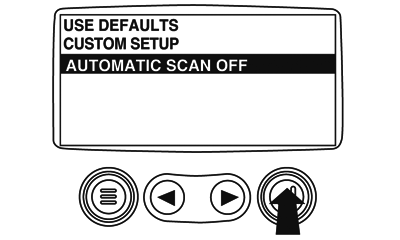
Touching the "Enter Button" again toggles the "Automatic Scan" function off.
|
|
|
|
GB52027,000055C -19-23OCT08-12/14
|
|
15.
Once the "Use Defaults", "Custom Setup" and "Automatic Scan" functions have been set touch the "Menu Button" to return to the main menu.
|
|
|
|
GB52027,000055C -19-23OCT08-13/14
|
|
16.
Touch the "Menu Button" to exit the Main menu and return to que engine parameter display.
|
|
|
|
GB52027,000055C -19-23OCT08-14/14
|
|