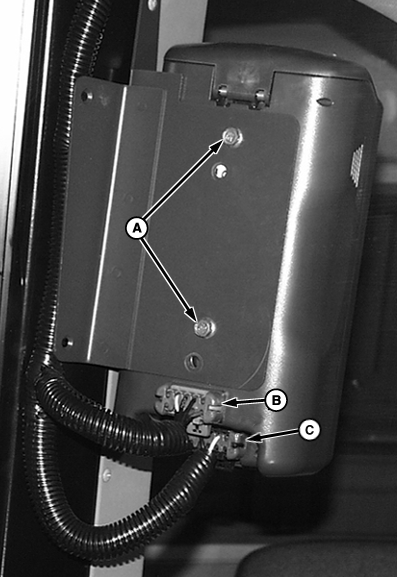
Reprogramming from Yield MappingWhen a GreenStar system is programmed for Yield Mapping and is moved onto another machine to be used for Harvest Doc, the system must be reprogrammed. The following procedures show basic connections and programming steps needed to prepare system to operate in Harvest Doc mode. The mobile processor must be reprogrammed to operate in Harvest Doc mode. After Harvest Doc is loaded on mobile processor you may see automatic software load warning for GreenStar display, StarFire position receiver and Harvest Monitor to most recent version of software. For more information on this warning refer to Automatic Software Load section. NOTE: If components are installed in vehicle intended for use with Harvest Doc skip to step 7. 1. Disconnect main wiring harness connector from position receiver connector and remove position receiver from machine.2. Disconnect gray (B) and black (C) wiring harness connectors. 3. Remove cap screws (A) and display assembly. 4. Install position receiver onto machine and connect machine wiring harness to position receiver. 5. Attach display to bracket with hardware provided. 6. Attach gray connector to mobile processor connector and black connector to display connector. |
|
OUO6050,0000743 -19-10JUN04-1/5 |
|
7.
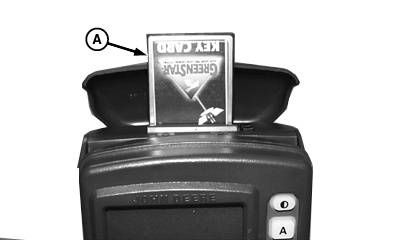
Install KeyCard (A) into top slot of mobile processor.
8. Turn ignition key to RUN position. NOTE: Not canceling these warnings may prevent you from reprogramming. If this happens cycle power and cancel all warnings until reprogramming can be completed. 9. Press CONTINUE button to cancel following warning messages.
10. Wait until RUN - PAGE 1 screen appears. 11. Press: INFO >> REPROGRAM >> PROGRAM TARGET >> MAPPING PROCESSOR NOTE: Cycle power to cancel programming. Some GreenStar displays will produce the following message: "Display Communications Overload-Reset Display or cycle power". If this message appears cycle power and repeat previous step and immediately after pressing PROGRAM TARGET button, press MAPPING PROCESSOR button. Repeat steps until software version appears. 13. Press HDOCXXXX.PRP button on SELECT PROGRAM screen. |
|
OUO6050,0000743 -19-10JUN04-2/5 |
|
14.
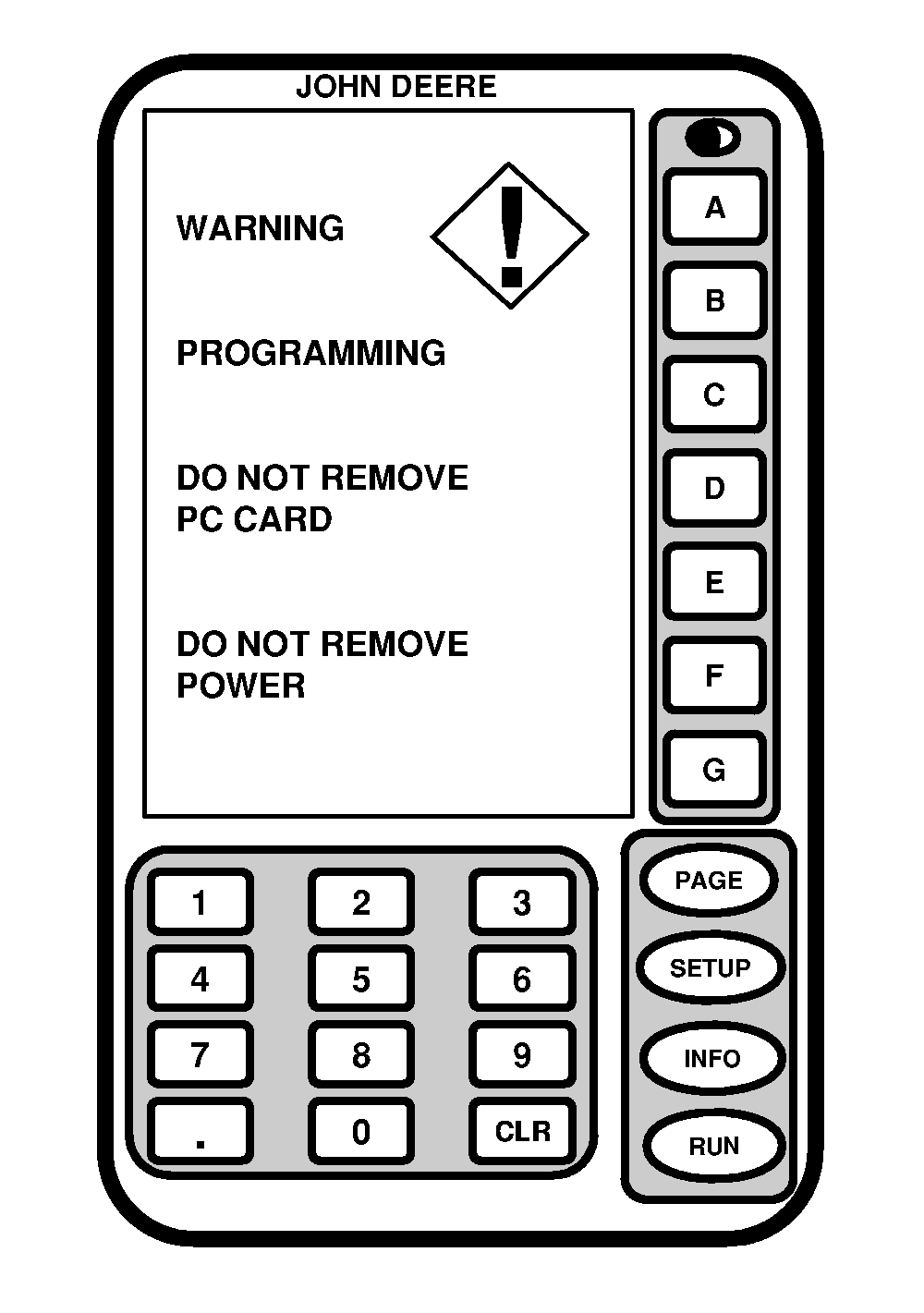
Wait until WARNING PROGRAMMING screen appears and follow directions on screen.
DO NOT REMOVE PC CARD DO NOT REMOVE POWER |
|
OUO6050,0000743 -19-10JUN04-3/5 |
|
|
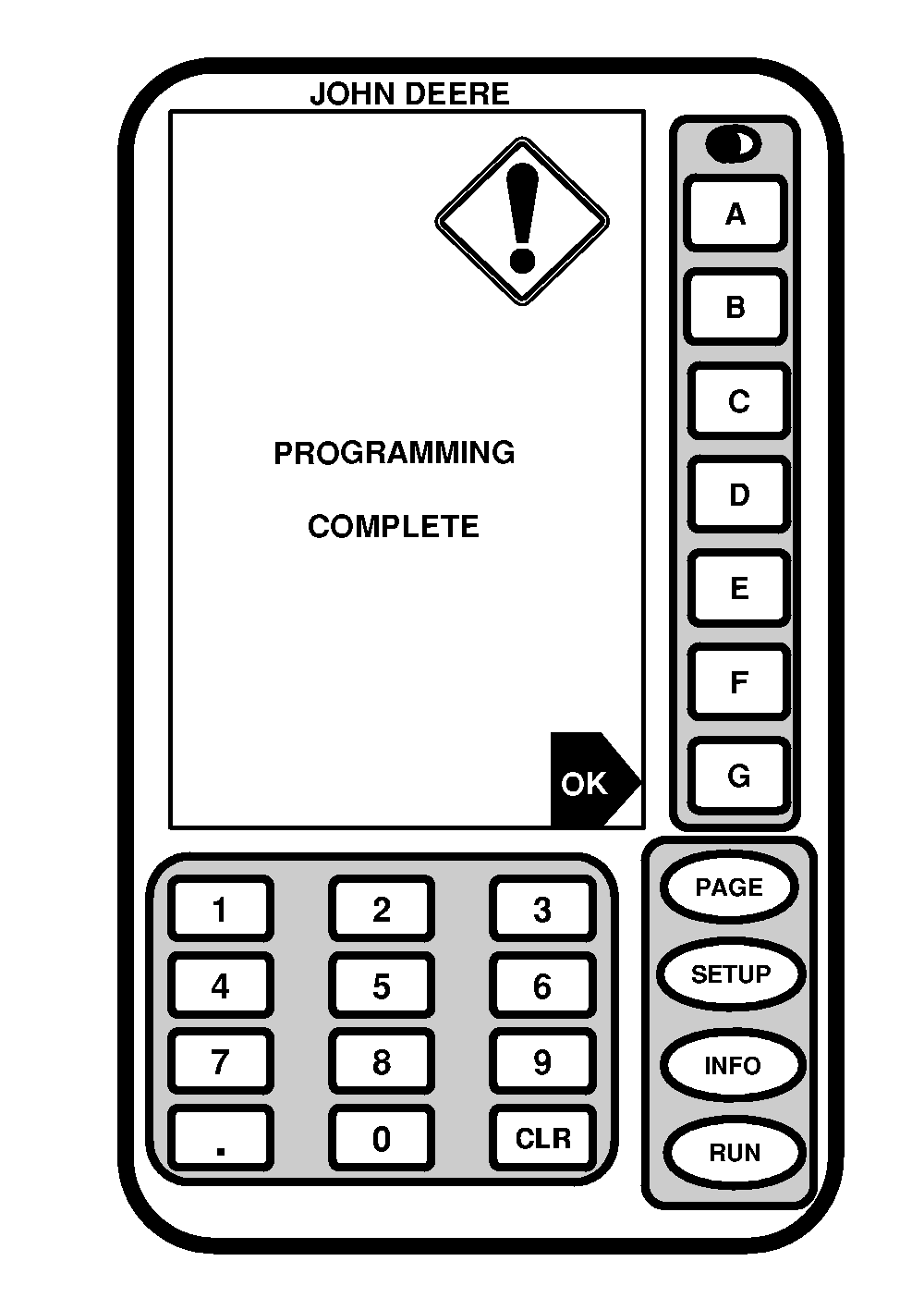
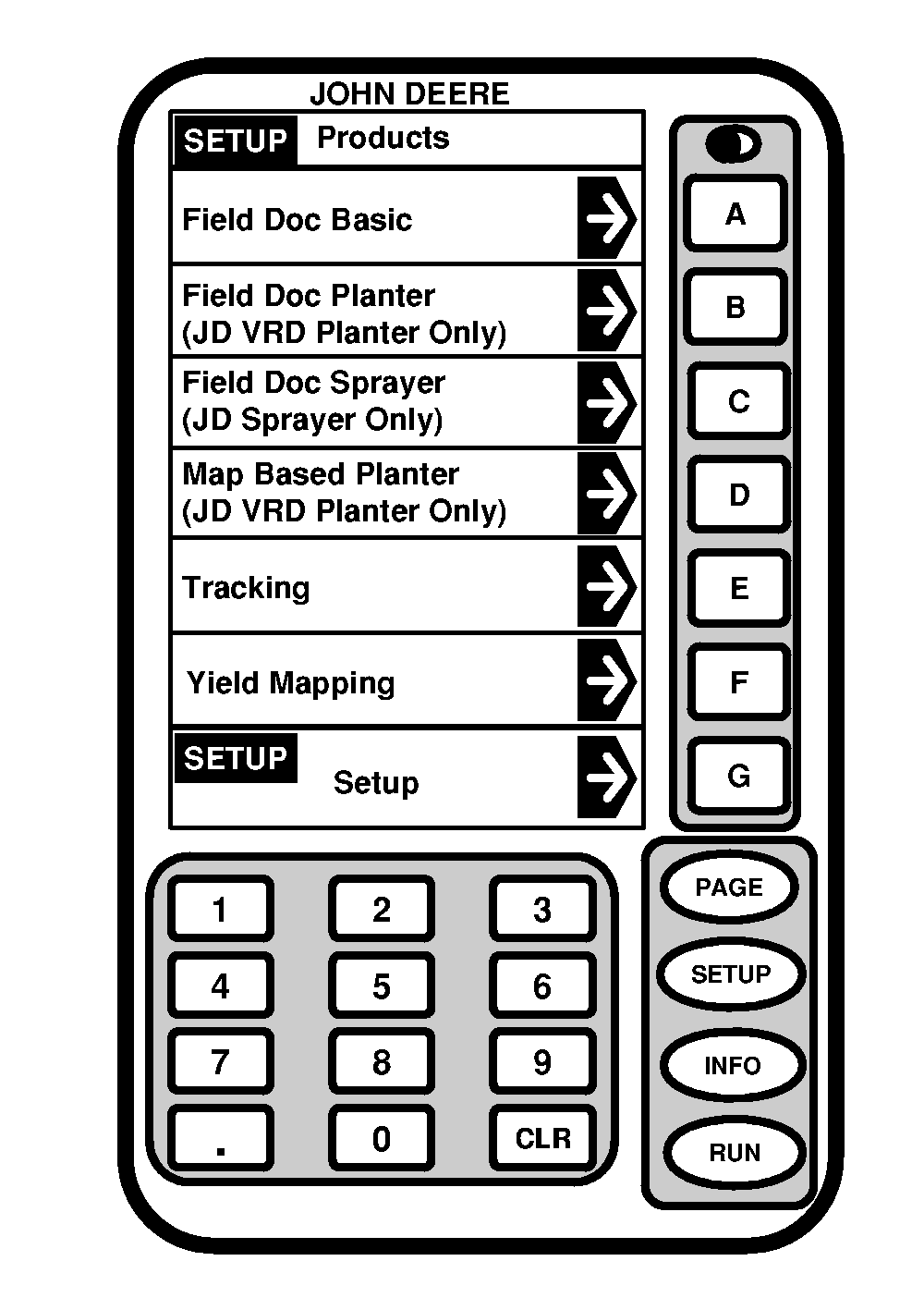
| 15. If PROGRAMMING COMPLETE screen appears, OK will be present in lower right corner. |
16. Press OK button. |
OUO6050,0000743 -19-10JUN04-4/5 |
|
17.
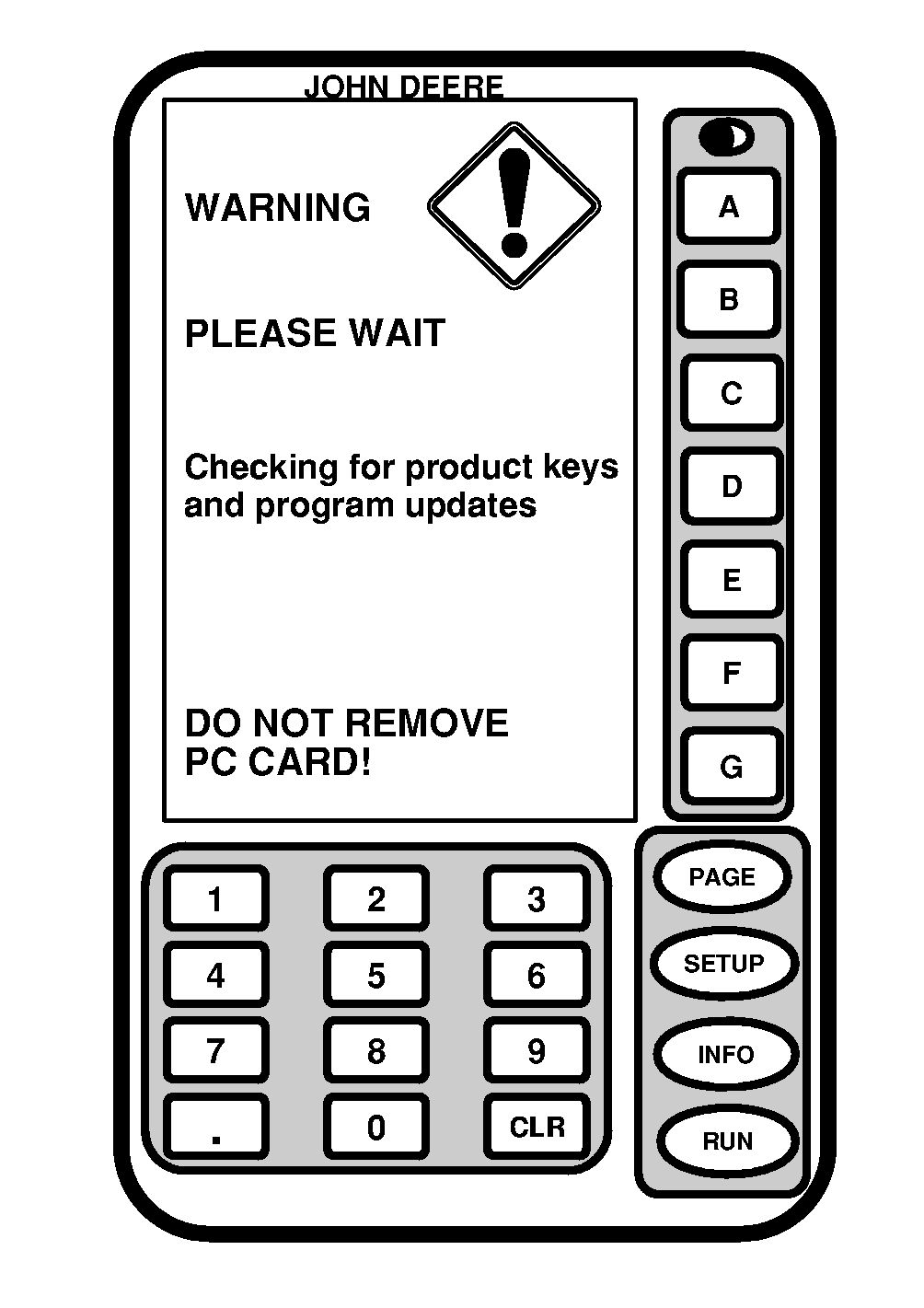
Checking for product keys and program updates warning page will appear shortly after power-up.
18. Press CONTINUE button to proceed with New Software Found For; screen if prompted (refer to Automatic Software Load section for complete procedures). 19. Cycle power when reprogramming is complete. |
|
OUO6050,0000743 -19-10JUN04-5/5 |