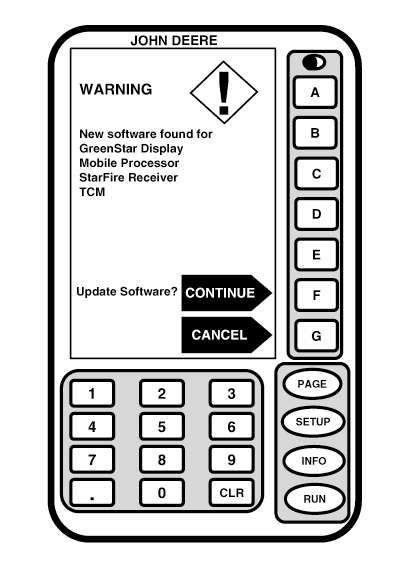
Automatic Software LoadNOTE: Before operating either guidance system, verify your KeyCard has latest software available. Acquire latest version of software on Internet at www.stellarsupport.com or contact your John Deere dealer. If you have Parallel Tracking or AutoTrac loaded on components and you insert a KeyCard with updated software into mobile processor, automatic software load should start after key switch is turned on. If Parallel Tracking or AutoTrac has not been previously loaded on components, proceed to step 2. IMPORTANT: During these procedures you will be instructed to select an available option since display screens illustrated on following pages are provided for reference only. Your actual screens may appear differently due to connection of optional devices and/or software version in use. 1. Insert KeyCard with updated software into mobile processor. NEW SOFTWARE FOUND screen should appear. Press letter button next to CONTINUE to update software or letter button next to CANCEL to exit.Once programming is complete, PROGRAMMING COMPLETE screen should appear. Cycle power to complete process. |
|
OUO6050,0001F00 -19-18OCT06-1/3 |
|
2.
Screen:
SETUP - KeyCard
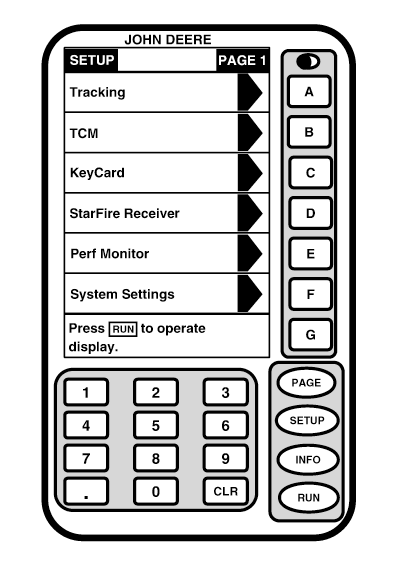
Press: SETUP >> KEYCARD This screen will show all systems available on your KeyCard. If several systems are available on your KeyCard and you do not see system selection you wish to download on this screen page, press PAGE button to view additional selections. 3. Press letter button next to guidance system you wish to load to mobile processor (TRACKING for Parallel Tracking or AUTOTRAC). 4. Mobile processor is now being loaded with chosen guidance system program. DO NOT REMOVE PC CARD DO NOT REMOVE POWER 5. When prompted, press letter button next to CONTINUE to update component or letter button next to CANCEL to exit. 6. While KeyCard software is being installed in mobile processor, system will check software version on mobile processor, display, and position receiver. If KeyCard contains a more recent version of software, system will ask operator if they want to update with most recent version of software. Press letter button next to CONTINUE if new mobile processor loader update software is found. |
|
OUO6050,0001F00 -19-18OCT06-2/3 |
|
NOTE: In order for automatic software load to operate correctly when two displays are being used, both displays (primary and auxiliary) must have most recent version of loader software. System will automatically update loader version for primary display. Auxiliary display must be manually updated. (See Re-programming Second Display in this section). 7. PROGRAMMING COMPLETE screen will appear once all components of system have been re-programmed. Cycle power to complete process. |
OUO6050,0001F00 -19-18OCT06-3/3 |