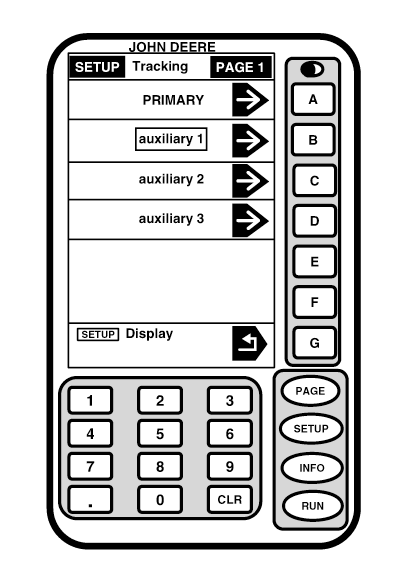
Re-Programming Second Display-If EquippedIMPORTANT: If AutoTrac/Parallel Tracking display is used with a second display on same wiring harness, AutoTrac/Parallel Tracking display address must be set to auxiliary 1 after it has been re-programmed. Other display (SPRAYSTAR or SEEDSTAR) address must be set to primary. When re-programming a system with two displays, only one display can be connected to wiring harness at a time. Disconnect wiring harness connector from display not being re-programmed then reconnect after programming is completed. Repeat procedure on second display. The main display (SPRAYSTAR or SEEDSTAR) must be set to primary display. Secondary display (Parallel Tracking/AutoTrac) must be set to AUXILIARY 1. |
OUO6050,0001F01 -19-18OCT06-1/6 |
|
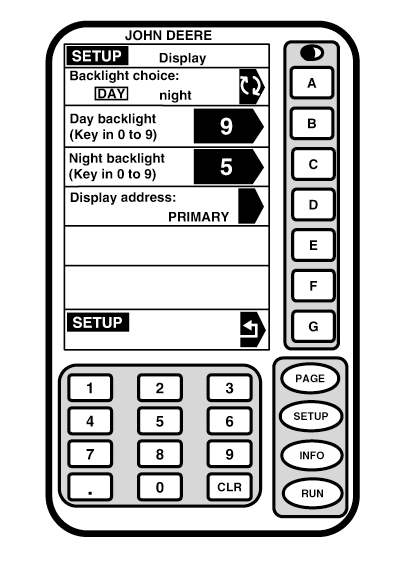
NOTE: The AutoTrac/Parallel Tracking display must be changed back to primary when operating as a stand alone display. The primary display (when operating dual displays) must be connected to CCD Bus in order for system to operate correctly. Make sure auxiliary display is attached to auxiliary harness. If tracking is on one display, then turned on other display original display will be turned off. Information (i,e, Curve Track or Track 0) will not be transferred between displays. 1. Screen: SETUP - TRACKING - PAGE 1Press: SETUP >> GREENSTAR DISPLAY >> DISPLAY ADDRESS
|
|
OUO6050,0001F01 -19-18OCT06-2/6 |
|
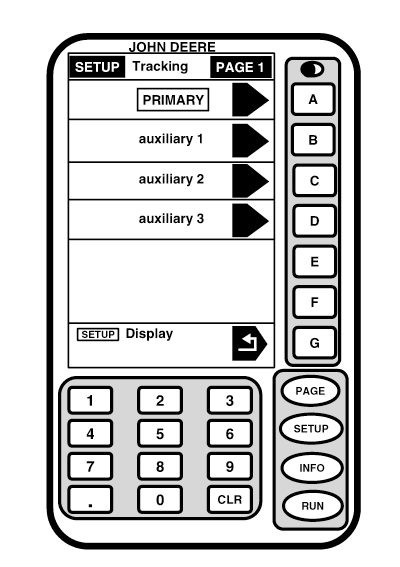
This screen allows operator to change address of Parallel Tracking/AutoTrac display. Press letter button next to AUXILIARY 1.
|
|
OUO6050,0001F01 -19-18OCT06-3/6 |
|
2.
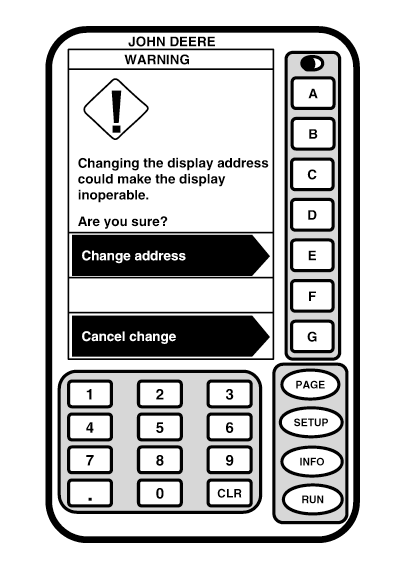
Warning screen will appear asking you to verify address change selected. Press letter button next to CHANGE ADDRESS to allow display address to be changed, or letter button next to CANCEL CHANGE to disregard selection.
|
|
OUO6050,0001F01 -19-18OCT06-4/6 |
|
3.
Press letter button next to SETUP DISPLAY to exit and return to SETUP screen or press RUN button to go to RUN - PAGE 1 screen.
4. Turn ignition switch off. 5. Disconnect wiring harness connector from Parallel Tracking/AutoTrac display. 6. Connect second display. 7. Turn power on and automatic software load should begin. Press letter button next to CONTINUE to update software. NOTE: When KeyCard software is installed in mobile processor and power is ON, system will check version of software on mobile processor, display, and position receiver. If KeyCard contains a more recent version of software, system will ask operator if they want to update with most recent version of software.
In order for automatic software load to operate correctly when two displays are being used, both displays (primary and auxiliary) must have most recent (
1. 7 or higher
NOTE: Re-programming will take a few minutes for each component. Press letter button next to CONTINUE if new software is found for any remaining component. 9. When programming is complete, PROGRAMMING COMPLETE screen will appear. OK may be displayed in lower left corner. Press G button. 10. Turn key switch to OFF. |
|
OUO6050,0001F01 -19-18OCT06-5/6 |
|
11.
Connect wiring harness connector to other display.
12. Turn ignition switch on. IMPORTANT: The display set to primary must be connected to main GreenStar wiring harness in order for AutoTrac to operate properly. Auxiliary display must be plugged into auxiliary harness. AutoTrac may be on either display. NOTE: When operating AutoTrac or Parallel Tracking with two displays, only one display can have AutoTrac or Parallel Tracking active at a time. An error message will be displayed if AutoTrac or Parallel Tracking are active on more then one display at a time on same CAN Bus. 13. Setup Tracking. (See SETUP section). |
OUO6050,0001F01 -19-18OCT06-6/6 |