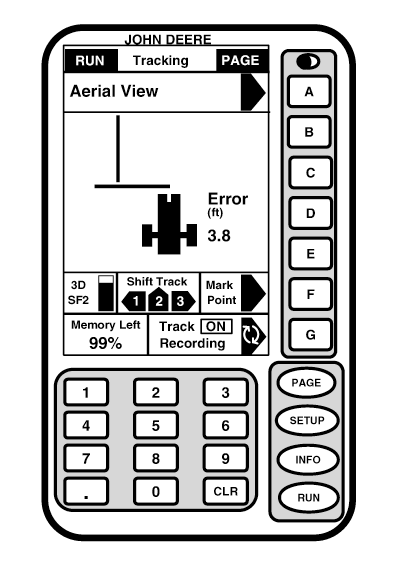
Curve TrackCurve Track Theory of Operation: Curve Track allows the operator to record a manually driven curved path. Once the first curved pass has been recorded and machine is turned around, the operator can Parallel Track or activate AutoTrac once the navigation bar appears indicating the next path has been propagated. The vehicle will be guided along subsequent passes, based off of the previous recorded pass. Each pass is generated from the original driven pass to ensure that steering errors are not propagated through the entire field. The passes are not a identical of the original pass. The curvature of the pass changes to maintain pass to pass error. When necessary, the operator can change the curve path anywhere in the field by simply steering the machine off of the propagated path. NOTE: Skip pass is not available in Curve Track mode. IMPORTANT: The machine must be stopped in order to clear Curve Track memory. When operating Curve Track with ACCUDEPTH, after operator presses letter button next to CLEAR CURVE TRACK STORED DATA, system prompts user to cycle power to clear memory. NOTE: Clear Curve track memory before beginning a new field (see Setup Curve Track). All passes are recorded and amount of memory left is displayed in lower left hand corner of RUN screen. If memory becomes full, memory must be cleared (see Setup Curve Track). Operating Curve Track |
|
OUO6050,0001F10 -19-29NOV06-1/7 |
|
IMPORTANT: RTK Absolute Base Mode is required in high accuracy applications when repeatability is needed. Only RTK Absolute Base Mode provides consistent repeatability and accuracy in Curve Track. IMPORTANT: Recording has to be on to record initial pass and to propagate and record all subsequent passes. To start using Curve tracking, press letter button next to TRACK RECORDING to start recording. Recording only needs to be turned off if machine is driven outside of normal field pattern (i.e. to refill sprayer, etc.). Recording can be left on when turning at end of each pass. NOTE: When using AutoTrac Curve Track, vehicle will try and follow previous turn when recording is left on during end turns. Operator needs to be prepared to turn vehicle into next pass. NOTE: A slight delay in appearance of navigation and driving indicator maybe noticed when a large number of line segments have been recorded. Recording only needs to be turned off if machine is driven outside of normal field pattern (i.e. refill sprayer, planter, three point turns) or if customer does not want to record turns at end of field or in headlands. Turning recording on/off must be done manually. Recording can be left on when turning at end of each pass if desired. Drive initial pass. |
OUO6050,0001F10 -19-29NOV06-2/7 |
|
NOTE: No navigation bar will appear until end of pass is reached and machine is turned around. Once machine is turned around, system will begin searching through recorded line segments to determine path to guide on. System locates a line segment path to guide on. System locates a line segment that is parallel and within 1/2 to 1/1/2 implement widths. The navigation bar will appear from which the operator can navigate from. Shift Track will only shift the recorded line segment in on direction based off of the orientation of the line segment you are currently on. When running with AutoTrac, operator will then press resume to begin automatically steering along the ideal adjacent path. When operator takes control of steering, curve track will record path operator drives. That section on the next pass will be projected off of manual driven section. Record and Repeat This feature allows the operator to recall saved curve track data (paths) for a field and guide on the recorded passes. The operator can also manually drive an entire field or defined pattern with record button on and then repeat the recorded paths with record button off.
Example: Using Record and Repeat Drive into field where a pass (can start on any pass) is located. |
OUO6050,0001F10 -19-29NOV06-3/7 |
|
When the path the machine is to guide off of is highlighted, press resume switch (AutoTrac only) and machine will automatically steer on that pass. In Parallel Tracking (manual guidance) the operator will be guided off of the recorded pass. IMPORTANT: Do not turn the Record button on. Record and Repeat does not require the record button be on unless the operator is redefining a path. Guiding around Obstacles in Field When operating Curve Track in a field and an obstacle is encountered such as a well head, telephone pole, or power line, the operator must drive around these obstacles. Recording ON If recording is left on while driving around an obstacle that deviation to the propagated path will be recorded and become a part of the path. On the next pass when you approach the area in the field the propagated path for the pass that the machine is on will have incorporated that deviation and the machine will steer along that deviation. To straighten out that deviation, the operator must take over manual steering of the machine and straighten out the deviation. Once the operator has driven past the deviation in the field and reacquired the intended path the resume switch may be engaged and AutoTrac will take over machine steering. Recording Off If recording is turned off when the obstacle is approached and steered around and then recording turned back on once the obstacle has been navigated around the AutoTrac engaged to finish the pass, there will be a gap in the recorded path where the obstacle is. On the next path when the machine approaches the gap the operator must take over manual steering of machine and navigate through the gap. Once the gap has been navigated and the propagated path is reacquired (navigation bar appears), AutoTrac can be engaged and the gap will not appear in subsequent passes. |
OUO6050,0001F10 -19-29NOV06-4/7 |
|
Saving Curve Track Data Curve track data (paths) are saved to the memory in the GreenStar Display. Data can be saved by field number to a data card. (see SETUP Curve Track section). NOTE: A data card and mobile processor are required to transfer curve track data from GreenStar Display to data card. Retrieving Curve Track Data Curve Track data is stored to the GreenStar Display unless it has been transferred to a data card. If the curve track data has not been transferred to a data card or cleared from the display, curve track will automatically find the stored paths when the vehicle is in the field from which they were recorded. If the curve track data was transferred to a data card and cleared from the GreenStar display. It will have to be transferred back onto the display from the data card (see SETUP Curve Track section). Clear Curve Track Data If curve track data has been recorded previously and the operator does not want to use it for repeating paths or if GreenStar Display memory is full due to stored curve track data or if curve track data has been transferred to data card, the curve track data can be cleared. When curve track data is cleared it will clear all curve track data on the GreenStar Display, it will not clear curve track data that has been transferred to data card (see SETUP Curve Track section). Guidance Patterns Capable with Curve Track
The method of searching all line segments allows an operator to drive and be guided along a variety of field patterns: |
|
OUO6050,0001F10 -19-29NOV06-5/7 |
Shift Track Operation The use of shift track is not recommended when using Curve Track. Shift Track will not compensate for inherent GPS drift in Curve Track mode. These methods of recording all line segments allows an operator to drive and be guided along a variety of fields patterns: back and forth Curve track, race track, or box pattern. |
|
OUO6050,0001F10 -19-29NOV06-6/7 |
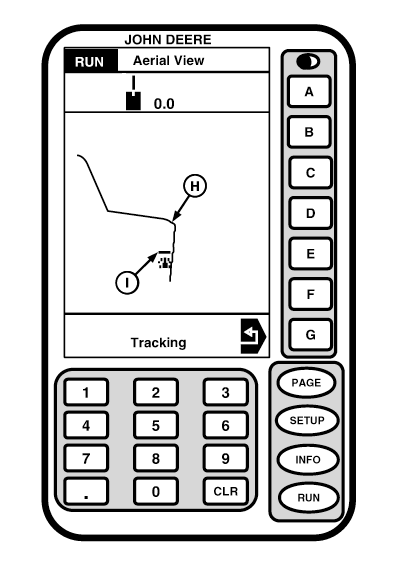
Pressing A button on RUN - TRACKING full page screen will allow operator to access aerial view navigation screen. This screen allows operator an additional view of machine moving through field. Screen will show navigation bar and track error in cell A. Display line (H) shows path system is using to guide machine as recorded by system. Thicker portion of line represents how far ahead system is looking as determined on SETUP - TRACKING - PAGE 1 screen. Line (I) represents implement width as selected on SETUP - TRACKING - PAGE 1 screen. By pressing 0-9 on numeric keypad operator can zoom in or out. The aerial view is designed as an aid to help operator see what path system is following. For precise guidance, continue to use vehicle icon and navigation bar in cell A. Press G button to return to RUN - TRACKING full page screen. Pressing RUN button will take you to RUN - PAGE 1 screen. |
|
OUO6050,0001F10 -19-29NOV06-7/7 |