Shared Base Station Security-Setup
|
|
|
|
|
|
|
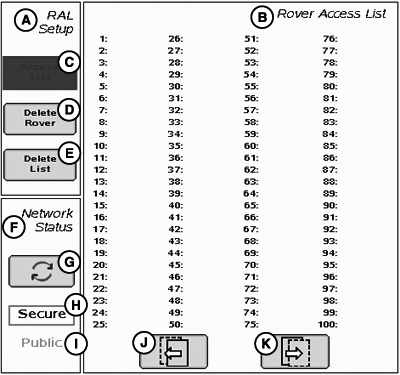
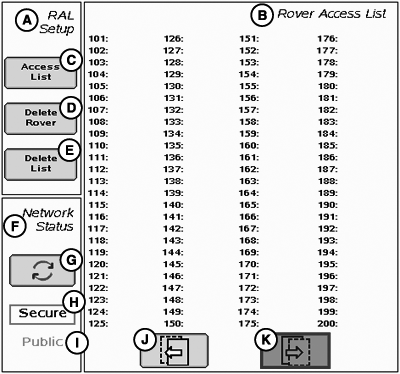
Network ID must be set between 4000 - 4090 to setup and use SBS RTK security. When the network ID has been set between 4000 - 4090, the SBS RTK Security softkey will appear. Select this softkey to setup SBS RTK Security. The SBS RTK Network operator will enter into the base station the serial numbers of RTK vehicle receivers that are allowed to access the RTK corrections from that base station. RTK vehicle serial numbers can be added and removed at any time. Only those rover serial numbers that are on the access list on the base station receiver will be allowed to access the RTK corrections from the base station. The StarFire iTC - Shared Base Station Security screen displays the RTK vehicle receiver serial number and location it is stored. Only the serial numbers on the RAL will be able to receive RTK corrections from the base station when RTK Network is in SECURE mode. Access List button (C) allows operator to input the serial number of a receiver into the Access List. |
Delete Rover button (D) allows operator to remove a receiver from the Access List. Delete List button (E) allows operator to clear all inputted receiver serial numbers from the Access List. SBS Security can be operated in a Public or Secure mode.
Network Status (F) can be toggled between secure status (H) and public status (I) using button (G). |
JS56696,00005B5 -19-13MAY09-1/6 |
|
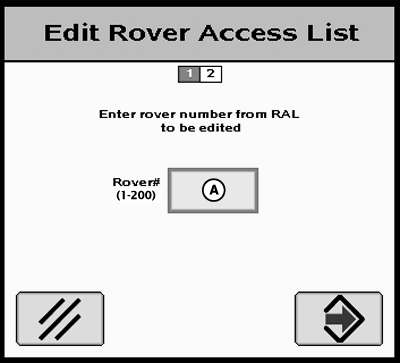
Edit Rover Access List 1. Press Access List button on StarFire iTC - Shared Base Station Security screen.2. Enter a rover number from the Rover Access List in the entry box.
|
|
JS56696,00005B5 -19-13MAY09-2/6 |
|
3.
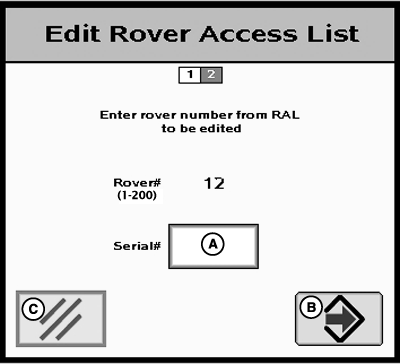
Enter the serial number of the vehicle receiver to be added to the Rover Access List in the entry box (A).
NOTE: The six digit hardware serial number can be found on StarFire iTC - Activations tab. Go to the display in RTK vehicle and press MENU >> StarFire iTC >> Activations tab. 4. Press Enter button (B) to put receiver on the Rover Access List. 5. Press Cancel button (C) to return to Rover Access List without adding receiver to list.
|
|
JS56696,00005B5 -19-13MAY09-3/6 |
|
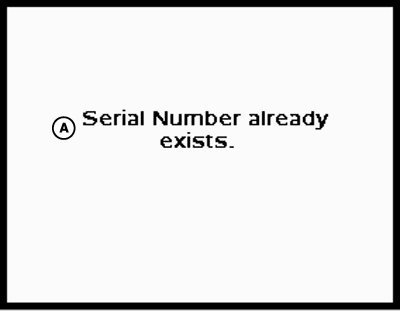
If the serial number is already entered on the Rover Access List, "Serial Number Already Exists." will appear on the screen. |
|
JS56696,00005B5 -19-13MAY09-4/6 |
|
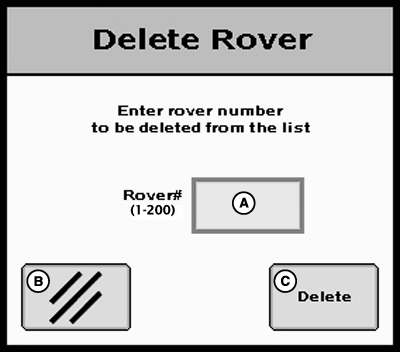
RTK vehicle serial numbers can be deleted individually or the entire list can be deleted. Deleting individual entries: 1. Press Delete Rover button on StarFire iTC - Shared Base Station Security screen.2. Enter rover number to be deleted from the list. 3. Press Delete button (C) to delete the rover from the list. NOTE: Once a RTK vehicle serial number has been deleted from the RAL, it will take approximately 18 minutes before the RTK vehicle will not longer be able to operate off of that base station. During this time the vehicle will transition into RTK extend. NOTE: Verify rover has been deleted by viewing RAL list . |
|
JS56696,00005B5 -19-13MAY09-5/6 |
|
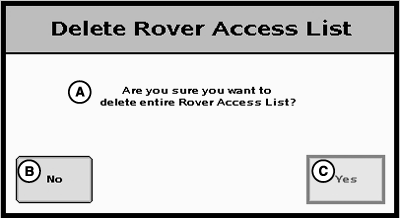
Deleting All Entries: 1. Press Delete List button on StarFire iTC - Shared Base Station Security screen.2. Press Yes button (C) to delete all receivers from the list. NOTE: Press No button (B) to return to StarFire iTC - Shared Base Station Security screen without deleting all the receivers from the list. |
|
JS56696,00005B5 -19-13MAY09-6/6 |