How to Set Up Harvest Monitor (for Combines) on a GS2 Display
PC10341-UN-29SEP07
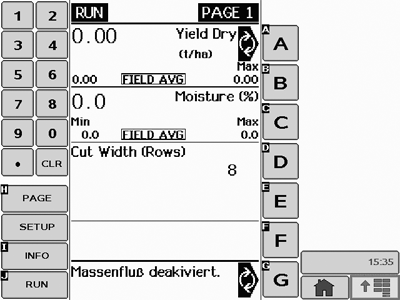
Harvest Monitor in emulation mode
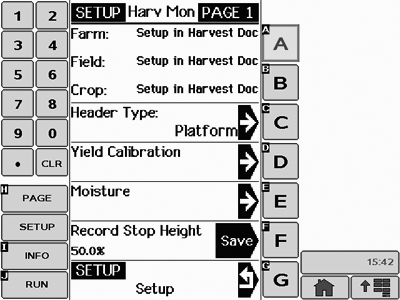
When you install your GS2 on a combine you have to set up Client, Farm, Field and Task (CFFT) in Harvest Doc. The corresponding moisture curve and the header type in HMON will be selected automatically. HMON stand-alone is not available on the GS2—you will have to run documentation.
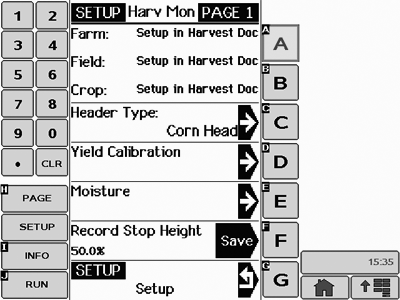
Please use the following guidelines to set up your HMON/GS2 for harvesting. Harvest Monitor on GS2 will be displayed in emulation mode.
PC10342-UN-29SEP07
PC10343-UN-29SEP07
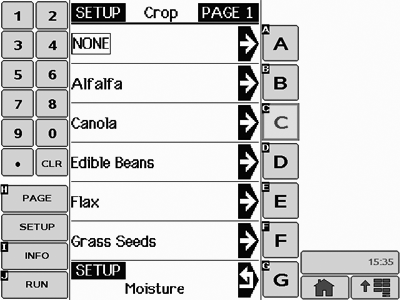
You will have to set up Farm, Field and Crop in Harvest Doc. If these are not selected in HDOC, HMON won’t select a moisture curve and will show “Corn Head” as default header type (on every start-up).
PC10787-UN-06NOV07
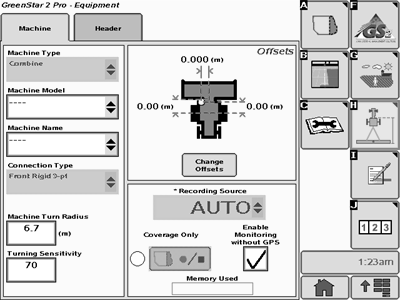
When a moisture sensor is connected to the CAN bus the GS2 will automatically detect “Combine” as machine type. See GS2 Pro—Equipment page, button H.
PC10345B-UN-05APR09
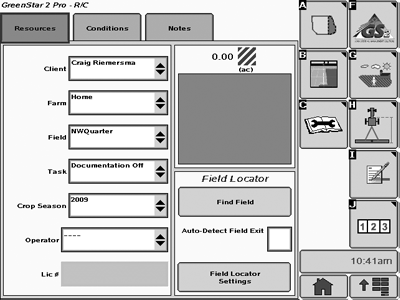
First, set up Client, Farm, Field and Task (CFFT). See Resources/Conditions page, button G.
PC10346B-UN-05APR09
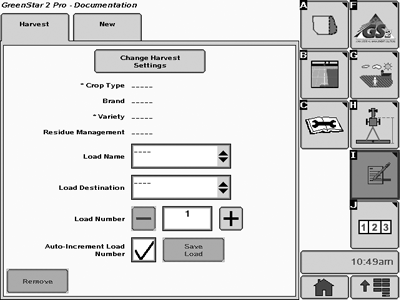
Afterwards a “Harvest” task will be displayed on the Documentation screen (I).
PC10347-UN-29SEP07
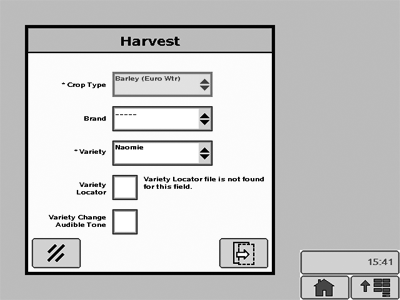
IMPORTANT: Crop type and variety are mandatory settings for documentation and moisture curve selection.
By pushing the button “Change Harvest Settings” you can reach the menu to enter crop type and variety (among other things).
PC10348-UN-29SEP07
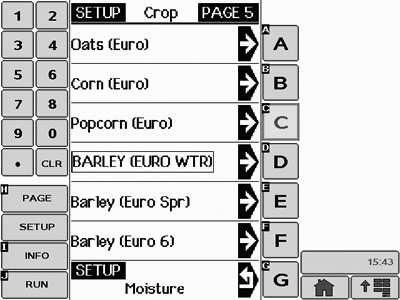
With crop type and variety selected in HDOC, Moisture Curve and Header Type settings are made in HMON automatically. See Setup – HMON—Moisture—Moisture Curve.
PC10349-UN-29SEP07
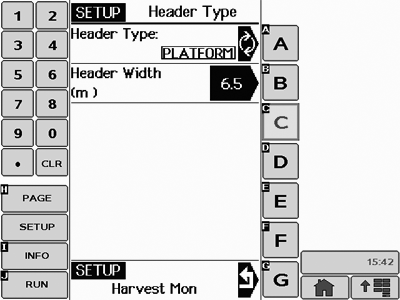
For Corresponding header type, see Setup—HMON—Header Type (e.g. “platform”, when barley is selected).
PC10350-UN-29SEP07
PC10351-UN-29SEP07
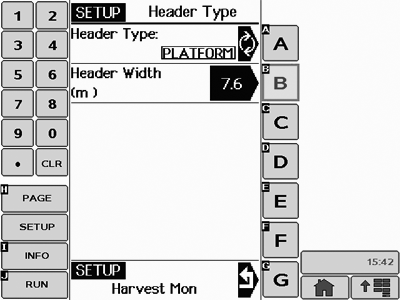
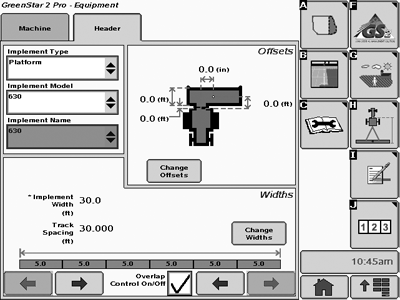
Afterwards, you can set up the header width (if needed).
PC10655B-UN-06APR09
This working width will also be used by the GS2 for “implement width”.
PC10353-UN-29SEP07
IMPORTANT: The working width will be stored on the moisture board. Header type and moisture curve will be selected automatically when a corresponding crop type and variety are selected in HDOC.
The crop type will be saved when the GS2 is shut down correctly. You will have to re-select it, when you delete the data from your data card or put in a new one.
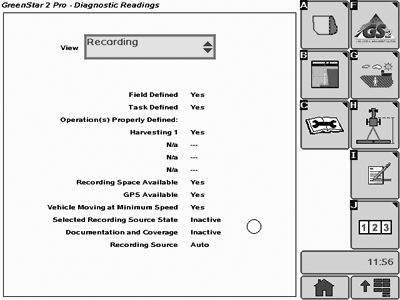
You have the ability to check the correct settings for HDOC by choosing “Recording” in the drop-down menu of the Diagnostics Readings page (button C)
PC10354B-UN-06APR09
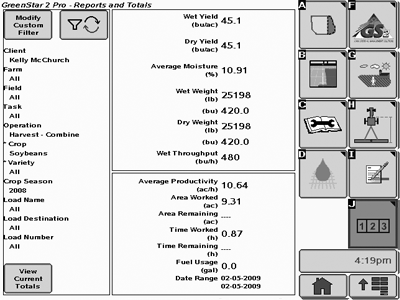
The Totals page (J) will only be available when your harvest operation is properly defined.
PC10355-UN-29SEP07
PC10356B-UN-06APR09
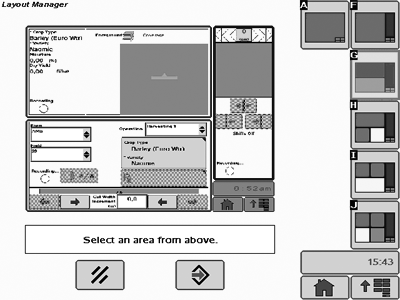
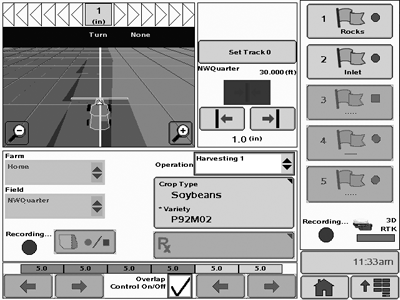
You have the ability to set up your Run page the way you prefer (Main menu—Layout Manager [J]). We would suggest using the following layout on combines.
JS56696,00004F0-19-20090901 |