Auxiliary Control Safety Signs
Auxiliary Control Detected
ZX1042319-UN-04DEC08
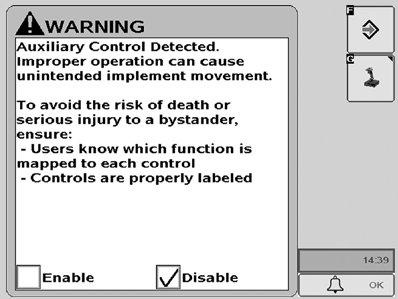
 CAUTION: Auxiliary Control Detected
Improper operation can cause unintended implement movement.
To avoid the risk of death or serious injury to a bystander, ensure:
- Users know which function is mapped to each control
- Controls are properly labeled
This message occurs when the system detects an Auxiliary Control. Press ”Enter” key F to navigate to the home page. Go to the Auxiliary Controls page by pressing the ”Mapping” key G to review or change the Auxiliary Control assignments.
If ”Disable” is selected (default), all Auxiliary Controls will be disabled.
If ”Enable” is selected, all Auxiliary Controls will be enabled.
Auxiliary Control Detected
PC10857RT-UN-22OCT09
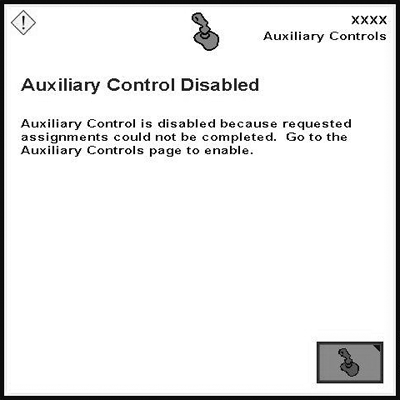
CAUTION: Auxiliary Control is disabled because requested assignments could not be completed. Go to the Auxiliary Controls page to enable.
Improper operation can cause unintended implement movement.
This message occurs when the system detects an Auxiliary Control and at least one of the requested assignments could not be completed. It is necessary to check the Auxiliary Controls page by pressing the ”Mapping” key G and review the assignments before Auxiliary Control can be enabled.
Auxiliary Control Configuration Changed
ZX1042512-UN-04DEC08
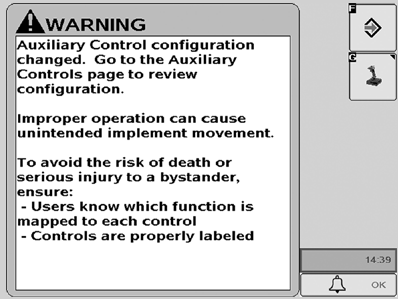
CAUTION: Auxiliary Control configuration changed. Go to the Auxiliary Controls page to review configuration.
Improper operation can cause unintended implement movement.
To avoid the risk of death or serious injury to a bystander, ensure:
- Users know which function is mapped to each control
- Controls are properly labeled
This message occurs when the system detects an Auxiliary Control and that configuration has been modified during run time (e.g. additional input and/or implement added). Press ”Enter” key F to navigate to the home page. Go to the Auxiliary Controls page by pressing the ”Mapping” key G to review or change the Auxiliary Control assignments.
Auxiliary Control Configuration Changed
PC10857RU-UN-22OCT09
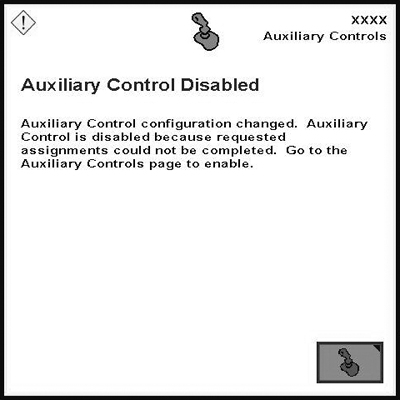
CAUTION: Auxiliary Control configuration changed. Auxiliary Control is disabled because requested assignments could not be completed. Go to the Auxiliary Controls page to enable.
This message occurs when the Auxiliary Control configuration has been modified during run time (e.g. additional input and/or implement added) and at least one of the requested assignments could not be completed. It is necessary to check the Auxiliary Controls page by pressing the ”Mapping” key G and review the assignments before Auxiliary Controls can be enabled.
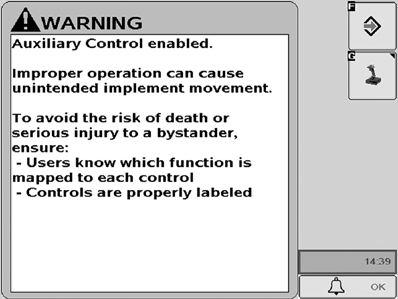
Auxiliary Control Enabled
ZX1042322-UN-04DEC08
CAUTION: Auxiliary Control enabled.
Improper operation can cause unintended implement movement.
To avoid the risk of death or serious injury to a bystander, ensure:
- Users know which function is mapped to each control
- Controls are properly labeled
This message occurs when the operator enables the Auxiliary Control manually. Press ”Enter” key F to navigate to the home page. Go to the Auxiliary Controls page by pressing the ”Mapping” key G to review or change the Auxiliary Control assignments.
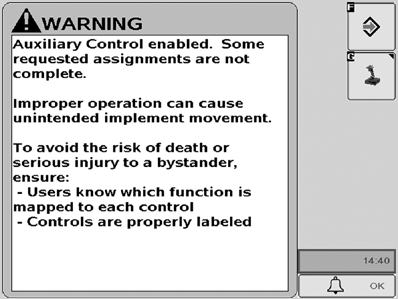
Auxiliary Control Enabled
ZX1042321-UN-04DEC08
CAUTION: Auxiliary Control enabled. Some requested assignments are not complete.
Improper operation can cause unintended implement movement.
To avoid the risk of death or serious injury to a bystander, ensure:
- Users know which function is mapped to each control
- Controls are properly labeled
This message occurs when Auxiliary Control has been enabled manually, however, not all assignments have been completed successfully. Press ”Enter” key F to navigate to the home page. Go to the Auxiliary Controls page by pressing the ”Mapping” key G to review or change the Auxiliary Control assignments.
IMPORTANT: If the ”Enter” key F is selected, the implement only follows the assignments which have been completed successfully, however, there are still assignments which are not complete. It is necessary to review the Auxiliary Controls mapping screen by pressing the ”Mapping” key G and complete all assignments before enabling Auxiliary Controls.
OUCC002,0002A57-19-20091028 |