Driven Headland Offset Boundary
PC10493-UN-11OCT07
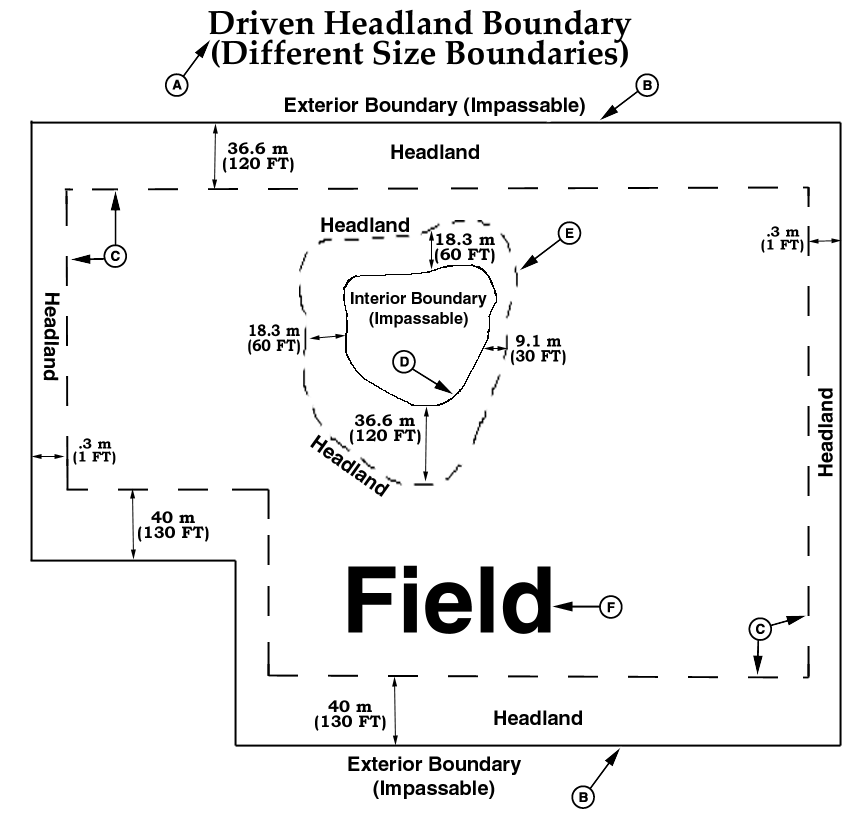
Driven Headland Boundary (Different Size Boundaries)
A - Driven Boundary (Different Size Boundaries)
B - Exterior Boundary (Impassable)
C - Exterior Headland
D - Interior Boundary (Impassable)
E - Interior Headland
F - Field
Creating a Driven Boundary
Select MAPPING softkey >> BOUNDARIES tab.
Select the Client, Farm, and Field from the drop-down menus.
Choose TYPE of boundary you want to drive from the drop-down menu.
Select DRIVEN from the creation method drop-down menu for Exterior Headlands or place a check in the DRIVE BOUNDARY check-box for Interior Headlands.
Enter the distance from the GPS receiver to the edge of the field. This can be done during the first pass around the field and then the distance would be half the implement width.
Choose whether the boundary will be left or right of the tractor’s receiver, or left or right of the implement’s calculated position.
NOTE: Select the toggle button to record left or right of either the tractor receiver or the implement. If set from the implement, the location will be left or right of the rear of the implement.
IMPORTANT: When toggling the button to change the recording position, recording must be PAUSED or OFF.
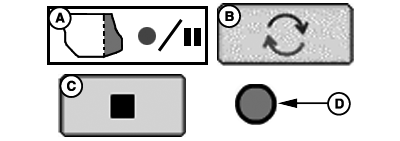
PC10501A-UN-21OCT08A - Record/Pause Button
B - Toggle Button
C - Stop Recording Button
D - Recording Indicator Light
Press the Record/Pause button at least 1 or more seconds after the vehicle begins moving forward around the section of the field for the boundary being recorded. Record light should blink red and pink when recording is on. If you need to pause recording to drive around an obstacle, press the Record/Pause button. Record light will show solid red. When Record/Pause button is pressed again, recording will resume. The boundary will show a straight line from where recording was paused to where it was resumed.NOTE: Many times the boundary should be recorded around an obstacle so iTEC Pro can alert the operator of these obstacles.
If recording was started along a straight section of the boundary, the Stop button can be pressed after turning the last corner near the straight section. If recording was started in a corner, press the Stop button just prior to the point where recording was started. Make sure the point where recording was stopped does not intersect the point where it was started. Pressing the stop button will complete the boundary by showing a straight line between the point where it was stopped and the starting point.
OUO6050,0000E76-19-20090930 |