Viewing Filtered Totals Reports
The GreenStar 2 Pro field documentation system also allows you to view totals for other operations or to view the accumulated data for several fields or even several years. This allows you to have some of the power of the Apex desktop system in the cab.
NOTE: Apex is not available in all EAME countries.
The filtered totals reports can only operate on data that is present on the data card. If the card has been cleared or if operations have been performed using a different card, that data is not be available for reporting.
PC10857IU-UN-25MAR09
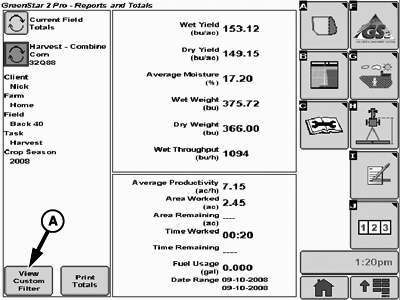
A - View Custom Filter button
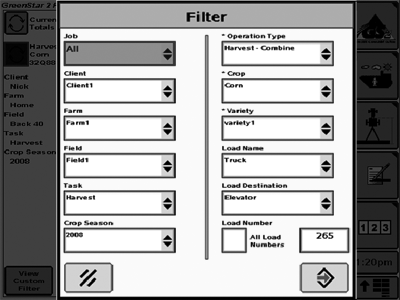
The filtered totals are seen by selecting the View Custom Filter button (A) at the bottom of the totals screen.This will bring up the Custom Filter dialog box.
PC10857IV-UN-25MAR09
All of the other fields can either be left as All, or specific values can be chosen.
Press the Enter key to create the report.
If you have a lot of data on the card, generating the report takes longer, particularly if you are performing an operation at the same time. While the report is being created, you can view other screens normally. The display lets you know when the report is complete.
PC10857IW-UN-25MAR09
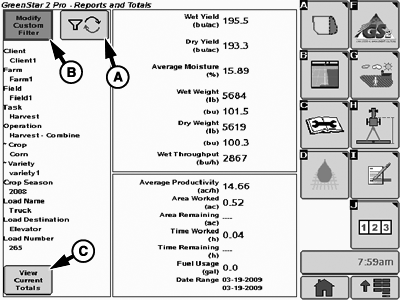
A - Refresh Filter Button
B - Modify Custom Filter Button
C - View Current Totals Button
When you return to the report screen, you see the results of your custom filter. This screen is like the current totals screen, with the exception that the left-hand box now shows the custom fitter that was used.The results on the custom filter report include the current totals for the operation that you are performing, if it matches the filter that you specified. The current totals are included as of the time that the report was created. If you would like to refresh the screen to show more recent data, you can press the Refresh filter button at the top of the screen (A).
You can change the custom filter by pressing the Modify Custom Filter button, which brings up the custom filter dialog box again.
You can also return to the current totals by pressing the View Current Totals button at the lower left of the screen.
OUO6050,000107F-19-20090511 |