ADVANCED PERFORMANCE MONITOR (APM)
PC9134-UN-17APR06
APM Icon
This section covers only those additional functions that become available when operating APMThe APM is only available on CAN electronic based John Deere vehicles with a TECU controller which include the following:
|
Tractors |
8030’s |
|
|
7030’s |
7020’s |
|
|
6020’s |
||
|
Combines |
9060’s |
9050’s |
If the GS3 display is connected to one of the vehicles above, the UPM automatically becomes disabled and will not be a selectable option in the menu.
The APM application contains all functions of the UPM plus an additional 7 functions.
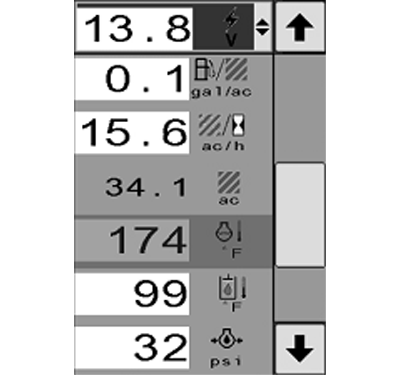
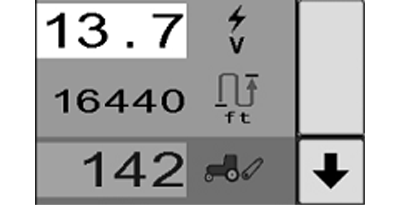
When the GS3 Display is connected to John Deere CAN electronic based vehicles the following real-time functions become available:
- Wheel and Radar or GPS Speed
- % Wheel Slip
- Instantaneous Productivity
- Area Counter
- Distance Counter
- Engine Speed (RPM’s)
- Rear Hitch Position
- System Voltage
- Engine Coolant Temp
- Engine Oil Pressure
- Hydraulic Oil Temp
- Transmission Oil Temp
Optional items based on vehicle platform and configuration are:
- PTO Status (Front & Rear)
- Fuel per Hour
- Fuel per Area
- Radar Connection and Calibration
PC9034-UN-17APR06
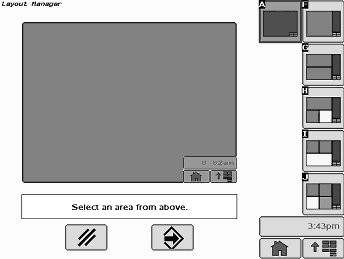
Layout Option A
PC9135-UN-18APR06
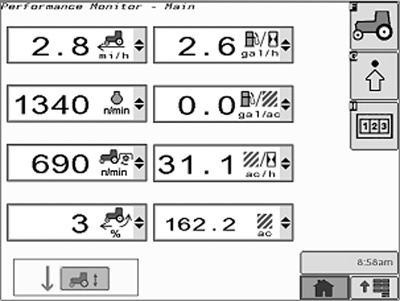
Run Screen for APM in Layout A
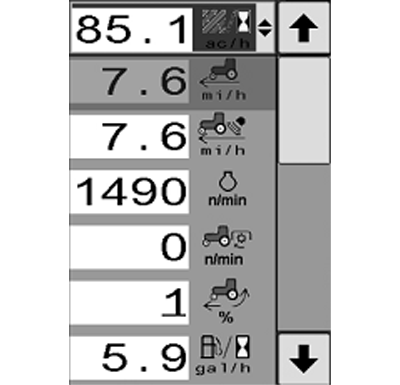
The APM is only available in layout manager option A as seen in the example image below. APM will not function in any other screen layouts currently.
PC9136-UN-18APR06
PC9137-UN-18APR06
PC9138-UN-18APR06
NOTE: 8030’s and 7030’s will NOT display TIME TILL EMPTY in the GS3 display even though it is available in the tractor command center.
Totals and Settings Screens will remain identical in both the APM and UPM applications.
PC9139-UN-18APR06
Out of Work
PC9140-UN-18APR06
In Work
In Work / Out of Work Status Indicator
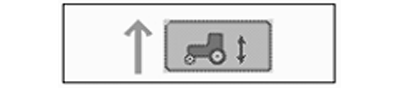
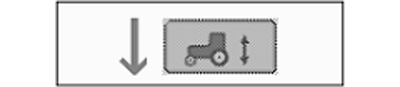
The arrow will change based on the recording source.
- UP Arrow—displayed when NOT working
- DOWN Arrow—displayed when working
Status Recording for SCV Flow on CAN-Based Vehicles
For SCV recording on CAN-Based vehicles, the SCV will only change recording status if the SCV paddle goes through a detent ‘click’, not by canceling flow.
If detent flow is set to some time less than ‘C’ continuous:
- Retract detent completed changes the status to "in-work"
- (If set to 5 seconds, state changes after 5 seconds of flow, not at start of flow)
- Extend detent initiated changes the status to "not in-work"
If detent flow is set to continuous:
- Retract detent initiated changes the status to "in-work"
- Extend detent initiated changes the status to "not in-work"
Each SCV remembers its status through power cycles.
|
CZ76372,00000B1-19-20100715 |