Using Documentation with Planters

PC10857TZ-UN-30MAR10
Planting/Seeding Tab
NOTE: If you are connected to a John Deere SeedStar Planter, a Planting/Seeding tab is automatically created.
If you are not connected to a John Deere SeedStar planter make sure you have selected the correct planter and number of rows on the equipment button.
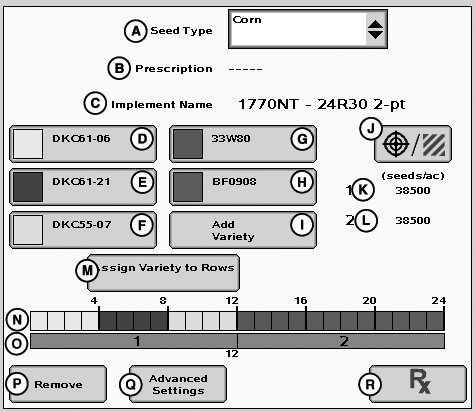
PC10857UA-UN-11MAY10
A - Choose Seed Type
B - Displays Prescription if Prescription is being used
C - Implement Name
D - Variety 1
E - Variety 2
F - Variety 3
G - Variety 4
H - Variety 5
I - Variety 6
J - Input Population on NON-SeedStar2
K - Displays Populations — Drive Section 1
L - Displays Populations — Drive Section 2
M - Assign Varieties to Rows
N - Individual Planter Rows
O - Drive Selections
P - Remove Tab
Q - Advanced Settings
R - Prescriptions
NOTE: Before setting Documentation, make sure the planter is fully set up and connected to the tractor. See your planter operator's manual for procedure.
Seed Type Selection
Select seed type from drop down box (A).
When choosing the seed type from the drop down, if the list is too long, the user may uncheck and retire seed types using APEX to simplify future seed selection.
Implement Selection
The implement name is not pre-populated. If using a John Deere SeedStar planter, only number of rows will be automatically populated.
Set up the implement using the Equipment Softkey “H” before setting up operation. MENU > GREENSTAR > EQUIPMENT “H”. If this step is not taken, you will be required to enter setup information twice.

PC10857UB-UN-30MAR10
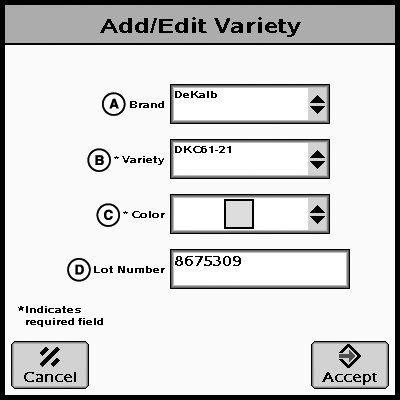
PC10857UC-UN-11MAY10
A - Brand
B - Variety
C - Color
D - Lot Number
Variety SelectionThe operator has the ability to document up to six varieties at one time.
Select Add Variety
Select from the drop down list of enter seed Brand (A) (Optional).
Select from the drop down list of enter seed Variety (B).
Select or allow automatic selection of the color that will represent the variety on the display and map (C).
NOTE: It is possible to manually select the same color for two or more varieties. Documentation will still occur for each individual variety, however the map will paint the colors that were chosen will make visual variety separation difficult.
Select and then enter the Lot Number using the key pad (D). (Optional)
Select ACCEPT.
NOTE: If six varieties have already been entered, entering a seventh variety will replace the first variety entered. This process will repeat for each new variety past six.
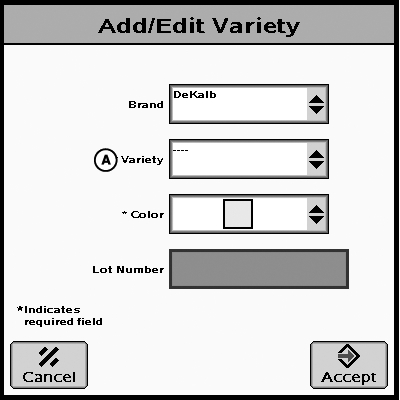
PC10857UD-UN-30MAR10
A - Variety drop down menu
Removing VarietiesOnce a variety has been entered it cannot be deleted or edited using the GreenStar Display. However, it is possible to remove a variety from view on the display.
Choose the variety you wish to remove from view.
From the variety drop down (A) , select the entry with the dashes.
Select Accept.

PC10857UE-UN-30MAR10
PC10857UF-UN-30MAR10
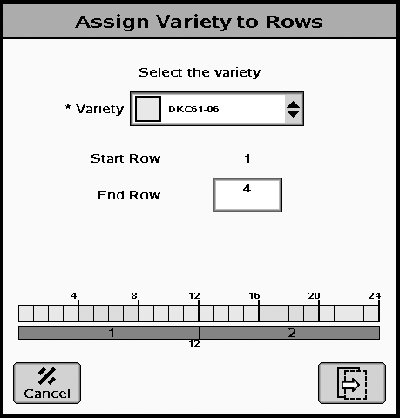
The operator may assign a variety to any number of row units, in any configuration up to six varieties may be chosen to document for any one planter
Select Assign Variety to Rows
Choose the variety that is to be assigned.
NOTE: Assigning varieties to rows will begin with Row Unit 1 on the left and continue in order to end of the planter on the right. As with any implement, right and left are determined as sitting in the seat, direction of travel when the implement is working.
Choose the End Row.
NOTE: The end row is the row in which the variety chosen is to stop. The row entered is included.
Assign Multiple Varieties
If multiple varieties are to be assigned select the page forward soft key.
Choose the next variety to be assigned.
Choose the end row. Notice that the start row is the row after the last end row. Example: Variety 1 was assigned to rows 1 through 4, page forward is pressed, the next start row will be 5.
Repeat this process until all rows of the planter that are dropping seed are assigned the correct variety.
If a row will not be planting, you must select and assign, Row Not Planting from the drop down list.
If a change needs to be made to a previous row assignment, pressing the page back key allows editing to occur to an earlier row variety.

PC10857UG-UN-30MAR10
1/2 Planter 3 Varieties
1/2 Planter Single Variety

PC10857UH-UN-30MAR10

PC10857UI-UN-30MAR10

PC10857UJ-UN-30MAR10

PC10857UK-UN-30MAR10

PC10857UL-UN-30MAR10

PC10857UO-UN-31MAR10
If using a John Deere SeedStar planter, this number is set using that monitor. This is also true for any compatible controller installed.
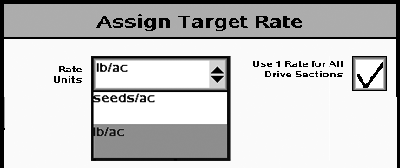
If using a non John Deere SeedStar planter, the target rate button is active on the GS3 display.
Select Target Rate Button
PC10857UP-UN-11MAY10
PC10857UR-UN-31MAR10
PC10857US-UN-31MAR10
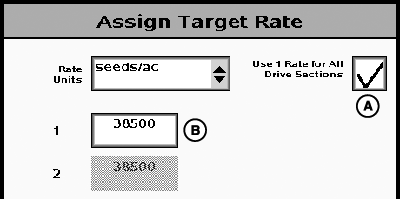
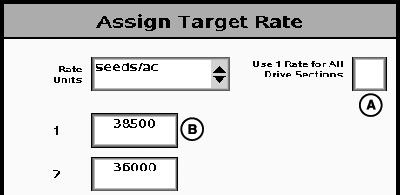
A - User 1 Rate for All Drive Selections checkbox
B - Target Rate
Select the target rate box (B) and enter the desired number on the key pad. If using a multiple drive planter check the box (A) to assign the target rate for each drive section on the planter. If multiple targeted rates are desired, un check box (A) and assign each drive section a targeted rate as performed on the first.
PC10857UT-UN-31MAR10
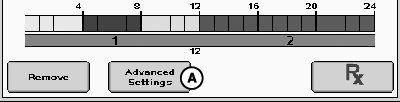
A - Advanced Settings button
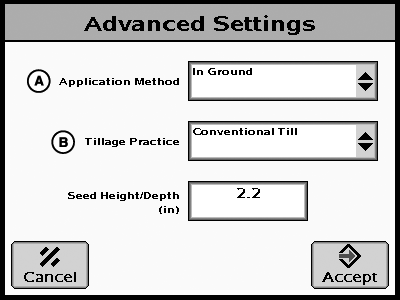
Advanced Settings (Optional)The advanced settings softkey allows the user to provide more information about the operation that is going to be recorded. This information will be available in APEX for later analysis.
Select Advanced Settings (A).
PC10857UU-UN-31MAR10
PC10857UV-UN-31MAR10
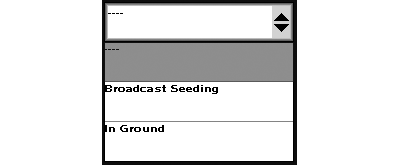
Advanced Settings (A)
PC10857UW-UN-31MAR10
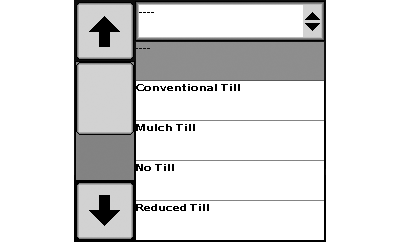
Tillage Practices (B)
Select Application Method (A).
Select Tillage Practice (B).

PC10857UX-UN-31MAR10
|
CZ76372,0000121-19-20100928 |