Straight Track Mode
Theory of Operation
PC9508-UN-24OCT06
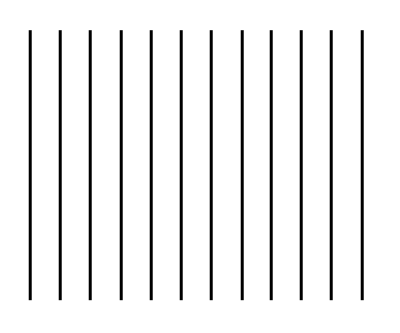
Passes are identical copies of the original pass.
Straight Track mode assists operator in driving straight parallel paths by using display and audible tones to alert operator when machine is off track.
Straight Track allows the operator to create an initial straight track using various different track 0 options. Once the Track 0 (reference path) has been defined, all passes for the field are generated. The generated passes can be used to operate Parallel Tracking or AutoTrac.
Track 0 Setup
PC12584-UN-28APR10
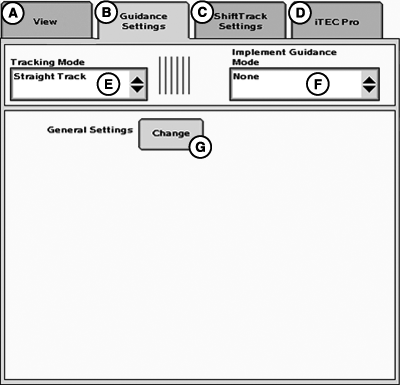
GreenStar 3 Pro - Guidance
A - View
B - Guidance Settings
C - Shift Track Settings
D - iTEC Pro
E - Tracking Mode
F - Implement Guidance Mode
G - General Settings
Set Tracking Mode (E) to Straight Track.
PC14241-UN-09DEC11
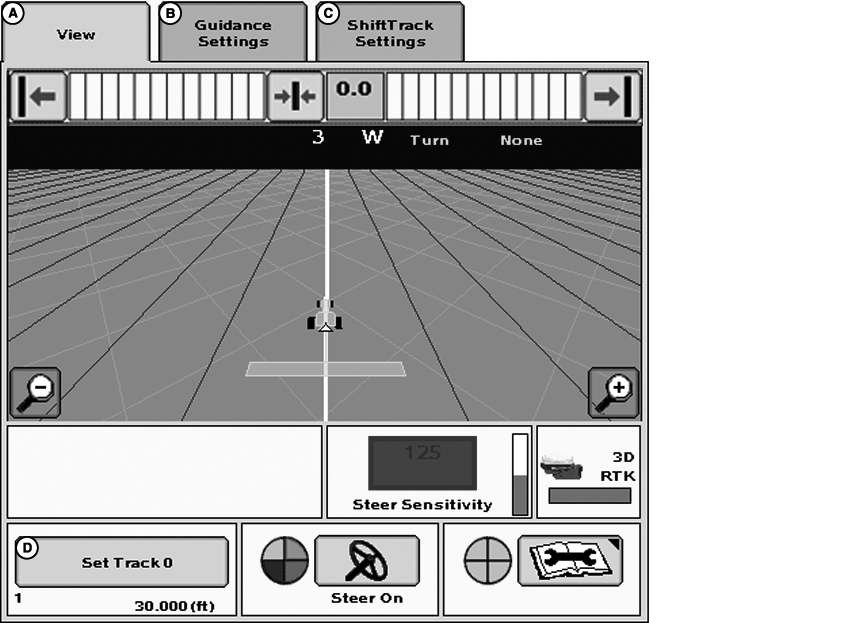
GreenStar 3 Pro - Guidance
A - View
B - Guidance Settings
C - ShiftTrack Settings
D - Set Track 0
NOTE: Track 0 and A-B lines are two terms used interchangeably, we will use term Track 0.
Track 0 is the reference point from which all parallel passes in field are based. Use the following procedures to set up Track 0 and Track Spacing.
Creating Track 0
-
GUIDANCE SETTINGS tab—Select STRAIGHT TRACK mode.
-
VIEW tab—Press SET TRACK 0.
-
Press NEW button below the CURRENT TRACK 0 drop-down box.
-
Enter a name for Track 0 using the alphanumeric keypad
-
Press ENTER button.
-
Select method to define Track 0 from METHOD drop-down box.
- A + B
- A + Heading
- Auto B
- Lat/Lon
- Lat\Lon + Heading
Methods of defining Track 0 are explained later in this section.
-
Choose which guidance line calculation is preferred.
-
Set Track Spacing
Track spacing can be defined two different ways:
-
Select track spacing button from Set Track 0 dialog box
- Enter implement width
- Enter desired track spacing
- Set track spacing from EQUIPMENT softkey >> IMPLEMENT 1 tab >> (See EQUIPMENT softkey section.)
-
Select track spacing button from Set Track 0 dialog box
-
Select one of the following methods, from the METHOD drop-down box, to create the A-B line.
- A + B
- A + Heading
- Auto B
- Lat/Lon
- Lat\Lon + Heading
A + B
-
PC16278-UN-19NOV12Set Track 0
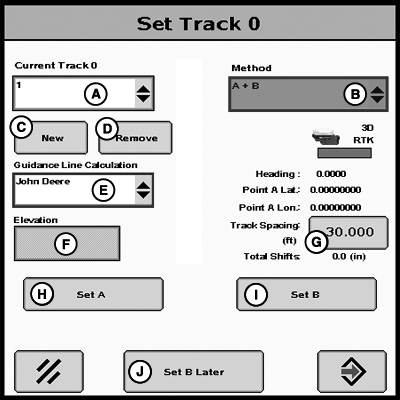
A - Current Track 0
B - Method
C - New
D - Remove
E - Guidance Line Calculation
F - Elevation
G - Track Spacing
H - Set A
I - Set B
J - Set B Later
Drive to desired location in the field. -
Press SET A button.
-
Drive vehicle to desired point B
-
NOTE: It is required to drive a longer distance than 3 m (10 ft.) to set point B.
Press SET B button.
-
Press ENTER button.
Set B Later
PC16278-UN-19NOV12
Set Track 0
PC16283-UN-19NOV12
Guidance View Page
A - Current Track 0
B - Method
C - New
D - Remove
E - Guidance Line Calculation
F - Elevation
G - Track Spacing
H - Set A
I - Set B
J - Set B Later
K - Set Track 0
L - View tab
M - Guidance Settings tab
N - Shift Track Settings tab
O - iTEC Pro tab
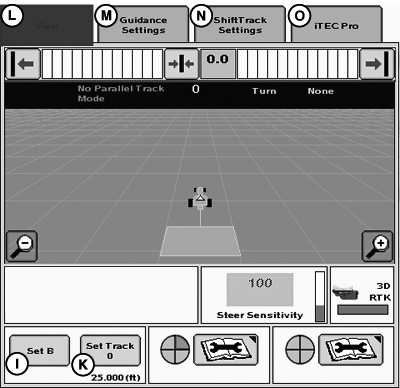
Set B Later function allows the user to navigate away from the Set Track 0 page while creating an AB Line first by setting the “A” point on the Set Track 0 page and then choosing Set B Later. Once Set B Later button has been selected, the operator may navigate to Guidance View page to view progress as well as coverage while setting Track 0. When the operator is ready to Set B to complete the AB Line, select the Set B button on the Guidance View page.
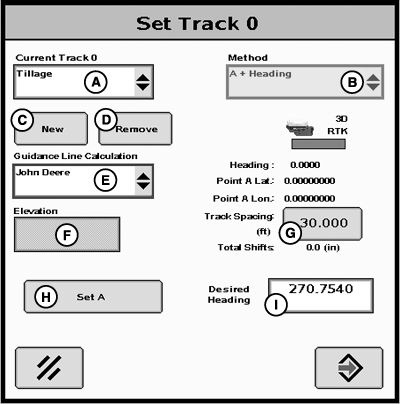
A + Heading
PC16279-UN-19NOV12
Set Track 0
A - Current Track 0
B - Method
C - New
D - Remove
E - Guidance Line Calculation
F - Elevation
G - Track Spacing
H - Set A
I - Desired Heading
-
Drive to desired location in the field.
-
Press SET A button.
-
Select the HEADING input box and enter a heading with the numeric keypad.
NOTE: 0.000 indicates North, 90.000 East, 180.000 South, and 270.000 West. Save value by pressing ENTER button on keypad.
-
NOTE: The ENTER button will be disabled until both the Set A and Set B points have been defined.
Press ENTER button.
Auto B
PC16280-UN-19NOV12
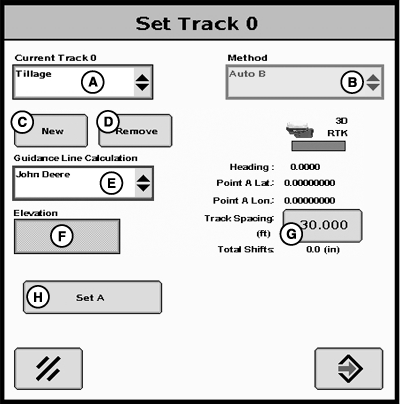
Set Track 0
A - Current Track 0
B - Method
C - New
D - Remove
E - Guidance Line Calculation
F - Elevation
G - Track Spacing
H - Set A
-
Drive to desired location in the field.
-
Press SET A button.
-
Drive vehicle in desired direction across field.
NOTE: A distance of 15 m (45 ft.) or longer has to be driven before point B can be defined. This method calculates point B from the last five data points taken from the 15 m (45 ft.) driven and runs a best fit line through the points to determine a heading.
-
The B-point will automatically be saved after traveling 15 m (45 ft.).
-
Press ENTER button.
Lat/Lon
PC16281-UN-19NOV12
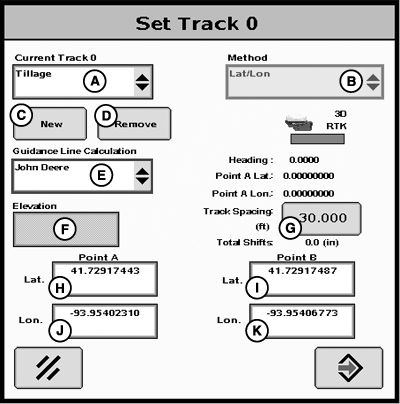
Set Track 0
A - Current Track 0
B - Method
C - New
D - Remove
E - Guidance Line Calculation
F - Elevation
G - Track Spacing
H - Point A—Lat
I - Point B—Lat
J - Point A—Lon
K - Point B—Lon
-
NOTE: The Latitude and Longitude coordinates have to be entered in decimal degrees.
Enter latitude and longitude for point A.
-
Enter latitude and longitude for point B.
-
Press ENTER button.
Lat/Lon + Heading
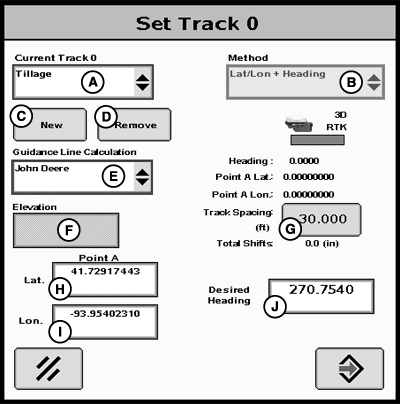
PC16282-UN-19NOV12
Set Track 0
A - Current Track 0
B - Method
C - New
D - Remove
E - Guidance Line Calculation
F - Elevation
G - Track Spacing
H - Point A—Lat
I - Point A—Lon
J - Desired Heading Value
- Drive to desired location in the field.
- Enter Latitude coordinate for point A.
- Enter Longitude coordinate for point A.
-
Enter desired heading.
NOTE: 0.000 indicates North 90.000 East, 180.000 South, and
270.000 West.
- Press enter button.
Guidance Line Calculation
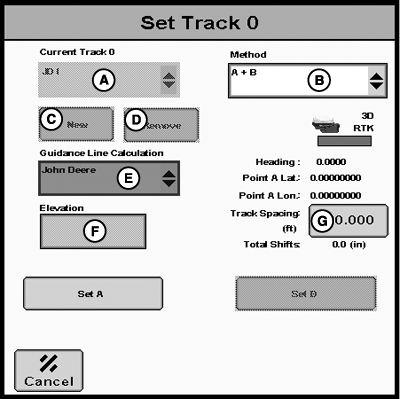
PC16240-UN-19NOV12
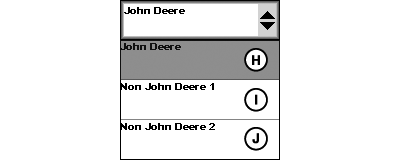
PC16241-UN-19NOV12
A - Current Track 0
B - Method
C - New
D - Remove
E - Guidance Line Calculation
F - Elevation
G - Track Spacing
H - John Deere
I - Non John Deere 1
J - Non John Deere 2
Guidance Line Calculation allows an operator to create new Straight Track guidance lines on their GreenStar 3 2630 display using non-John Deere calculations. Throughout the industry, there are different calculations used for creating straight tracks. This feature allows an operator to choose a calculation type.
Non-John Deere 1: Uses BEELINE calculations when creating a Straight Track.
Non-John Deere 2: Uses Trimble® calculations when creating a Straight Track.
This feature is only supported when creating new Straight Track guidance lines. All methods for creating a new straight track are supported, but A+B method is recommended when creating new guidance lines based on crop rows or beds that were previously made with a competitive system. Using the same A+ Heading as a competitive system will not result in desired performance.
Guidance Line Calculation defaults to John Deere (H). Select Non John Deere 1 (I) or Non John Deere 2 (J) from Guidance Line Calculation drop-down box (E) to change calculation.
NOTE: To create John Deere guidance lines, use default calculation of John Deere.
This feature does not allow an operator to import competitive guidance lines.
Guidance Line Calculation is only supported when Straight Track mode is selected.
Guidance Line Calculation feature does not affect previous guidance lines.
Guidance Line Calculation cannot be changed on previously created and saved guidance lines.
|
Trimble is a trademark of Trimble Navigation Limited |
HC94949,00002FE-19-20130515 |