Circle Track Mode
Track 0 Setup
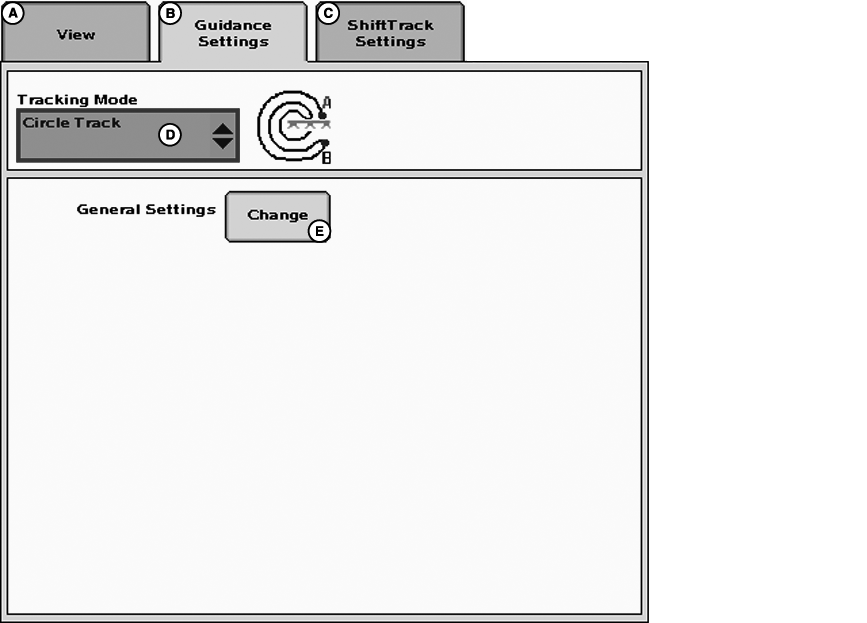
PC12593-UN-29APR10
GreenStar 3 Pro - Guidance
A - View
B - Guidance Settings
C - ShiftTrack Settings
D - Tracking Mode
E - General Settings
NOTE: Circle Track Mode is available in Parallel Tracking Mode without a Pivot Pro activation. To AutoTrac in Circle Track mode requires both an AutoTrac and Pivot Pro activation.
GUIDANCE SETTINGS tab >> TRACKING MODE drop-down box >> CIRCLE TRACK.
Circle Center and Track Spacing must be set for operation of this mode.
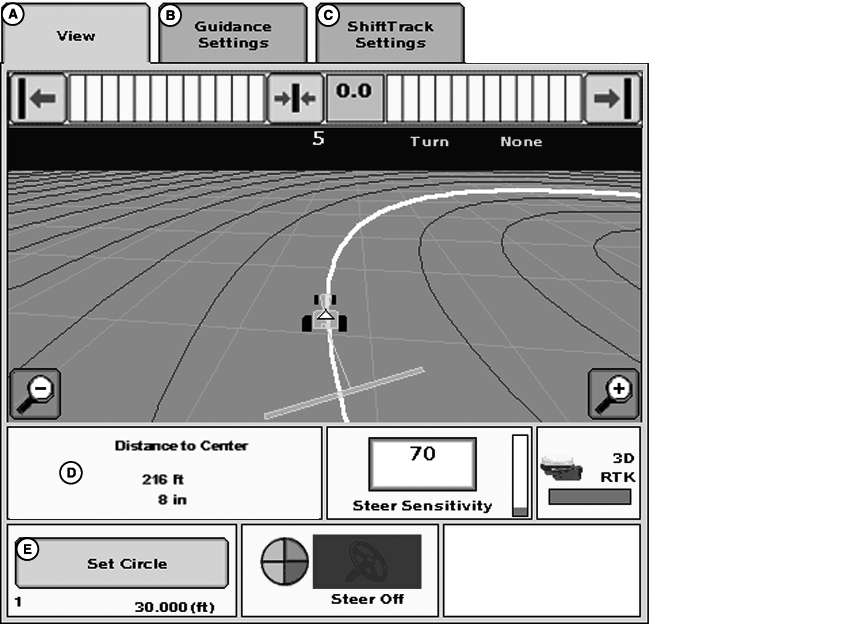
PC16165-UN-01NOV12
GreenStar 3 Pro - Guidance
A - View
B - Guidance Settings
C - ShiftTrack Settings
D - Distance to Center
E - Set Circle button
-
Press SET CIRCLE button (D).
-
Select NEW button below the CURRENT CIRCLE drop-down box.
-
Enter name using the alphanumeric keypad.
-
Select ENTER button.
-
Select method to define Circle Center from METHOD drop-down box.
- Drive Circle
- Lat/Lon
Methods of defining Circle center are explained later in this section.
-
Set Track Spacing
Track spacing can be defined two different ways:
-
Select track spacing button from Set Circle dialog box
- Enter implement width
- Enter desired track spacing
- Set track spacing from EQUIPMENT softkey >> IMPLEMENT 1 tab >> CHANGES WIDTH (See EQUIPMENT softkey section.)
-
Select track spacing button from Set Circle dialog box
-
Use one of the following methods to define the circle center:
- Drive Circle
- Lat/Lon
Drive Circle
-
Drive machine to desired starting location in field.
-
Press record button and “Recording Circle” will display.
-
Drive desired circle.
NOTE: It is required to drive over 10% of the circle before you can calculate the center. The more of the circle you drive the more accurate the circle center will be. It is recommended to drive the entire circle for optimum circle center calculation.
-
Press the record button again to stop recording. The recording button can be pressed once the text “End Circle” is displayed. It is recommended to drive and record as much of the circle as possible. The more of the center pivot circle driven the more accurate the center point is calculated. From this circle center concentric circles are displayed based on track spacing.
-
Press Enter button.
Lat/Lon
-
Select the LATITUDE (LAT) input box and enter the center point latitude coordinates.
-
Select the LONGITUDE (LON) input box and enter the center point longitude coordinates.
NOTE: The Latitude and Longitude coordinates have to be entered in decimal degrees
-
Press ENTER button. This enters the circle center, and shows concentric tracks based upon the track spacing.
NOTE: It may be necessary to line the vehicle up on the center pivot tower track or use center shift track to get the tracks lined up with the vehicle.
Circle Center Information
IMPORTANT: In order to operate Circle Track Guidance, Circle Track must be selected .
Circle Center information (Latitude and Longitude coordinates) is named (occurs during Set Circle procedure) and assigned to a Field Name where it can be recalled for future use. Farm and Field names are setup and changed in the RESOURCES/CONDITIONS softkey > RESOURCES tab. See Resources/Conditions section of manual to setup farm and field names. The circle center information is saved on the USB drive and can be taken to another GS3 display and recalled for circle track operation. Desktop software can also download circle center information and save the information to additional USB drives.
NOTE: If farm and field names are not created, circle center information will be saved to the “- - - -” farm and field.
If operator desires to perform multiple passes in same field throughout year (or years) and follow exact same passes, then they would recall corresponding circle center information from that farm and field. For example, during planting, operator sets up a Circle Center and names it Pass 1 for River Farm > East Field. When the operator comes back to spray the field a month later, they will select River Farm > East Field from the RESOURCES tab and select PASS 1 from the CURRENT CIRCLE drop-down box and the Circle Center information that was setup during planting will be recalled. Repeat the same steps for subsequent return trips to that field.
Operating Circle Track
When operating Circle Track it is not necessary to drive tracks in a specific order. Depending on your zoom level all tracks that can be displayed will show up on the screen with the closest Track designated by a thicker line. The track number is displayed below the path accuracy indicator and is automatically updated by system as a new track is approached. Track number changes when machine is half way between two tracks.
Off Track error distance is shown in the path accuracy indicator. This number shows how far from closest track machine is. Error number will count up until machine reaches point halfway between two tracks. After reaching mid-point error number will count down as machine approaches next track.
Distance to end of pass utilizing Turn Predictor is shown in the top right portion of the guidance view. Distance will count down to predicted turn. Tones will sound when machine is 10 seconds from intersecting turn point and again when predicted turn point has been reached.
NOTE: Track spacing may require adjustment due to operator and/or GPS error.
EXAMPLE: An operator may want to enter a slightly smaller implement width to account for operator error while steering or GPS error.
NOTE: If no circle track guidance line is created, the measurement will be left blank.
Distance to Center
PC16166-UN-08NOV12
GreenStar 3 Pro - Guidance
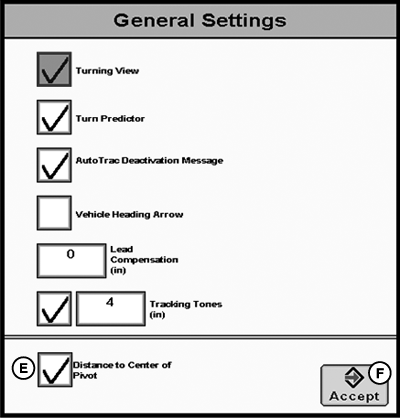
PC16167-UN-01NOV12
A - View Tab
B - Guidance Settings
C - Shift Track Settings
D - Distance to Center
E - Distance to Center of Pivot Check Box
F - Accept
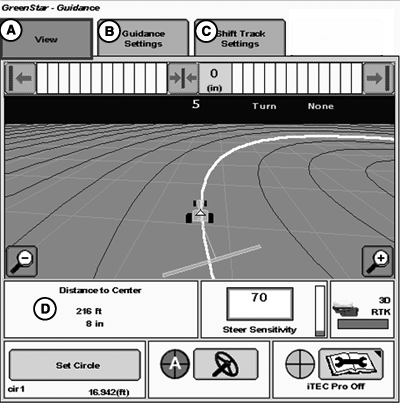
Distance to Center displays the distance from the vehicle’s current position in the field to the center of the circle. The distance is continuously updated while the operator Parallel Tracks/AutoTracs on a circle track. Distance to Center value (D) is displayed on the guidance-view tab (A).
NOTE: If you know the length of your center pivot, this feature aids in lining up an implement for the first pass. For example, if you know your center pivot is 305 m (1000 ft.) long, and you are using an implement that is 12 m (40 ft.) wide, drive 299 m (980 ft.), and center shift your guidance line. Another example would be if the implement is 6 m (20 ft.) wide, drive 302 m (990 ft.) and center shift your guidance line.
Enable or disable Distance to Center by going to GUIDANCE SETTINGS tab >> GENERAL SETTINGS and check or uncheck Distance to Center of Pivot check box (E).
Shift Track When in Circle Track Mode
Shift Track is used to shift the tracks radially closer or further from the center point. Shift Track does not move the center point itself. This method of Shift Track allows the operator to use various implement widths, account for different lengths of center pivot towers or to account for stretching/shrinking of the center pivot irrigation sections.
IMPORTANT: When using SF2 or SF1 Differential Correction (or when using RTK Quick Survey Mode) the Circle Center may drift over time or at power cycles. In Circles Track Mode, Shift Track does not compensate for GPS drift. In order to achieve accuracy and repeatability when using SF1 or SF2 Differential Correction, the center point must be recalculated by manually driving the circle on a daily basis (see Calculating Circle Center).
NOTE: RTK Absolute Base Mode is highly recommended in high accuracy applications when using Circle Track. Only RTK Absolute Base Mode provides consistent repeatability and accuracy in Circle Track.
Example 1: Operator makes first pass through the field saving Circle Center information to PASS 1 and RIVER FARM > EAST FIELD pulling a 4.6 m (15 ft.) implement. Operator returns for second pass in same field with 9.1 m (30 ft.) implement. If operator desires to follow same track stored , operator recalls saved circle center PASS 1, line up on desired track and use a one time shift track to allow for difference in implement widths.
Example 2: Operator is using SF2 and defines a circle center point by manually driving the circle. The following day, the operator returns to the field and finds that the AutoTrac is not lining up properly with the previous day’s path due to GPS drift. The operator must re-drive the circle to find the Circle Center Point.
Shift Track Operation
To move line to left, press left shift track button. To move line to right, press right shift track button. Each time the left or right button is pressed, line will move the amount defined in the SHIFT TRACK SETTINGS tab. To re-center line on vehicle’s current location press the center shift track button.
Accuracy in Slope Conditions
Circle Track was designed for center pivot operation on ground with less than 2% slope. Customers who use circle track on slopes greater than 2% need to be aware of the performance of circle track in these conditions and why circle track performs the way that it does.
In operating Circle Track in some slope conditions there are cases where the circle track spacing and the center pivot tower track will not match in tower tracks away from the center pivot. This is due to the difference between distance traveled over a hill and on a level plane. AutoTrac draws the circle spacing as if the plane were level. The tower tracks obviously go over the hill terrain. This difference in distance will increase as slope increases.
|
HC94949,0000300-19-20130604 |