AutoTrac Setup
Operate Guidance Systems Safely
Read and understand Operate Guidance Systems Safely in the Safety section.
AutoTrac System
General Information
IMPORTANT:
AutoTrac system relies on Global Positioning System (GPS) operated by the United States government, which is solely responsible for its accuracy and maintenance. System is subject to changes that could affect accuracy and performance of all GPS equipment.
Operator must maintain responsibility for machine and must turn at end of each track. This system will not turn at end of a track unless equipped with iTEC Pro.
AutoTrac basic system is intended to be used as an assistance tool to mechanical markers. Operator must evaluate overall system accuracy to determine specific field operations where assisted steering may be used. This evaluation is necessary because accuracy required for various field operations may differ depending on farming operation. Because AutoTrac uses StarFire differential correction network along with GPS, slight shifts in position may occur over time.
AutoTrac Accuracy— Overall AutoTrac system accuracy is dependent upon many variables. Equation looks like:
AutoTrac System Accuracy = Signal accuracy + Vehicle Setup + Implement Setup + Field/Soil Conditions.
It is very important to remember:
- Receiver has to go through a warm-up period after starting.
- Vehicle is set up properly (for example: ballasted according to vehicle operator manual).
- Implement is set up to run properly (wear parts such as shanks, shovels, and sweeps are in good working condition and correctly spaced).
- Understand how field/soil conditions affect system (loose soil requires more steering than firm soil, but firm soil can cause uneven draft loads).
Status Pie
IMPORTANT: Although AutoTrac system can be activated when SF2 (or SF1 if using AutoTrac SF1 activation) correction signal is confirmed, system accuracy may continue to increase after powering up system.
AutoTrac SF2 activation will operate on SF1, SF2, or RTK signal.
AutoTrac SF1 activation will operate on SF1 signal only.
NOTE: Status pie and steer icon will not be displayed if no SSU or AutoTrac Activation is detected.
AutoTrac icon has four stages as shown in AutoTrac Status Pie
- INSTALLED
- CONFIGURED
- ENABLED
- ACTIVATED

PC8832-UN-25OCT05
Stage 1—INSTALLED
Stage 1 INSTALLED (1/4 of pie)—SSU and all other hardware necessary for use are installed.
- SSU is detected

PC8833-UN-25OCT05
Stage 2—CONFIGURED
Stage 2 CONFIGURED (2/4 of pie)—Tracking Mode has been determined. A valid Track 0 has been established. Correct StarFire signal level for AutoTrac activation is selected. Vehicle conditions met.
- Guidance system has been turned ON in display.
- Guidance Track 0 has been defined.
- AutoTrac Activation detected.
- StarFire signal is present.
- SSU has no active faults pertaining to the steering function.
- Hydraulic oil warmer than minimum temperature.
- Speed is less than maximum.
- TCM message is currently available and valid.
- In proper operating gear.

PC8836-UN-25OCT05
Steer On/Off
Steer On/Off– Press steer On/Off button to move AutoTrac from CONFIGURED stage to ENABLED stage.

PC8834-UN-25OCT05
Stage 3—ENABLED
Stage 3 ENABLED (3/4 of pie)—Steer Icon has been pressed. All conditions are met for AutoTrac to operate and system is ready to be activated.
- Select Steer On/Off button once to turn “Steer On”

PC8835-UN-25OCT05
Stage 4—ACTIVATED
Stage 4 ACTIVATED (4/4 of pie with “A”)—Resume switch has been pressed and AutoTrac is steering vehicle.
- Press Resume Switch—AutoTrac has been activated
PC8629-UN-03AUG05
Tractors
PC8868-UN-02NOV05
Tractors
N63532-UN-07AUG03
4700 and 4710 Sprayers
PC7989-UN-04NOV03
4720, 4920, 30, and 40 Series Sprayers
PC7925-UN-14OCT03
Combines
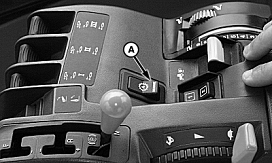
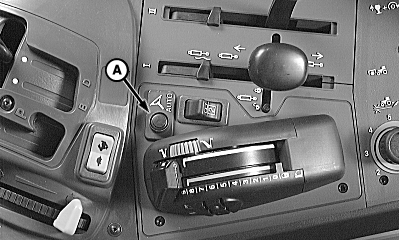
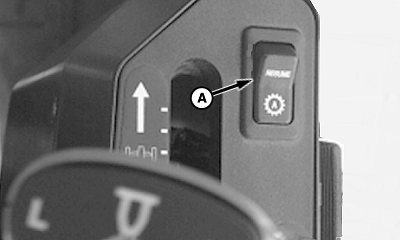
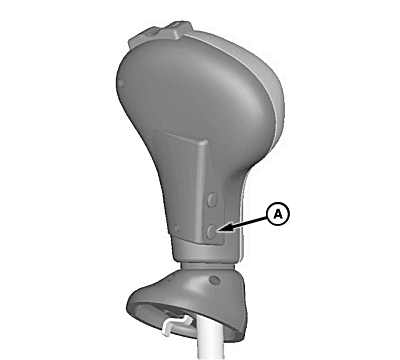
A - Resume Switch
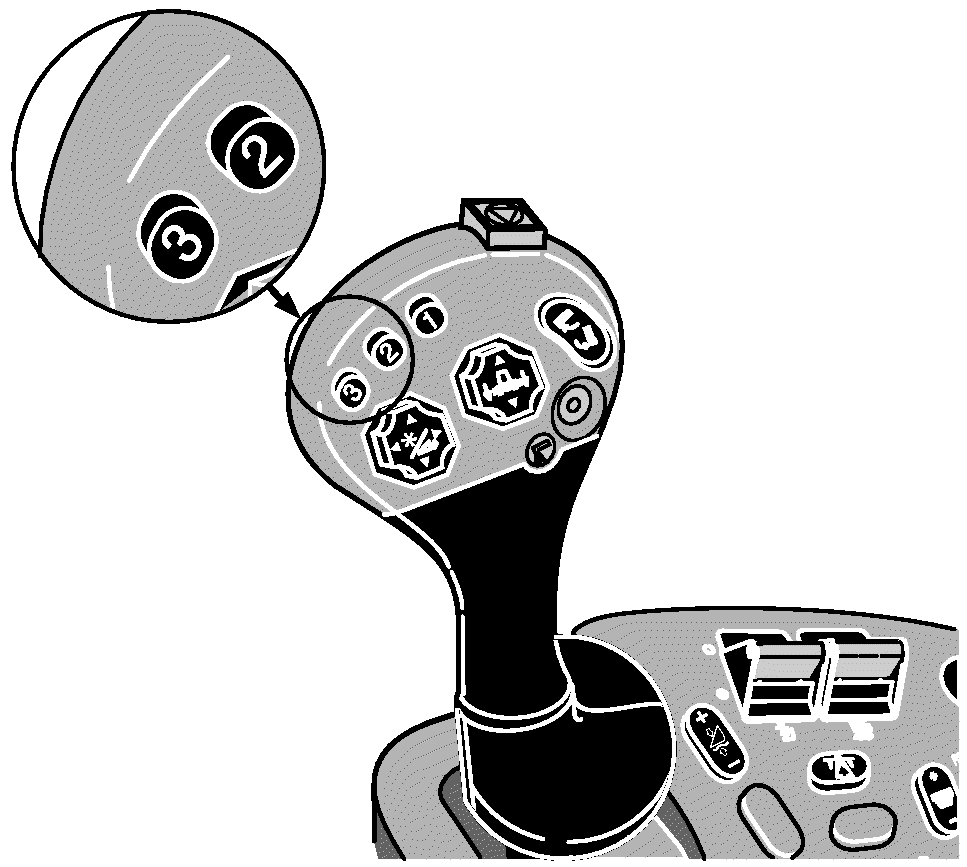
Resume Switch– Press Resume Switch to move AutoTrac from ENABLED stage to ACTIVATED stage. Pictures show where Resume Switch can be found on tractors, sprayers, and combines. Combines use button 2 or 3 on multi-function handle.
Steering Sensitivity

PC8852-UN-30OCT05
Steer Sensitivity
To adjust steering sensitivity select input box and enter desired steering sensitivity value via numeric keypad and select enter button. Sensitivity can also be adjusted up or down by selecting + or – buttons on either side of steer sensitivity input box.
NOTE: Valid range for steer sensitivity is 50-200 with 200 being the most aggressive setting.
User Adjustable Steering Sensitivity—steering sensitivity is aggressiveness of AutoTrac steering system. A high steering sensitivity setting is more aggressive to allow system to handle tough manual steering conditions such as integral implements with a heavy draft load. A low steering sensitivity setting is less aggressive to allow system to handle lighter draft loads and higher speeds.
PC8848-UN-30OCT05
Figure A
PC8849-UN-30OCT05
Figure B
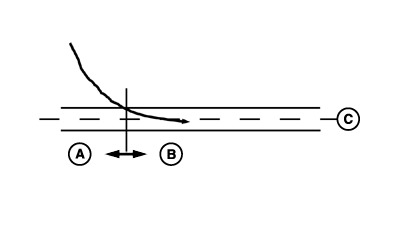
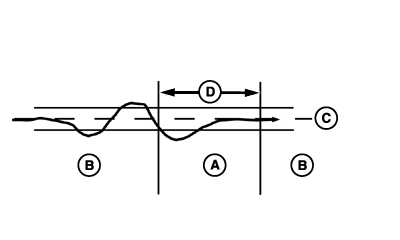
A - Default Gain
B - Entered Steering Gain
C - Track
D - 2.5 seconds
Steering sensitivity is only applied after machine is within 0.5 m (1.6 ft.) of track FIGURE A. Therefore, adjusting steering sensitivity does not change line acquisition performance.Steering sensitivity is momentarily reduced if tractor front wheel and heading oscillations become too large. This event may be observed when implement is raised at start or end of row transitions. If this event is observed while implement is activated, sensitivity level is too high (see Steering Sensitivity).
Adjusting Steering Sensitivity Level
Steering sensitivity must be adjusted to accommodate field conditions and tractor/implement configuration. Steering sensitivity should always be evaluated when implement is activated. In general, soft soil requires a higher steering sensitivity level than firm ground and an integral implement requires a higher steering sensitivity than a similar drawn implement. Finally, steering sensitivity will not address condition where front wheels are not able to turn tractor. Always make sure front axle load with implement activated is sufficient for steering before adjusting steering sensitivity level.
PC8850-UN-30OCT05
Figure A
PC8851-UN-30OCT05
Figure B
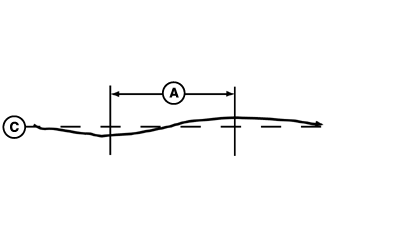
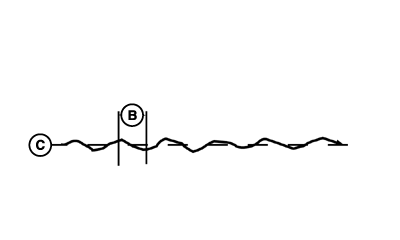
A - 10 second
B - 1 second
C - Track
Too Low—If steering sensitivity is too low, a slow wandering track error pattern can be observed on display. This track error pattern takes approximately 10 seconds to go from side to side as is shown in FIGURE A. If excessive track error is occurring, increase steering sensitivity by small increments until desired accuracy is achieved.NOTE: It is normal to see a momentary track error when encountering a large rut, furrow, or implement load change. Proper steering sensitivity adjustment will help minimize track error.
Too High—Setting steering sensitivity to highest level will not result in maximum tracking accuracy. If steering sensitivity is too high, excessive front wheel motion will be observed which reduces accuracy and causes unnecessary front axle component wear. At extreme high levels, machine motion will become large enough to cause steering sensitivity to be momentarily changed to default level. Wheel motion to watch for when determining if aggressiveness is too high occurs at an interval of approximately 1 second from side to side as shown in FIGURE B. If excessive wheel motion is observed, lower steering sensitivity by small increments until desired performance is achieved.
Advanced AutoTrac Settings
Tuning Recommendations
NOTE: AutoTrac Controller has been tuned to perform well in most field conditions using the variety of implements encountered by AutoTrac. However, for those conditions outside of normal, we have provided Advanced Settings to allow operator fine-tune their systems for specific field conditions and implements.
Problem or Situation:
AutoTrac performance during line acquisitions, Curve Trac or in-row S-ing that cannot be tuned out using Steering Sensitivity adjustment.
Difficult ground conditions (extremely soft or extremely rough) require additional tuning beyond the capabilities of standard Steering Sensitivity value.
Read this information in its entirety BEFORE tuning AutoTrac Advanced Settings.
-
Check & fix other problems before you
tune—Perform necessary mechanical checks and calibrations
through associated tractor. It is important to do this step first
otherwise you run the risk of masking actual machine faults and wasting
your time tuning a system that cannot be tuned.
-
Characterize current AutoTrac problem—There are various types of issues this software may be able to resolve.
First, the specific type of problem needs to be identified from the
possible items below:
-
Excessive Wheel Motion—Overall
AutoTrac performance is acceptable, but operator is concerned about
how quickly the wheels are twitching back and forth.
-
Aggressive S-ing Motion—Continual
back and forth motion as observed by operator looking out over front
nose of tractor. Although a lot of motion is observed, off-track error
shown on display (distance away from AB line) is often relatively
small.
-
Lazy S-ing Motion—Performance
of AutoTrac seems sluggish when trying to stay on line and slowly
wanders from side to side.
-
Lazy Line Acquisition—AutoTrac
appears sluggish during line acquisition and tractor remains off to
one side of line for a long time before getting lined up.
-
Aggressive Line Acquisition—AutoTrac overshoots line, and continues to overcompensate during
acquisition. Results in high frequency, tight S-ing pattern during
acquisitions.
-
Lazy Curve Track Performance—AutoTrac is sluggish in Curve Track mode resulting in slow, wandering
S-ing about the desired line and often tracks to the outside of desired
path.
-
Aggressive Curve Track Performance—AutoTrac exhibits rapid and high frequency corrections in Curve Track
mode, resulting in a tight S-ing pattern or tracking to the inside
of desired path.
-
Excessive Wheel Motion—Overall
AutoTrac performance is acceptable, but operator is concerned about
how quickly the wheels are twitching back and forth.
-
Access Advanced Settings page on GS3.
-
ATI Advanced Settings Parameters.
-
Line Sensitivity Heading: Determines
how aggressively AutoTrac responds to heading error.
Higher Settings: Result in more aggressive response to vehicle heading error.
Lower settings: Result in less aggressive response to vehicle heading error.
Range: 50 to 200.
-
Line Sensitivity Tracking (Lateral Gain): Determines how aggressively AutoTrac responds to off-track (lateral)
error.
Higher settings: Result in more aggressive response to vehicle off-track error.
Lower settings: Result in less aggressive response to vehicle off-track error.
Range: 50 to 200.
-
Heading Lead: Determines impact of
yaw rate (vehicle rate of turn) on tracking performance. Heading lead
acts as a look-ahead parameter and can be used to minimize over steering.
Large adjustments may result in poor performance.
Higher settings: Result in more aggressive response to yaw rate.
Lower settings: Result in less aggressive response to yaw rate.
Range: 50 to 130.
-
Steering Response Rate: Adjusts rate
of vehicle steering in order to maintain tracking performance. Increasing
steering responsiveness generally results in better tracking performance.
Higher settings: Result in better tracking performance but may also cause increased wheel motion or jittery behavior.
Lower settings: Results in decreased wheel motion but may also result in worse tracking performance.
Range: 50 to 200.
-
Curve Sensitivity: Determines how
aggressively AutoTrac responds to a curve in track. This setting affects
performance in curve track guidance only.
Higher settings: Turn vehicle in a smaller radius (tighter) around curve.
Lower settings: Turn vehicle in a larger radius around curve.
Range: 50 to 200.
-
Acquire Sensitivity: Determines how
aggressively vehicle acquires track. This setting affects performance
while acquiring track only.
High settings: Result in more aggressive line acquisitions.
Lower settings: Result in smoother line acquisitions.
Range: 50 to 200.
-
Line Sensitivity Heading: Determines
how aggressively AutoTrac responds to heading error.
- Follow Tuning Instructions—First try to adjust settings based on how it was characterized in Step 2. If familiar with how settings affect performance, proceed to general tuning instructions if desired. Although customer’s comfort needs to be taken into account, try to tune tractor based on lateral error on GS3 and tracks that tractor leaves behind. After finding a reasonable set of parameters, try running tractor at different speeds to ensure settings are still acceptable. Sometimes settings that maximize AutoTrac performance are very close to making operator feel uncomfortable.
AutoTrac Advanced Settings software includes six different tunable sensitivities that allow finer adjustment of AutoTrac system. The following are details for tuning this software:
General Tuning Instructions
-
Steering Sensitivity—Set at
100 before making other adjustments – after that make adjustments
in increments of 10.
-
Line Sensitivity Tracking—Adjust
in increments of 20.
-
Line Sensitivity Heading—Adjust
in increments 10.
-
Heading Lead—Adjust in increments
10.
-
Steering Response Rate—Adjust
in increments 10.
-
Acquire Sensitivity—Adjust in
increments 20.
- Curve Sensitivity—Adjust in increments 20.
Adjustment Recommendations:
-
Start with factory default settings.Steering Sensitivity value will correlate to the value on the Guidance
View Tap. Attempt to use a value for this setting that is similar
to conditions in which you are running (70 for concrete, 100 most
conditions, 120 for soft ground). This number may still need to be
modified beyond suggested settings.
-
While AutoTrac is active in problem conditions (such as speeds,
ground, or tire setup), increase/reduce Line Sensitivity
Heading by a factor of 10.
-
If change in Line Sensitivity Heading is ineffective at addressing
the issue, reset Line Sensitivity Heading parameter and increase/reduce Heading Lead in same manner as the previous step.
- If none of the previous steps were effective, reset Heading Lead and increase/reduce Steering Response Rate in a similar fashion to previous steps.
One Value at a Time—Attempt to adjust settings in problem field conditions while AutoTrac is active.
Combining Settings—If the above procedure does not give satisfactory performance and once you have become more comfortable with how parameters change AutoTrac performance (as detailed in the previous step), try different combinations of parameters while AutoTrac is active. The following chart should be used as a reference and contains suggested values based on various types of conditions, please note that values may need to be adjusted beyond these recommendations to achieve satisfactory performance.
To return all settings to their default values, use the “Return To Defaults” button provided at the bottom of the Advanced Settings screen.
Most Common Conditions
- Excessive Wheel Motion—Adjust Steering Response Rate first before making any other adjustments. Turn down this parameter until an acceptable amount of wheel motion exists. Although it may be possible for this parameter to be changed independently, you may need to increase Line Sensitivity Heading and/or Line Sensitivity Tracking (lateral) gains to compensate for the wheel motion decrease. Keep in mind that forcing this value too low may compromise AutoTrac accuracy because this responsiveness determines how quickly the system can compensate for off-track error. The recommended Steering Wheel Speed setting should be adjusted until there is slightly less wheel motion than what is considered excessive by the operator.
- Aggressive S-ing Motion—The two main adjustments to address aggressive S-ing motion are Line Sensitivity Heading and Heading Lead. Start by increasing Heading Lead to enable system to look further ahead when making corrections. If this is unsuccessful, the likely cause is overaggressive Line Sensitivity Heading and this gain should then be reduced. Forcing this gain low may require an increase in Line Sensitivity Tracking (Lateral) gain to maintain overall system performance at an acceptable level.
- Lazy S-ing Motion—This may be the most difficult situation to address because the sluggish behavior can be caused by field conditions or machine setup. In some cases, tuning the gains may not achieve performance desired. Start by increasing Line Sensitivity Tracking and check performance. If system remains sluggish, increase Line Sensitivity Heading until system begins to respond more aggressively. If fine-tuning is needed, Steering Response Rate can be adjusted accordingly, increasing this value will make system more aggressive.
Step 1: Optimize Steering Response Rate
- Tune speed by operating parallel to and 1.2 m (4 ft.) off of A-B Line.
- Activate AutoTrac Controller and observe performance.
- While tuning, adjust in increments of 10 between range of 50 to 200.
Step 2: Optimize Acquire Sensitivity
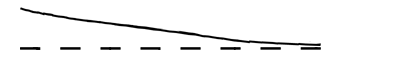
PC8797-UN-21FEB06
Acquire Sensitivity Too Low
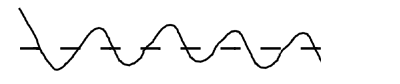
PC8796-UN-21FEB06
Acquire Sensitivity Too High

PC8999-UN-08MAR06
A - Desired Track—Broken Line
B - Actual Track—Solid Line
- Tune speed by operating parallel to and 1.2 m (4 ft.) off of A-B Line.
- Activate AutoTrac Controller and observe performance.
- Tune Acquire Sensitivity until machine acquires line smoothly.
Step 3: Optimize Line Sensitivity
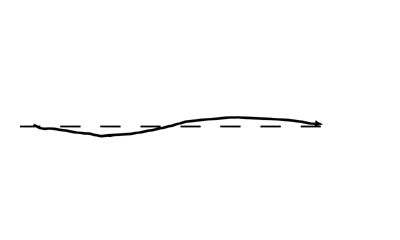
PC8794-UN-08MAR06
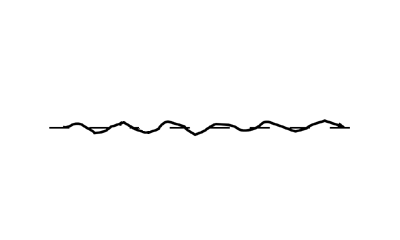
Line Sensitivities Too Low
PC8795-UN-08MAR06
Line Sensitivities Too High
PC8999-UN-08MAR06
A - Desired Track—Broken Line
B - Actual Track—Solid Line
- Tune line sensitivity tracking while operating on A-B line.
- If machine wanders too far from A-B line adjust line sensitivity—tracking higher.
- If machine becomes unstable around A-B line adjust line sensitivity—tracking lower.
A: Line Sensitivity—Tracking
- Tune line sensitivity heading while operating on A-B line.
- If the front of the machine wanders too far from track direction, adjust line sensitivity—heading higher.
- If machine becomes unstable, adjust line sensitivity—heading lower.
B: Line Sensitivity—Heading
NOTE: Line Sensitivities work together—If both are set too high,vehicle will become unstable. If both are set too low, vehicle will wander around A-B line.
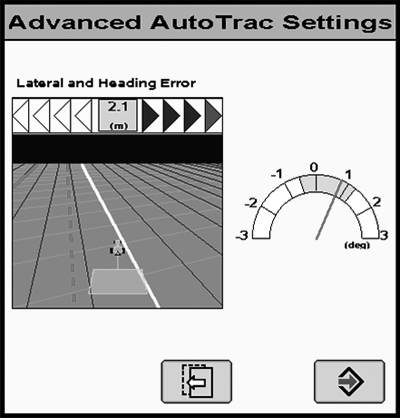
Heading Error Meter
PC12225-UN-01SEP09
Heading Error Meter
Heading Error Meter is designed to aid in tuning Advanced AutoTrac Settings.
Ideally, heading error should be within +/- 1 degree.
Arched bar graph value will live update with minimum and maximum heading error changes over the last 10 seconds.
Heading Error Meter value indicator will be red when heading error is greater than 0.5 degrees or less than -0.5 degrees. Indicator will be green if heading error is greater than -0.5 degrees and less than 0.5 degrees.
NOTE: Heading Error Meter is also available when using AutoTrac Universal.
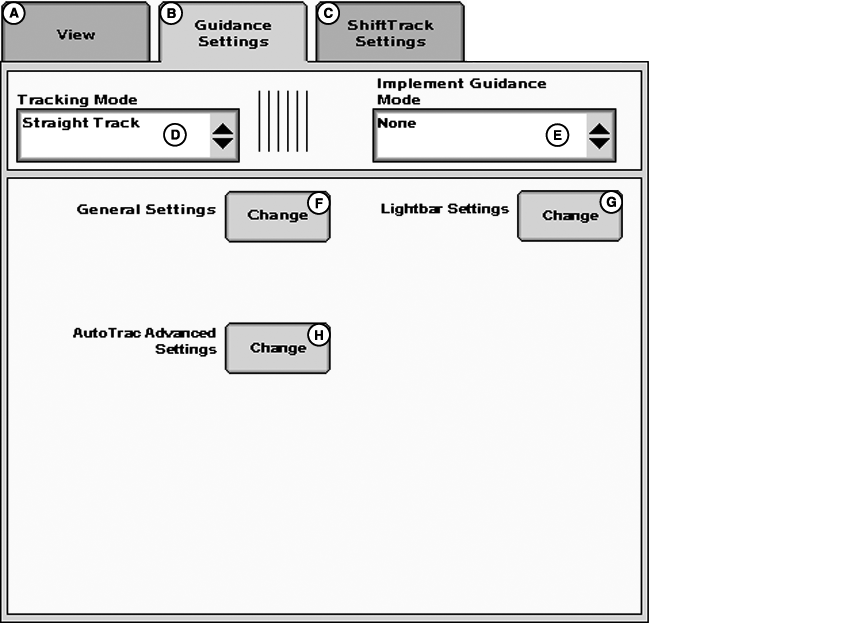
Advanced AutoTrac Screens
PC14326-UN-07DEC11
A - View
B - Guidance Settings
C - Shift Track Settings
D - Tracking Mode Drop-Down Menu
E - Implement Guidance Mode Drop-Down Menu
F - General Settings
G - Lightbar Settings
H - AutoTrac Advanced Settings
PC14861-UN-17APR12
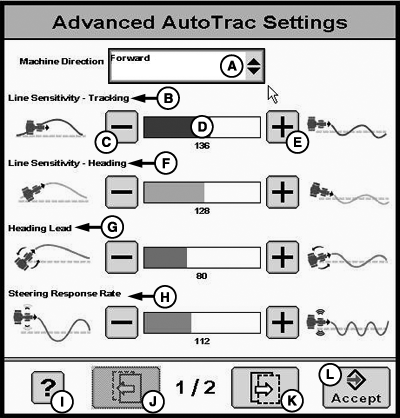
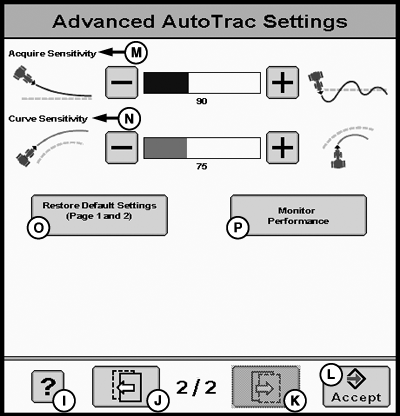
Advanced AutoTrac Settings 1/2
PC14864-UN-17APR12
Advanced AutoTrac Settings 2/2
A - Machine Direction Drop-down Box
B - Line Sensitivity Tracking
C - Decrease Button
D - Bar Graph
E - Increase Button
F - Line Sensitivity Heading
G - Heading lead
H - Steering Response Rate
I - Help Button
J - Back Button
K - Next Button
L - Accept Button
M - Acquire Sensitivity
N - Curve Sensitivity
O - Restore Default Settings
P - Monitor Performance
Advanced AutoTrac SettingsSelect machine direction from Machine Direction Drop-down box.
NOTE: AutoTrac Reverse settings can be adjusted on all machines, but only affects performance on select models. See Ag Sales Manual for more information..
Accept button (K) saves and applies current settings and returns to the previous page. Restore Default Settings button (N) sets all settings to factory default value. See each setting for its default value. The ‘?’ button (H) displays a pop-up with help text for each of the specific settings.
PC14185-UN-09NOV11
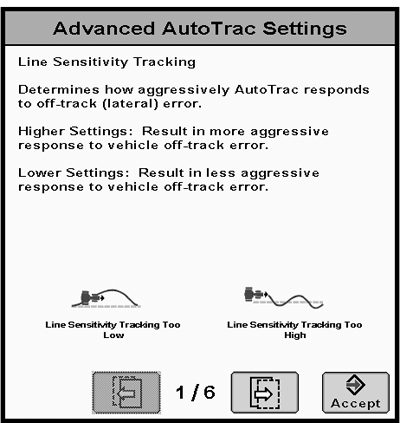
Line Sensitivity Tracking 1/6
Line Sensitivity TrackingDetermines how aggressively AutoTrac responds to off-track (lateral) error.
Higher settings: Results in more aggressive response to vehicle off-track error.
Lower Settings: Results in less aggressive response to vehicle off-track error.
PC14186-UN-09NOV11
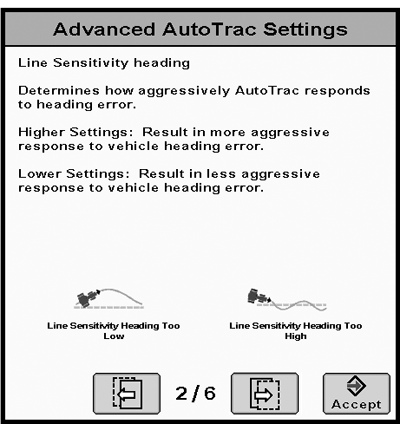
Line Sensitivity Heading 2/6
PC8994-UN-07MAR06
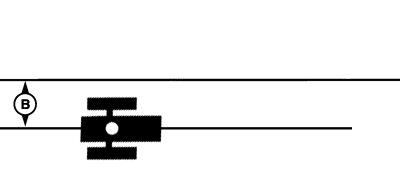
PC8993-UN-09MAR06
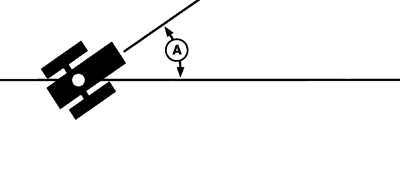
A - Heading Error
B - Tracking Error
Line Sensitivity Heading
Determines how aggressively AutoTrac responds to heading errors.
Higher settings: Result in more aggressive response to vehicle heading error.
Lower settings: Result in less aggressive response to vehicle heading error.
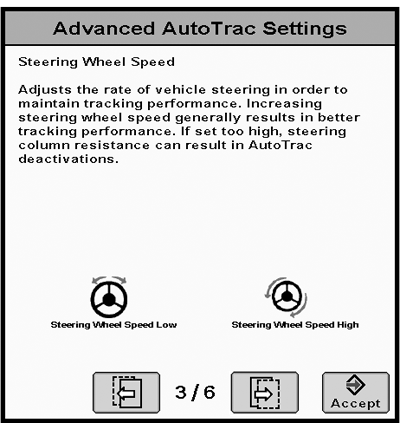
PC14187-UN-09NOV11
Steering Wheel Speed 3/6
Steering Wheel SpeedAdjusts rate of vehicle steering to maintain tracking performance. Increasing steering wheel speed generally results in better tracking performance. If set to high, steering column resistance can result in AutoTrac deactivations.
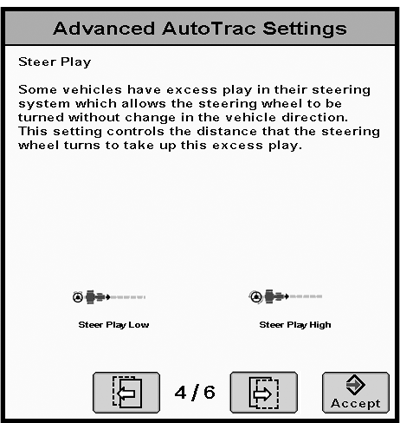
PC14188-UN-09NOV11
Steer Play 4/6
Steer PlaySome vehicles have excess play in their steering system which allows steering wheel to be turned without change in vehicle direction. This setting controls distance that the steering wheel turns to take up this excess play.
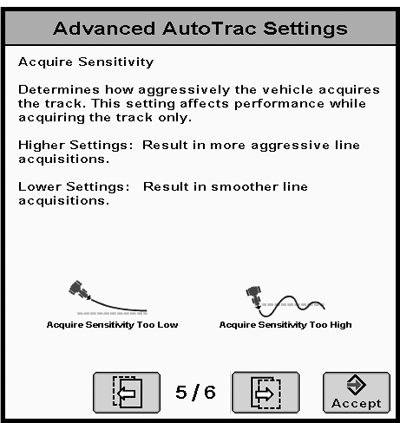
PC14189-UN-09NOV11
Acquire Sensitivity 5/6
Acquire SensitivityDetermines how aggressively vehicle acquires track. This setting affects performance while acquiring the track only.
High settings: Results in a more aggressive track line acquisition.
Lower settings: Results will give smoother entry into the next track.
PC14190-UN-09NOV11
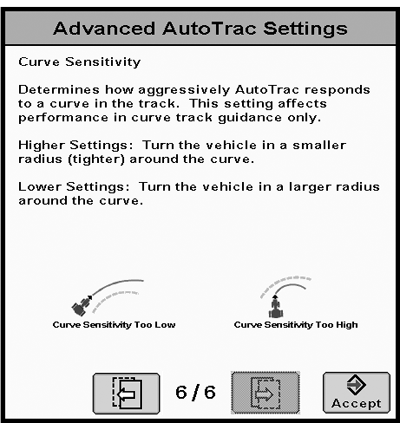
Curve Sensitivity 6/6
Curve SensitivityDetermines how aggressively AutoTrac responds to a curve in the track. This setting affects performance in curve track guidance only.
Higher settings: Turns vehicle in a smaller radius (tighter) around curve.
Lower Settings: Turns vehicle in a larger radius around curve.
Diagnostic Readings
PC12746-UN-27AUG10
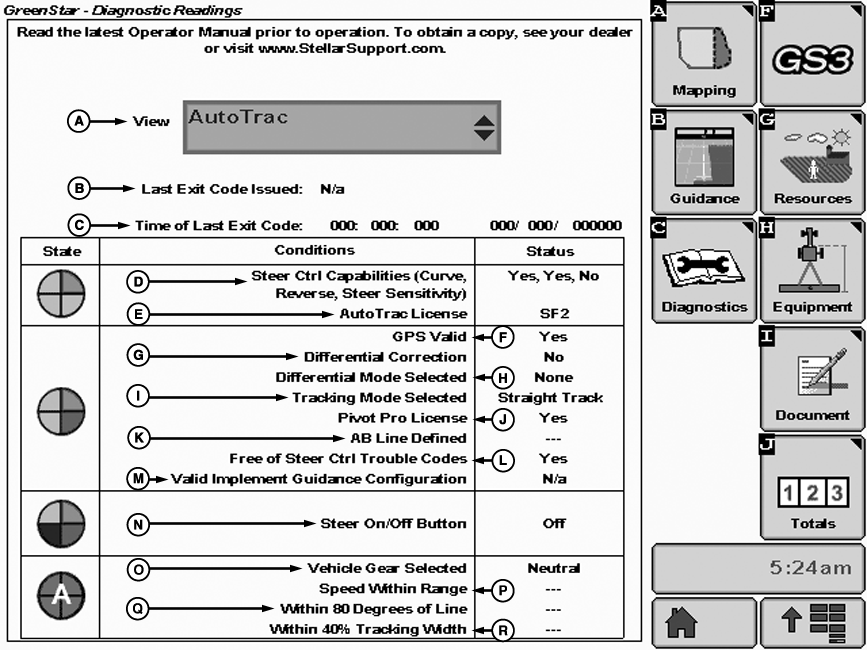
GREENSTAR 3 PRO >> DIAGNOSTIC softkey >> AutoTrac
- (A) View - Drop-down Box.
- (B) Last Exit Code Issued - Indicates why AutoTrac deactivated or will not activate.
- (C) Time of Last Exit Code - Time and date of when last exit code occurred.
- (D) SSU Capabilities (Curve, Reverse, Steer Sensitivity) - Indicates if vehicle steering controller is capable of operating in Curve Track, Reverse, or if Steer Sensitivity is tunable from display. Yes or No will be displayed indicating if that feature is available or not.
- (E) AutoTrac License - Indicates whether or not the display has a valid AutoTrac License and which it is (SF1 or SF2).
- (F) GPS Valid - Indicates if valid GPS is received.
- (G) Differential Correction Indicates if receiving differential correction.
- (H) Differential Mode Selected Indicates differential correction mode selected on StarFire receiver (SF1, SF2, RTK).
- (I) Tracking Mode Selected - Displays which tracking mode is currently selected.
- (J) Pivot Pro License - Indicates if display has a valid Pivot Pro License.
- (K) AB Line Defined - Indicates if a valid AB (Track 0) is defined and selected for current tracking mode.
- (L) Free of SSU Trouble Codes - Indicates if SSU has any active trouble codes which might not allow AutoTrac to activate.
- (M) Valid Implement Guidance Configuration - If implement guidance is in use, indicates whether certain settings and constraints have been met.
- (N) Steer On/Off Button - Indicates if Steer On/Off button is in the on or off state.
- (O) Vehicle Gear Selected - Show which gear the vehicle is currently in.
- (P) Speed Within Range - Indicates if vehicle is traveling within speed range limitations of the platform AutoTrac is operating on.
- (Q) Within 80 Degrees of Line - Indicates if vehicle heading is within 80 degrees of the track the vehicle is trying to acquire.
- (R) Within 40% Tracking Width - Indicates if vehicle off track error is within 40% of the track spacing.
Enhanced AutoTrac Diagnostics
PC14193-UN-29NOV11
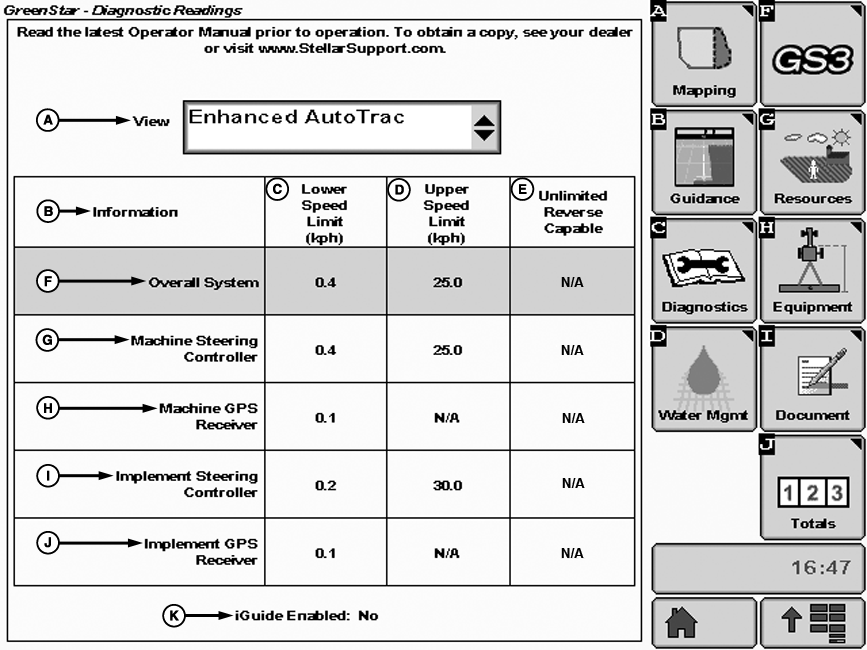
GREENSTAR 3 PRO >> DIAGNOSTIC softkey >> Enhanced AutoTrac
- (A) View - Drop-down Box.
- (B) Information
- (C) Lower Speed Limit - Calculated by tractor and reflects the slowest speed AutoTrac is allowed to activate. Speed must be at or above 0.1 km/h (0.1 mph).
- (D) Upper Speed Limit - Calculated by tractor and reflects the fastest speed AutoTrac is allowed to activate. Speed must be at or below 30 km/h (18.6 mph).
-
(E) Unlimited Reverse Capable
NOTE: Minimum and maximum speeds allowed are controlled by tractor
platform and software version of the Steering Controller. For a complete
list of compatible tractors with this additional functionality, visit
www.StellarSupport.com.
- (F) Overall System - Displays slowest and highest speed capabilities. Values are calculated using machine and implement steering controller capabilities, as well as the GPS receiver capabilities.
- (G) Machine Steering Controller - Displays slowest and fastest speeds allowed by steering controller installed on machine.
- (H) Machine GPS Receiver - Displays slowest and fastest speeds allowed by machine receiver. iTC receivers operating SF1, SF2, or RTK, as well as 3000 receivers operating SF1 and SF2 GPS signal will have a speed limit of 0.5 km/h (0.3 mph) and higher. 3000 receivers operating RTK signal will have a speed range limit of 0.1 km/h (0.1 mph) and higher.
- (I) Implement Steering Controller - Displays slowest and fastest speeds allowed by steering controller installed on implement. Normal speed range of Application Controller 1100 is 0.5—30 km/h (0.3—18.6 mph).
- (J) Implement GPS Receiver - Displays slowest and fastest speeds allowed by implement receiver. iTC receivers operating SF1, SF2, or RTK, as well as 3000 receivers operating SF1 and SF2 gps signal will have a speed limit of 0.5 km/h (0.3 mph) and higher. 3000 receivers operating RTK signal will have a speed range limit of 0.1 km/h (0.1 mph) and higher.
- (K) iGuide Enabled - Displays Yes when iGuide is enabled and No when iGuide is disabled.
|
HC94949,0000302-19-20130610 |