Navigating Your Display
Some buttons and softkeys only appear when the hardware or functions associated with them are available.
There are two methods of navigating the GS2 1800 display:
- Rotate the thumb wheel to highlight “input fields” and “buttons.” Select the check button to make a selection or the cancel button to cancel a selection.
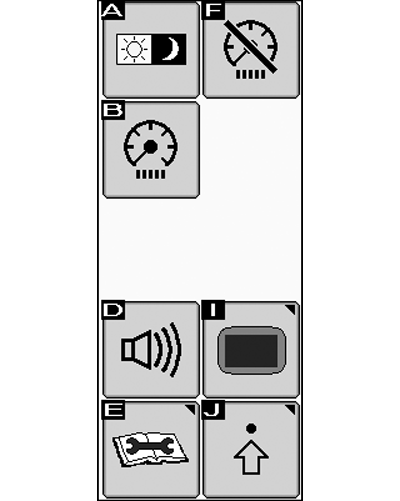
- Use the Shortcut buttons (A) through (J) to select “input fields” and “buttons” that have the corresponding letters in the upper left corners.
There are a variety of input fields and buttons that allow the operator to navigate through the screens on the display and input values:
Softkey
PC10857GV-UN-29OCT08
Softkeys appear in two columns of five on the right side of the screen and are associated with the Shortcut buttons A-J. They perform functions or navigate to a different page. To activate a softkey, highlight it and press check or select the shortcut button associated with it.
Button

PC8649-UN-01NOV05
ENTER

PC8650-UN-01NOV05
GOTO
Buttons appear in center and left regions of the display. To activate a button, highlight it and press check button or select the shortcut button associated with it. Activating a button will perform a function indicated by the icon on the button. The enter and goto buttons are used often and are important to remember.
Drop-Down Box

PC8845-UN-30OCT05
PC8846-UN-30OCT05
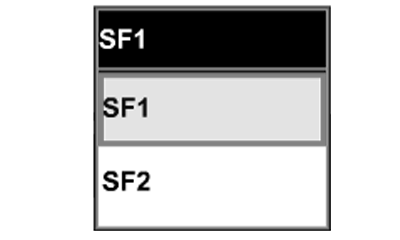
A drop-down box contains a list of items.
-
Select the check button to select a highlighted drop-down box to see the list.
-
Rotate the thumb wheel to choose an item from the list.
-
Select the check button to select the item.
-
Rotate thumb wheel move the highlight to a different Input field or Button.
-
Select the cancel button to close a drop-down box,
Input Box

PC8847-UN-30OCT05
An input box is used to enter numeric or text values.

PC10857GW-UN-29OCT08
If the input box is a number with a small range of values, the value is changed by rotating the thumb wheel.
-
Select the check button to select a highlighted Input box and the color of the box will turn black.
-
Rotate the thumb wheel up to increase the value and down to decrease the value.
-
Select the check button to accept the value.
-
Rotate thumb wheel move the highlight to a different input field or button.
PC10857GX-UN-29OCT08
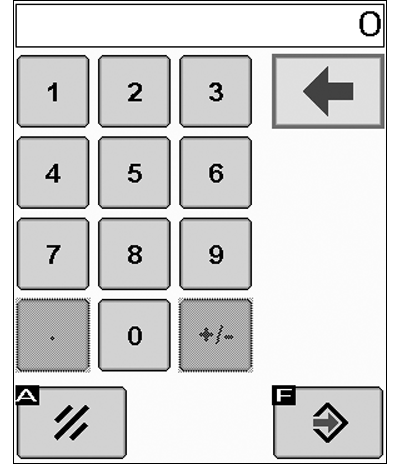
If the input box is a number with a large range of values, the value is changed with a Keypad.
-
Select the check button to select a highlighted Input box and the keypad will appear.
-
Rotate the thumb wheel up to highlight a number or button.
-
Select the check button to enter numbers.
-
Select Accept to accept the entered value and close the keypad.
-
Rotate thumb wheel move the highlight to a different Input field or Button.
-
Select the cancel button to reject the entered value and keep the existing value. Select Backspace to undo a value entry.
Bar Graph

PC10857GY-UN-29OCT08
BAR BGRAPH
Bar graphs are used to adjust settings such as screen brightness and volume.
-
Select the check button to select a highlighted bar graph.
-
Rotate the thumb wheel up to increase the value (bar graph moves to right) and down to decrease the value (bar graph moves to left).
-
Select the check button to accept the change.
-
Rotate thumb wheel to a different input field or button.
Check Box

PC8686-UN-09AUG05
Check boxes allow single items to be activated or deactivated. A check mark indicates an active feature. An empty box indicates an inactive feature.
|
OUO6050,0001016-19-20081028 |