Setting The Time And Date
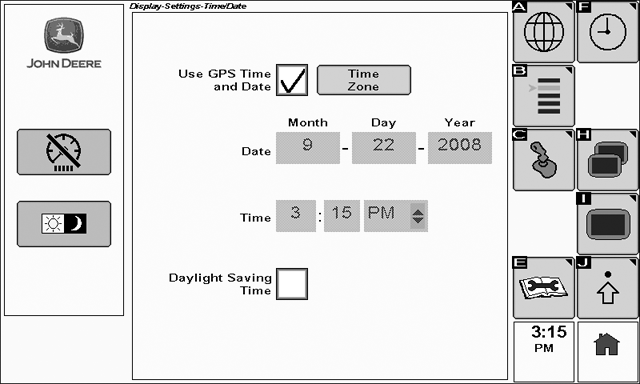
PC10857HC-UN-30OCT08

PC10857GJ-UN-28OCT08
Menu button

PC8654-UN-05AUG05
Display button

PC8792-UN-18OCT05
Settings button

PC10857HE-UN-30OCT08
Time and Date button
To view the Time and Date page select: Menu > Display > Settings > Time and Date
Setting the time and date is important for optional GreenStar product activations.
To set the time and date:
If a StarFire GPS receiver is detected the checkbox will appear yellow and GPS date and time will be available automatically from the receiver.
-
Rotate the thumb wheel until the Time Zone button is highlighted and select check button.
-
In the pop-up box that appears, enter your local time.
-
Select button (A) to save and exit, or select button (F) to cancel changes and exit.
If no StarFire GPS receiver is detected, the date and time must be manually entered.
-
Rotate the thumb wheel until the Month box is selected.
-
Select the check button to activate the box.
-
Use the thumb wheel to highlight the desired month and select the check button to save.
Repeat this procedure for all date and time fields.
Check the Daylight Saving Time box if appropriate for your time zone and region.
|
OUO6050,000101A-19-20081030 |