A+B, A+Auto B, and A+Heading Methods
PC10857XT-UN-16JUN10
Heading
PC10857MT-UN-23APR09

PC10857JN-UN-13APR09
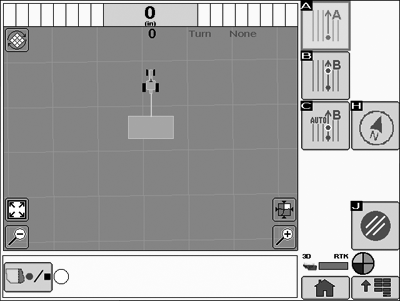
GreenStar Main Page

PC10857JJ-UN-13APR09
Guidance Quick Change
-
Choose STRAIGHT TRACK mode and select or create a Track Name on the final page in the Setup Wizard (SETUP GUIDANCE TRACK).
This page can also be accessed with the Quick Change Guidance softkey.
GreenStar Main Page -> Guidance Quick Change
-
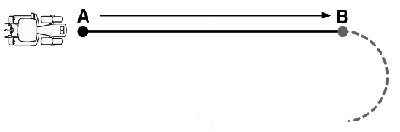
Drive to the desired location in the field to create the A point.
-

PC10857MU-UN-23APR09Set A Softkey
Select the SET A softkey . -
Define the B point using one of three options:
-

PC10857MV-UN-23APR09Set B softkey
To manually set the B point, drive to the desired location in the field to create the B point and select Set B . The minimum distance is 3 m (10 feet). It is recommended to Set the B point at the far end of the field to define the desired heading. -

PC10857MW-UN-23APR09Automatically Set B
To automatically set the B point, select Automatically Set B at any time. The B point will be automatically set when the vehicle drives 15 m (45 ft) away from the A point.This method calculates point B from the last five data points taken from the 15 m (45 ft) driven and runs a best fit line through the points to determine a heading.
-

PC10857MX-UN-23APR09Heading softkey
To set the B point by entering a heading direction, select the Set Heading softkey.Enter the desired line heading with the numeric keypad and save the value by selecting Accept.
0.000 indicates North, 90.000 East, 180.000 South, and 270.000 West.
The Track 0 is now defined and the parallel tracks are created automatically. The GreenStar System is now setup for operation.
To cancel setup at any time and return to the Guidance Setup page, select Cancel.
-
|
OUO6050,00010B2-19-20100616 |