Auxiliary Controls Page—Implement Function Mapping
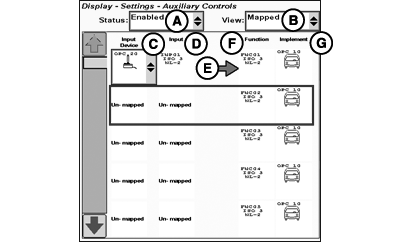
PC10857TB-UN-02MAR10
A - Status Selection
B - View Selection
C - Input Device Selection
D - Input Selection
E - Status Indicator
F - Implement Function
G - Implement Type
Before using Auxiliary Controls, read the operator manual provided by the implement manufacturer and observe all safety messages in the manual and on the implement prior to use. When using Auxiliary Controls, information and control functions placed on this display are provided by the implement.
AUXILIARY CONTROLS softkey H
This screen allows the mapping of an ISO compliant implement functions to ISO compliant Auxiliary Input devices.
An auxiliary input device (C) consists of a number of ”Inputs” (D). These inputs may be buttons, switches, dials, etc.
This Auxiliary Controls page allows the user to match these inputs with various implement functions. This process is called ”Mapping” an input to a function. Once this ”Mapping” is completed, a function (F) may be performed by activating the associated input.
The available functions (F) and inputs (D) depend on the ISO compliant implements/controls (G) that are currently connected.
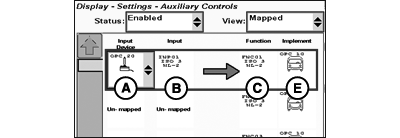
PC10857TC-UN-02MAR10
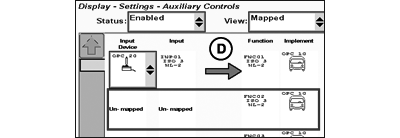
PC10857TD-UN-02MAR10
A - Input Device Selection
B - Input Selection
C - Implement Function
D - Status Indicator (green=mapped/red=unmapped)
E - Implement Type
To assign one of an input device’s input controls to one of an implement’s functions perform the following steps:-
Select an implement function (C) by using the up and down arrow buttons located on the left hand side of the screen.
-
The row that contains the currently selected implement function will be indicated by a cursor colored rectangle.
-
Select the list control under the ”Input Device” column (A) in the currently selected row.
-
Choose an ”Input Device” (A) by selecting one of the items listed in this control.
-
Another list control will appear in the ”Input” column (B).
-
Select an item from this list to select the specific input to map to the currently selected implement ”Function” (C).
The input device selection list only shows inputs which are compatible to the implement functions.
-
A status indicator (D) will appear to indicate if the input device’s input (B) control was successfully mapped to the implement "Function" (C) or not.
- A green status indicator (D) indicates that the mapping is completed successfully.
- A red status indicator (D) indicates that the mapping was not successful. In this case, check the assignments and change as necessary.
-
Repeat steps 1 to 7 to map as many controls as is needed.
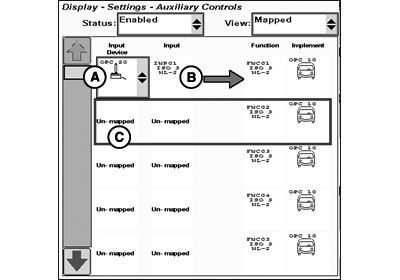
PC10857TE-UN-02MAR10
A - Input Device Selection
B - Input Selection
C - Unmapped
To remove an existing assignment perform the following steps:-
Select an existing assignment by using the up and down arrow buttons located on the left hand side of the screen.
-
The row that contains the currently selected assignment will be indicated by a cursor colored rectangle.
-
Select one of the list controls from the selected row. Either the ”Input Device” (A) or ”Input” (B) lists will suffice.
-
From the selected list, choose the ”Unmapped” item (C).
-
The assignment arrow will be removed and the controls will be set to ”Unmapped” (C).
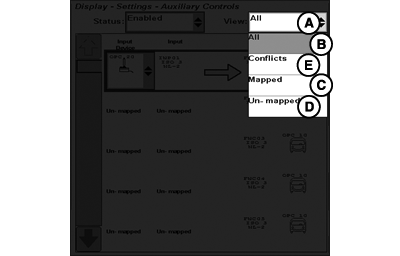
PC10857TF-UN-02MAR10
A - View Selection
B - All
C - Mapped
D - Unmapped
E - Conflicts
To filter the current list of ”Mappings”:-
Select the ”View” list control (A).
“View” list control is only available when Auxiliary Control is enabled.
-
Choose the ”All” item (B) to see all ”Mapped” (C) and ”Unmapped” (D) implement functions and ”Conflicts” (E). This is the default selection.
-
Choose the ”Mapped” item (C) to see only the ”Mapped” implement functions.
-
Choose the ”Unmapped” item (D) to see only the implement functions that have not yet been ”Mapped” to input controls on an input device.
-
Choose the ”Conflicts” item (E) to see only the implement function assignments in conflict to each other. See Auxiliary Controls—Conflicts and Disable Functions in this Section.
|
OUO6050,0001242-19-20100527 |