Auxiliary Controls—Conflicts and Disabled Functions
PC10857TL-UN-02MAR10
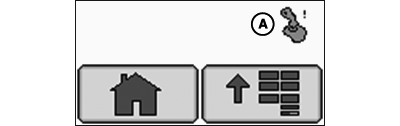
A - Conflict Occurrence Alert
Auxiliary Controls—Conflicts:When a conflict occurs, the GS2 display shows a yellow square (A) next to the Auxiliary Control symbol in the message center button. This allows the operator to recognize conflicts at any time independently from the screen he is working on.
The joystick icon appears only if Auxiliary Controls has been enabled.
PC10857TM-UN-02MAR10
PC10857WN-UN-01JUN10
A - View Selection
B - Conflicts
C - Mapped
D - Unmapped
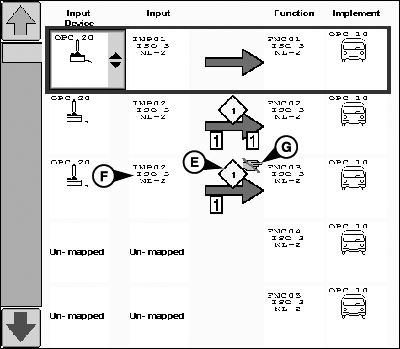
E - Conflict Number
F - Input
G - Assignment Lock Icon
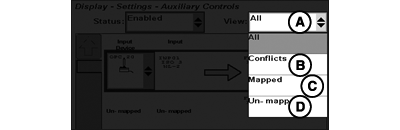
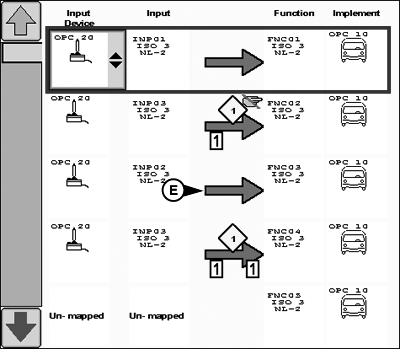
From the Auxiliary Controls page, the operator can select the mapped (C) and unmapped (D) functions and conflicts (B) from the drop-down list of view selection (A).All conflicts are grouped together in the conflicts filter and marked with yellow square and numbers (E). All conflicts with the same number are related to each other.
The conflict square icon (E) will appear on all related assignments even if they have been completed successfully or not.
In this example (see illustration), functions 2 and 3 have been requested to be assigned to the same input (F) although this input is set with a single assignment icon. In addition, the third function (STOP) is set with an assignment lock icon (G) and can not be set manually.
To resolve the conflict the second function MUST be remapped.
PC10857TO-UN-02MAR10
PC10857WO-UN-01JUN10
A - Status Selection
B - Enabled
C - Disabled
D - Learn Mode
E - Status Indicator—Constant
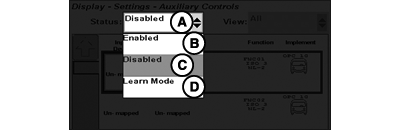
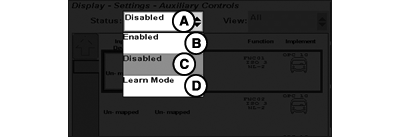
Auxiliary Controls—Enabled Functions:The status selection drop-down list (A) allows the operator to enable (B) or disable (C) the Auxiliary Control functions and to enable the learn mode (D).
All active assignments are shown with a constant status indicator (E). In case of a conflict, the status indicator (E) switches from green to red color.
If disabled is selected, Auxiliary Controls will be disabled and all mappings will show up with a dashed status indicator independent from if an assignment has been completed successfully or not. See Auxiliary Controls—Disabled Functions hereafter.
Selecting the ”Learn Mode” allows the operator to map the functions by selecting the respective input controls for the referring assignment. See Auxiliary Controls—Learn Mode hereafter.
PC10857TQ-UN-02MAR10
PC10857TR-UN-01JUN10
A - Status Selection
B - Enabled
C - Disabled
D - Learn Mode
E - Status Indicator—Dashed
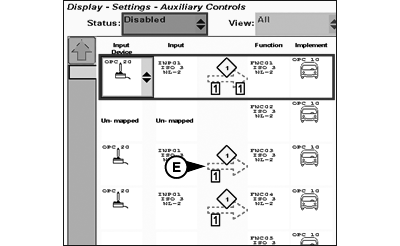
Auxiliary Controls—Disabled Functions:The status selection drop-down list (A) allows the operator to enable (B) or disable (C) the Auxiliary Control functions and to enable the learn mode (D).
If Auxiliary Controls is ”Disabled” all assignments are shown with a dashed status indicator (E). In case of a conflict, the status indicator (E) switches from green to red color.
Selecting the ”Learn Mode” allows the operator to map the functions by selecting the respective input controls for the referring assignment. See Auxiliary Controls—Learn Mode hereafter.
PC10857TS-UN-02MAR10
A - Status Selection
B - Enabled
C - Disabled
D - Learn Mode
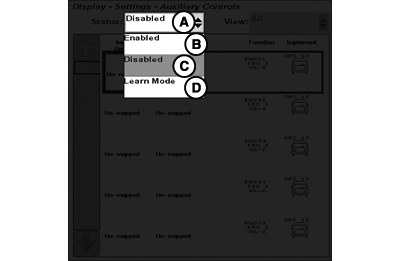
Auxiliary Controls—Learn Mode:The status selection drop-down list (A) allows the operator to enable (B) or disable (C) the Auxiliary Control functions and to place the system under learn mode (D).
- If the ”Learn Mode” is selected and the operator leaves the Auxiliary Controls page without any action, the Auxiliary Controls status (enable/disable) will remain as set prior to entering the ”Learn Mode”.
- If an assignment has been completed successfully in the ”Learn Mode”, the cursor colored rectangle switches to the next possible assignment. During the assignment process, the implement does NOT follow any functions which have been assigned before. As long as the ”Learn Mode” is selected, Auxiliary Controls is in a pending status (neither enabled, nor disabled).
- If Auxiliary Controls was in ”Enabled” status before selecting the ”Learn Mode”, all additional assignments can be used as soon as they have been completed successfully. If Auxiliary Controls was in ”Disabled” status before selecting the ”Learn Mode”, the system has to be enabled again before the new/additional assignments can be used.
Selecting the ”Learn Mode” allows the operator to map the functions semi-automatically. Therefore it is necessary to select the implement specific function on the Auxiliary Controls page and set any input device function.
The preferred assignments which have been requested automatically by an implement with an assignment lock icon can not be changed manually in the ”Learn Mode”.
|
OUO6050,0001245-19-20100601 |