Auxiliary Control Safety Signs
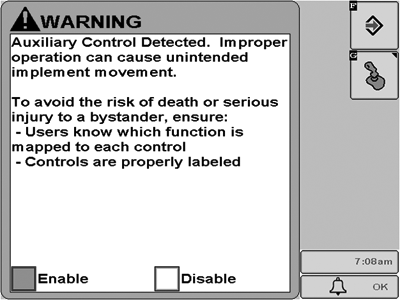
Auxiliary Control Detected
PC13154-19-17FEB11
This message occurs when the system detects an Auxiliary Control. Press ”Enter” key F to navigate to the home page. Go to the Auxiliary Controls page by pressing the ”Mapping” key G to review or change the Auxiliary Control assignments.
If ”Disable” is selected (default), all Auxiliary Controls will be disabled.
If ”Enable” is selected, all Auxiliary Controls will be enabled.
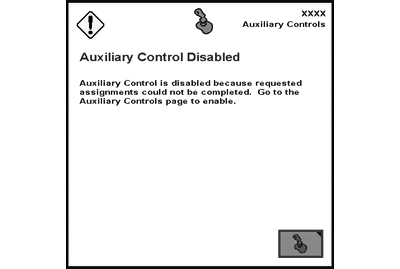
Auxiliary Control Detected
PC10857SV-UN-01MAR10
Auxiliary Control is disabled because requested assignments could not be completed. Go to the Auxiliary Controls page to enable.
This message occurs when the system detects an Auxiliary Control and at least one of the requested assignments could not be completed. It is necessary to check the Auxiliary Controls page by pressing the ”Mapping” key G and review the assignments before Auxiliary Control can be enabled.
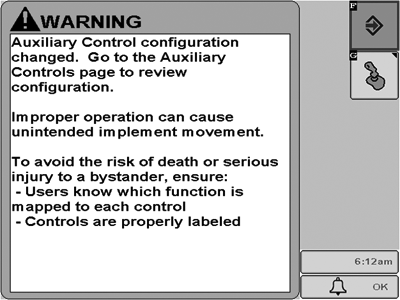
Auxiliary Control Configuration Changed
PC13155-19-17FEB11
This message occurs when the system detects an Auxiliary Control and that configuration has been modified during run time (e.g. additional input and/or implement added). Press ”Enter” key F to navigate to the home page. Go to the Auxiliary Controls page by pressing the ”Mapping” key G to review or change the Auxiliary Control assignments.
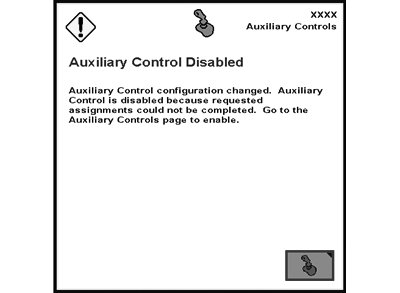
Auxiliary Control Configuration Changed
PC10857SW-UN-01MAR10
Auxiliary Control configuration changed. Auxiliary Control is disabled because requested assignments could not be completed. Go to the Auxiliary Controls page to enable.
This message occurs when the Auxiliary Control configuration has been modified during run time (e.g. additional input and/or implement added) and at least one of the requested assignments could not be completed. It is necessary to check the Auxiliary Controls page by pressing the ”Mapping” key G and review the assignments before Auxiliary Controls can be enabled.
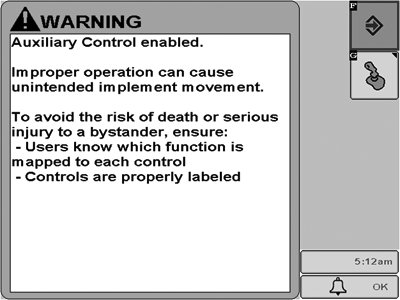
Auxiliary Control Enabled
PC13146-19-17FEB11
This message occurs when the operator enables the Auxiliary Control manually. Press ”Enter” key F to navigate to the home page. Go to the Auxiliary Controls page by pressing the ”Mapping” key G to review or change the Auxiliary Control assignments.
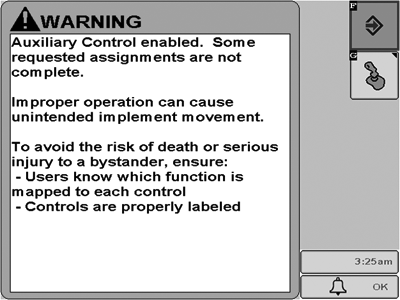
Auxiliary Control Enabled
PC13153-19-17FEB11
This message occurs when Auxiliary Control has been enabled manually, however, not all assignments have been completed successfully. Press ”Enter” key F to navigate to the home page. Go to the Auxiliary Controls page by pressing the ”Mapping” key G to review or change the Auxiliary Control assignments.
If the ”Enter” key F is selected, the implement only follows the assignments which have been completed successfully, however, there are still assignments which are not complete. It is necessary to review the Auxiliary Controls mapping screen by pressing the ”Mapping” key G and complete all assignments before enabling Auxiliary Controls.
|
RN38933,000013B-19-20110921 |