Initial Settings
 CAUTION: Selecting the wrong valve type may result in valves
opening unexpectedly. To avoid injury from exposure to chemicals,
verify the correct valve is selected. Review control valve type before
moving GreenStar Rate Controller between implements.
CAUTION: Selecting the wrong valve type may result in valves
opening unexpectedly. To avoid injury from exposure to chemicals,
verify the correct valve is selected. Review control valve type before
moving GreenStar Rate Controller between implements.
-

PC12277-UN-16SEP09Control Valve Type
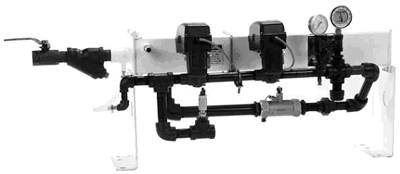
PC10645-UN-11OCT07Dual Valve System
A - Control Valve Type Drop-Down Menu
Select Control Valve type from the drop-down menu. See the following valve type descriptions.NOTE: Valve type must be selected for system to work.
Select STANDARD or FAST for valve configurations with a control valve and separate downstream on/off valve(s). Select FAST CLOSE for valve configurations with one valve that combines control and on/off. Selecting the wrong valve type may result in unexpected behavior and degraded performance.
-
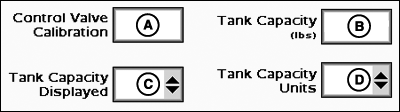
PC12985-UN-28OCT10Control Valve Calibration
A - Control Valve Calibration
B - Tank Capacity
C - Tank Capacity Displayed
D - Tank Capacity Units
Enter Control Valve Calibration number into control valve calibration input box.Control Valve Calibration Table
Standard Valve Type
Valve Calibration Number (XXYZ)
RAVEN 165
2513
RAVEN 894
2513
RAVEN 125
2513
TEEJET 344B
1003
HARDI
7051
Fast Valve Type
Valve Calibration Number (XXYZ)
RAVEN 177
0753
HINIKER Servo Valve (8160 Monitor Compatible)
0433
Fast-Close Valve Type
Valve Calibration Number (XXYZ)
RAVEN 177
0753
HINIKER Servo Valve (8160 Monitor Compatible)
0433
NOTE: On a RAVEN valve, the last three numbers of the model number are used to identify the valve type (e.g. RAVEN XXX894).
Use the recommended values in the Control Valve Calibration table to initially set the control valve number. Evaluate machine behavior during operation, and if necessary, adjust the value to attain optimum system performance.
The Control Valve Calibration number is a 4 digit number used to fine tune control characteristics. The number is in the form XXYZ, and is defined as follows:
-
XX - Valve Speed.
-
The higher this value, the quicker the valve responds. If it
is set too high, the actual flow rate will oscillate continuously
around the target rate. If it is set too low, the target rate will
never be reached.
-
The higher this value, the quicker the valve responds. If it
is set too high, the actual flow rate will oscillate continuously
around the target rate. If it is set too low, the target rate will
never be reached.
-
Y - Output Deadband.
-
Sets the minimum speed that the valve will ramp down toward
before stopping. The higher this value, the sooner the valve will
become stationary.
-
Sets the minimum speed that the valve will ramp down toward
before stopping. The higher this value, the sooner the valve will
become stationary.
-
Z - Control Deadband:
- Sets how close the actual flow rate must be to the target rate to be considered acceptable. When the actual and target rates are within this range, the valve will remain stationary. A higher value allows for a larger disparity between actual and target rate.
Example of tuning the control valve for optimal response:After entering the initial starting value for the control valve (e.g. 2513) and run a configuration test, the variance runs high (at or near 100%) and the valve response seems sluggish. The next step in tuning may be to increase the valve speed number (first 2 digits) from 25 to 35 and also increase the output deadband number (third digit) from 1 to 2 and retry the configuration test.
-
XX - Valve Speed.
-
Enter maximum volume of tank in input box labeled tank capacity.
-
Select tank capacity displayed units from drop-down menu
-
Select tank capacity units from drop down menu.
-
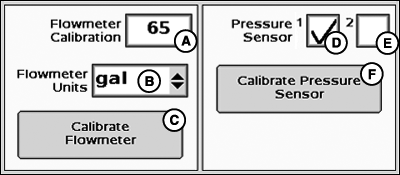
PC12986-UN-28OCT10Initial System Settings
A - Flowmeter Calibration Input Box
B - Flowmeter Units Drop-Down Menu
C - Calibrate Flowmeter Button
D - Pressure Sensor 1 Enable/Disable
E - Pressure Sensor 2 Enable/Disable
F - Calibrate Pressure Sensor Button
Enter Flowmeter Calibration number as stamped on valve.-
Most flowmeters have an attached tag indicating the recommended
calibration number. Enter this number as the initial flowmeter calibration
value. It is not necessary to enter an additional product mass conversion
value as the controller does it automatically.
NOTE: If the tag is no longer attached, start with a low calibration
number such as 60, and change the value accordingly from that point.
NOTE: The number on the RAVEN tag is pulses per 10 units of fluid. Ensure the 10 gal / 10 L unit is used.
-
Most flowmeters have an attached tag indicating the recommended
calibration number. Enter this number as the initial flowmeter calibration
value. It is not necessary to enter an additional product mass conversion
value as the controller does it automatically.
NOTE: If the tag is no longer attached, start with a low calibration
number such as 60, and change the value accordingly from that point.
-
Choose unit of measurement from flowmeter units drop-down.
-
Check the pressure sensor box if sensor is installed. If using more than one pressure sensor, check the second box as well. Pressure indicator will be displayed on main menu instead of flow rate when pressure sensor is checked.
-
To calibrate pressure sensor, select button and follow on screen instructions. See TEST section for details.
|
BA31779,00002AC-19-20111101 |