Calibrate Flowmeter - Catch
PC12608-UN-12MAY10
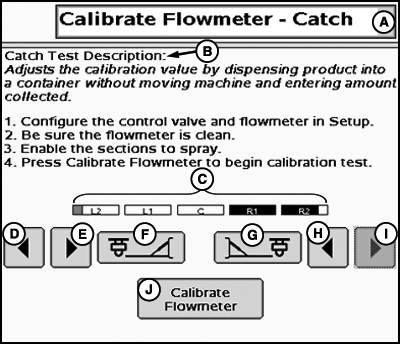
Calibration Test
A - Tests Drop-Down Menu
B - Catch Test Description
C - Enabled Sections
D - Left Sections Off
E - Left Sections ON
F - Left Fence Row Nozzles
G - Right Fence Row Nozzles
H - Right Sections ON
I - Right Sections OFF
J - Calibrate Flowmeter
The Calibrate Flowmeter - Catch test allows the operator to catch product and enter the exact amount caught to calibrate the flowmeter.
Catch Test Description (B) - Adjusts the calibration valve by dispensing product into a container without moving the machine and entering amount collected.
Place containers (such as calibration container) under up to 7 nozzles to capture volumes sprayed during the test. Only 7 samples may be entered into the sample volumes popup screen. Calibrating Flowmeter may be repeated as many times as needed if all nozzles are to be tested. By measuring these samples and entering the values into the system, an accurate flowmeter calibration value can be attained. Follow the on-screen instructions as described.
-
Configure the control valve and flowmeter in Setup (Softkey G).
-
Select Calibrate Flowmeter - Catch from the Tests drop-down menu.
-
Be sure the flowmeter is clean.
-
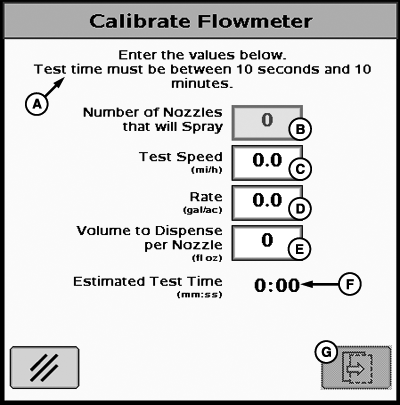
PC12264-UN-15SEP09A - Enter the values below. Test time must be between 10 seconds and 10 minutes.
B - Number of nozzles that will spray
C - Test Speed
D - Rate
E - Volume to dispense per nozzle
F - Estimated test time
G - Next Page
Enable the sections to spray and select the Calibrate Flowmeter button.IMPORTANT: Always fill the solution tank with clean water to do a proper calibration test.
-
Enter calibration test parameters.
NOTE: Use conditions in this test that are comparable to normal operation. Larger dispense volumes will result in longer, but more accurate, calibration tests.
-
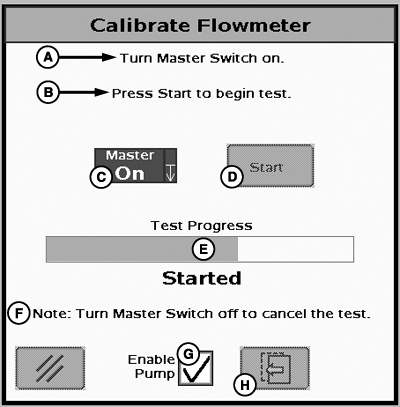
PC14153-UN-01NOV11Calibration Test
A - Turn Master Switch ON.
B - Select Start to begin test.
C - Master Switch Indicator
D - Start Button
E - Test Progress
F - Note: Turn Master Switch OFF to cancel the test.
G - Enable Pump Checkbox
H - Previous Page
Turn Master Switch on, Enable Pump (G), start test, and collect samples.NOTE: Enable Pump checkbox (G) will only be displayed if control valve type is PWM and Pump Enable checkbox was selected in PWM settings.
- Ensure sample containers are properly positioned.
- Turn the Master Switch on.
- Check Enable Pump checkbox (G) if it is displayed.
- Select the "Start" button (D) on the screen.
-
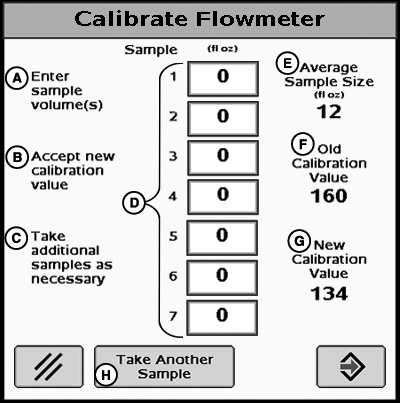
PC12325-UN-07OCT09A - Enter Sample Values
B - Accept New Calibration Value
C - Take additional Samples As Necessary
D - Sample Amounts
E - Average Sample Size
F - Old Calibration Value
G - New Calibration Value
H - Take Another Sample
Enter the collected sample volumes on the popup screen.- Enter the measured amounts collected from each container.
- If fewer than 7 samples were collected, leave remaining values set to 0.
- Select "Take Another Sample" if additional samples are desired.
-
Repeat steps 4—7 as necessary.
- If it is desired to collect samples from other sprayer sections and/or nozzles in order to further confirm test results, select the cancel button and repeat steps 4—7.
-
Accept new calibration value.
- Select the accept button to accept the New Calibration Value.
-
Turn Master Switch OFF at any time to cancel test.
|
BA31779,00002B0-19-20111110 |