Calibrate Flowmeter - Applied
The Calibrate Flowmeter - Applied test will allow you to apply a known amount of product and enter the known amount to calibrate the flowmeter.
Applied Product Test Description (B) – Adjusts the calibration value by comparing the rate controller’s amount applied to the actual amount applied.
-
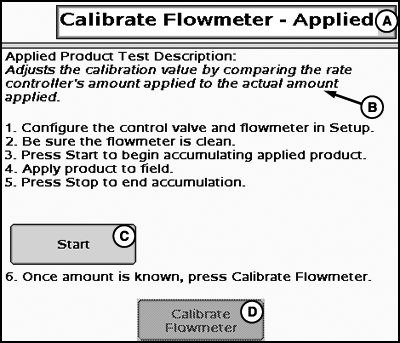
PC12557-UN-12APR10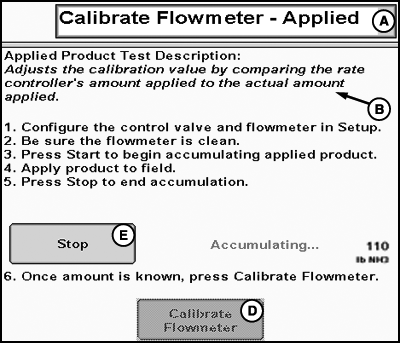
PC12556-UN-13MAY10A - Tests Drop-Down Menu
B - Applied Product Test Description
C - Start Button
D - Calibrate Flowmeter Button
E - Stop Button
Configure the control valve and Flowmeter in Setup (Softkey G).NOTE: Master Switch must be off to enter data.
-
Select Calibrate Flowmeter – Applied from the Tests drop down menu.
-
Be sure the Flowmeter is clean.
-
Press Start to begin accumulating applied product.
NOTE: While product is being applied the operator can navigate away from this page and return when he has applied a sufficient amount of product to complete the calibration.
-
Apply product to field.
-
Press Stop to end accumulation.
-
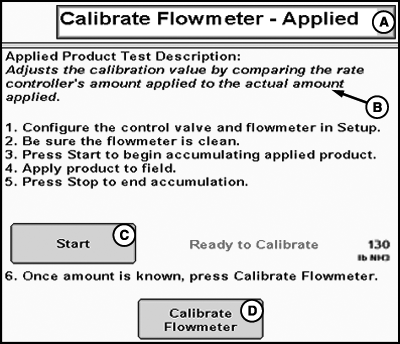
PC12558-UN-13MAY10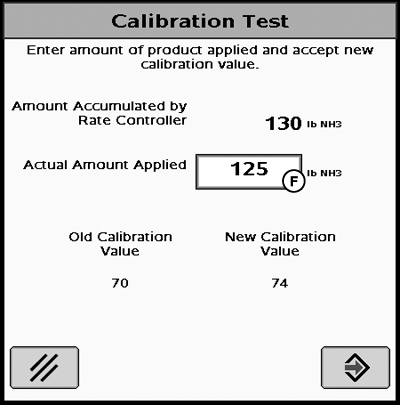
PC12949-UN-18OCT10A - Tests Drop-Down Menu
B - Applied Product Test Description
C - Start Button
D - Calibrate Flowmeter Button
F - Actual Amount Applied Input Box
Once amount is known, press Calibrate Flowmeter. -
Enter the actual amount applied into the input box and press the Enter button.
|
CZ76372,00001E4-19-20101018 |