Adaptive Curve Mode
Theory of Operation
PC9029-UN-17APR06
PC9028-UN-16APR06
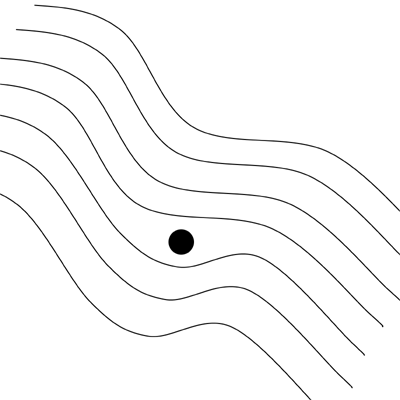
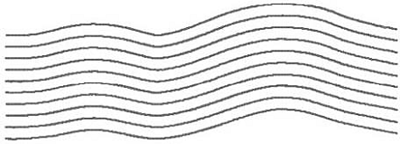
Curve track allows operator to record a manually driven curved path. Once the first curved pass is recorded and machine is turned around, operator can Parallel Track™ or activate AutoTrac™ once propagated path appears. Machine is guided along subsequent passes, based off previous recorded pass. Each pass is generated from the previous pass to ensure that steering errors are not propagated through entire field. Generated passes are not identical copies of the original pass. Curvature of the pass changes to maintain pass to pass accuracy. When necessary, operator can change curve path anywhere in the field by simply steering machine off the propagated path.
NOTE: Skip pass is not available in adaptive curve mode.
Track 0 Setup
-
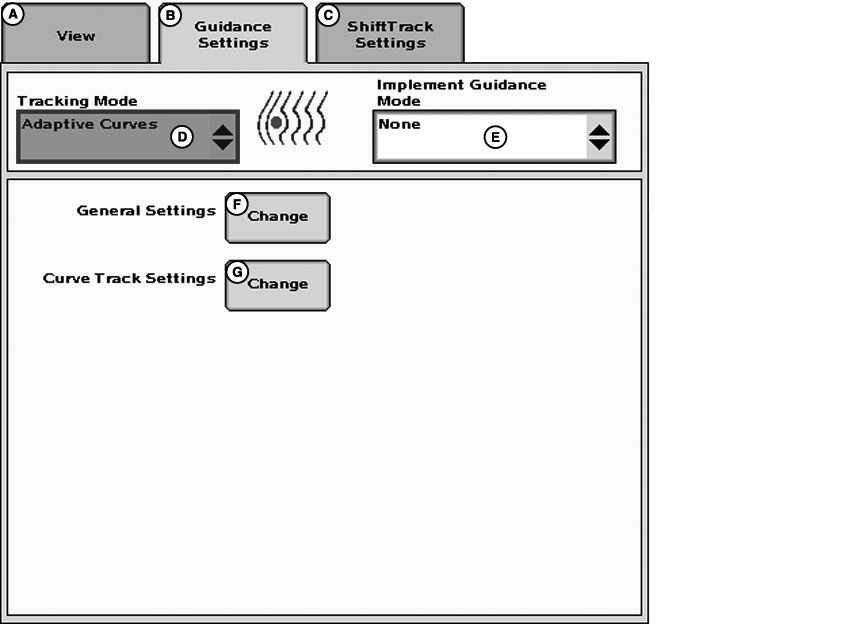
PC12586CC-19-24OCT13A - View
B - Guidance Settings
C - Shift Track Settings
D - Tracking Mode
E - Implement Guidance Mode
F - General Settings
G - Curve Track Settings
Select Adaptive Curves from Tracking Mode drop-down (D). -
Set track spacing in Equipment softkey > Implement tab.
-
Drive to desired location in field to start track 0.
-
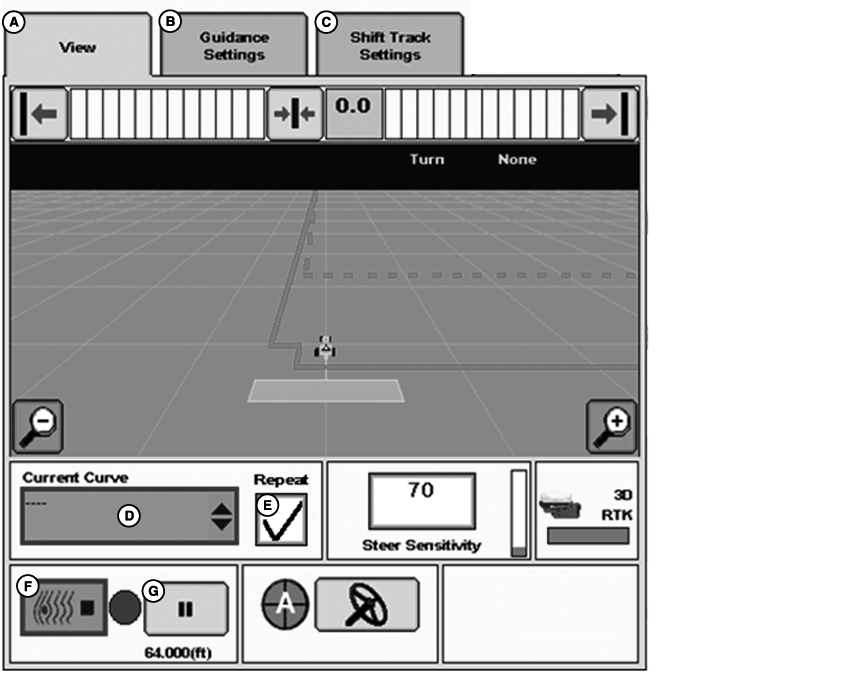
PC15161CC-19-24OCT13A - View
B - Guidance Settings
C - Shift Track Settings
D - Current Curve
E - Repeat Checkbox
F - Record
G - Pause
Select Current Curve drop-down (D) to select, create, or edit an adaptive curve track.Select New to enter a custom name for adaptive curve.
Select an existing adaptive curve listed from drop-down list. Repeat or edit adaptive curve, if needed.
Check Repeat (E) to repeat a guidance line. To edit an adaptive curve, uncheck Repeat.
-
Select Record (F).
-

PC12634-UN-09JUN10Curve Track Record Button
A red light by Record button indicates that path is being recorded. -
Drive machine along desired path.
-
Turn machine at end of first pass. Curve path generates next pass.
Multiple Adaptive Curves
PC16939CC-19-24OCT13
PC16940CC-19-24OCT13
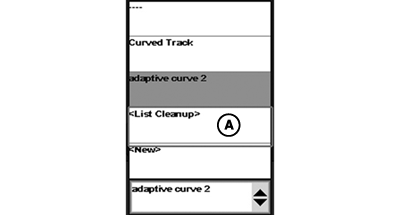
A - List Cleanup
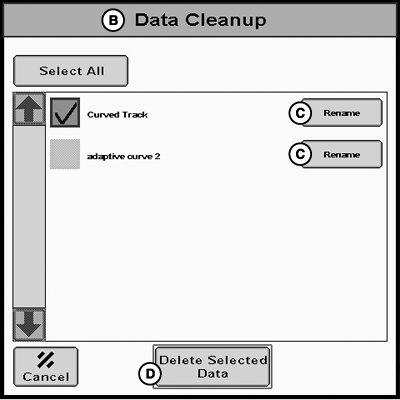
B - Data Cleanup
C - Rename
D - Delete Selected Data
Multiple adaptive curves per field can be saved. Adaptive curve name defaults to “Curved Track”. Uniquely name new adaptive curves in same field.Rename adaptive curves:
-
Select List Cleanup (A) from Current Curve dropdown.
-
On Data Cleanup (B), Select Rename (C) to rename track.
Delete adaptive curves:
-
Select List Cleanup (A) from Current Curve dropdown.
-
On Data Cleanup (B), use checkbox to select track(s).
-
Select Delete Selected Data (D) to delete tracks.
Repeat Mode
PC15161CC-19-24OCT13
A - View
B - Guidance Settings
C - Shift Track Settings
D - Current Curve
E - Repeat Checkbox
F - Record
G - Pause
While using adaptive curves repeat mode:
- Repeat on—Repeats previous paths and disables recording.
- Repeat off—Enables recording and projects guidance paths off recorded passes.
To record a new path, uncheck (off) Repeat (E).
When turning around on end or coming back after an obstacle where recording is off, operator is able to see line without turning on recording.
Default is off. If Repeat is on, recording is disabled.
Examples:
To record new a path (such as planting) uncheck (off) Repeat (E).
To follow an existing path (such as spraying or harvesting), check (on) Repeat.
Saving Curve Track Data
IMPORTANT: If it is desired to have repeatability with saved Curve Track data, it is required that the initial Curve Track data and subsequent trips across the field be made using StarFire™ RTK (Real Time Kinematics) accuracy. It is recommended that RTK base station operate in Absolute Base mode.
NOTE: Set up of client, farm, and field is not required for curve track operation. It is required to save track and be repeated.
Stored curve track data is assigned to a client, farm, or field name that is set up in the Resources softkey > Resources tab.
Recalling Saved Curve Data
NOTE: Curve track data can be recalled if same implement width is used. If a different implement width is used, record new data.
- Resources softkey > Resources tab > select client, farm, field name curve track data was assigned to.
- Guidance Settings tab > Tracking Mode dropdown > select Adaptive Curves.
- Equipment softkey > Implement tab > enter implement width and track spacing.
Drive to where first pass is located.
When desired path is highlighted, select resume switch (AutoTrac™ only) and machine automatically steers on path. In Parallel Tracking™, operator is guided along highlighted path.
NOTE: Do not turn on Record button. Repeat mode does not require Record button to be on unless operator is redefining a path.
Smooth Tight Turns
PC17071CC-19-24OCT13
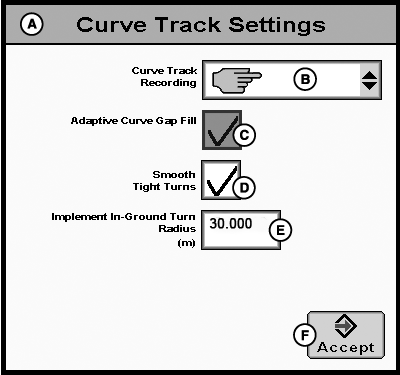
A - Curve Track Settings
B - Curve Track Recording
C - Adaptive Curve Gap Fill
D - Smooth Tight Turns
E - Implement In-Ground Turn Radius
F - Accept
GreenStar 3 Pro > Guidance > Guidance Settings tab > Curve Track Settings Change button
Smooth Tight Turns (D)—When box is checked, system smooths a tight propagated path.
Implement In-Ground Turning Radius (E)—Value of how tight of a turn radius implement can turn while in ground. For a drawn implement, measurement cannot be less than physical width of implement. A higher Implement In-Ground Turn Radius results in smoother turns. A lower Implement In-Ground Turn Radius results in tighter turns. Setting is used for generating curve tracks.
PC9529-UN-27OCT06
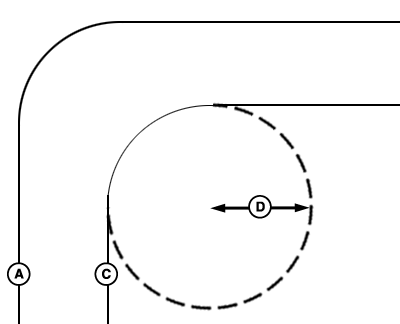
Smoothing Tight Turns Off
PC9530-UN-27OCT06
Smoothing Tight Turns On
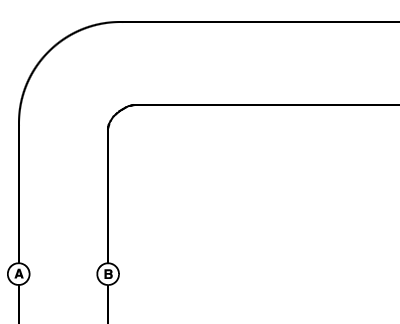
A - Previous Pass
B - Next Pass—Smoothing Tight Turns Off
C - Next Pass—Smoothing Tight Turns On
D - In-Ground Turn Radius
With Smoothing Tight Turns on, path is generated based on implement in-ground turn radius.
Operating Curve Track
PC15161CC-19-24OCT13
GreenStar 3 Pro - Guidance
PC12634-UN-09JUN10
Curve Track Record Button
A - View
B - Guidance Settings
C - Shift Track Settings
D - Current Curve
E - Repeat
F - Record
G - Pause
Start Curve Track:
Guidance softkey > View tab, select Record button (F).
Turn recording off if machine is driven outside of normal field pattern (such as refill sprayer or planter) or if turns at end of field or in headlands do not need recorded. Turning recording on or off is done manually. Recording can be left on when turning at end of each pass, if desired.
NOTE: No navigation line appears until end of pass is reached and machine is turned around. Once machine is turned around, system begins searching through recorded line segments to determine path to guide on. System locates a parallel line segment within 1/2 to 1-1/2 track spacings. The predicted path appears from which the operator can navigate from.
Shift Track only shifts recorded line segments in one direction based off orientation of current line segment.
Guiding Around Obstacles in Field
PC9029-UN-17APR06
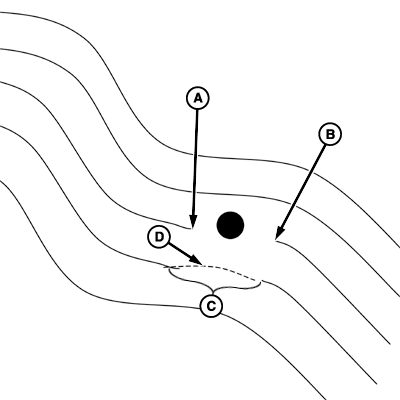
Recording is Left On
PC9030-UN-17APR06
Recording Turned Off
A - Recording Turned Off
B - Recording Turned On
C - Gap in Curve Track
D - Manually Driven Segment
When operating curve track in a field and an obstacle is encountered, such as a well head, telephone pole, or power line, operator must drive around these obstacles.Recording On: If recording is left on while driving around an obstacle, deviation to propagated path is recorded and becomes a part of the path. On next pass when area is approached in the field, propagated path machine is on incorporates the deviation and machine steers along the deviation. To straighten out deviation, operator takes over manual steering of machine to straighten out deviation. Once operator has driven past deviation in field and reacquired intended path, resume switch can be engaged and AutoTrac™ takes over machine steering.
Recording Off: If recording is turned off when obstacle is approached and steered around and recording turned back on once obstacle has been navigated around and AutoTrac™ activated to finish the pass, a gap is present in recorded path where the obstacle is. On next path when machine approaches gap, operator takes over manual steering of machine and navigates through gap. Once gap has been navigated and propagated path is reacquired, AutoTrac™ can be activated. Gap does not appear in subsequent passes.
Adaptive Curves Gap Fill
PC17071CC-19-24OCT13
A - Curve Track Settings
B - Curve Track Recording
C - Adaptive Curve Gap Fill
D - Smooth Tight Turns
E - Implement In-Ground Turn Radius
F - Accept
If recording is turned off momentarily and turned on, a straight line is generated to fill gap where recording was turned off if it meets a set distance and heading requirement. AutoTrac™ does not deactivate on subsequent passes. If generated straight line where gap would have been on subsequent passes is incorrect, operator takes over manual steering of machine and navigates along best fit line.
Example: An operator drives an SPFH along a truck until truck is full. Operator stops when truck is full and truck drives away. Operator of the SPFH raises the head and backs up to wait for the next truck. Raising the head turns documentation off, breaking the adaptive curve into separate segments. On subsequent passes, gap is filled by the white line. The gap in the blue line is still shown on the display, but does not disable AutoTrac™.
Adaptive Curves Gap Fill Option
NOTE: Settings are saved on warm boots. Checkbox resets to default (on) after a cold boot or reprogram.
GreenStar™ 3 Pro > Guidance > Guidance Settings tab > Curve Track Settings Change button
Curve Track Settings
When Adaptive Curve Gap Fill (C) is checked, system automatically connects an adaptive curve that was split into two segments if heading and distance requirements are met. Unchecking checkbox disables this feature.
Guidance Patterns
PC9032-UN-17APR06
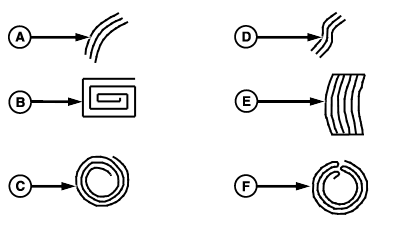
A - Simple Curve
B - Boxed
C - Spiral
D - S—Curve
E - Race Track
F - Circle
The method of searching all line segments allows an operator to drive and be guided along field patterns:- Simple Curve (A)
- Boxed (B)
- Spiral (C)
- S—Curve (D)
- Race Track (E)
- Circle (F)
Shift Track Operation
Shift track is not recommended when using curve track. Shift track does not compensate for GPS drift in curve track mode.
Pause Recording Feature
PC14244CC-19-24OCT13
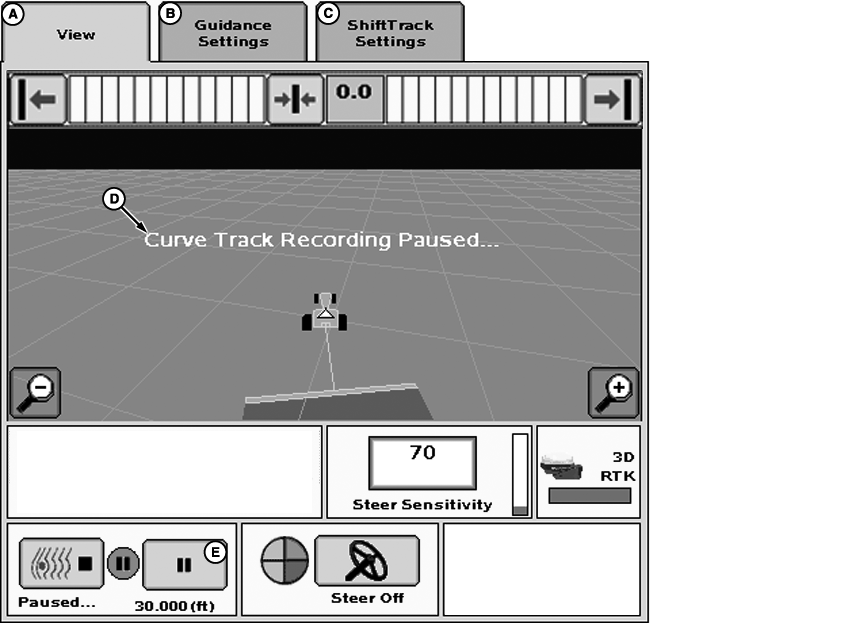
Curve Track Pause Recording Feature
A - View
B - Guidance Settings
C - Shift Track Settings
D - Curve Track Recording Paused . . .
E - Pause
Pause button (E) is located next to the curve track record button.
This feature allows operator to pause recording of a machine path. When recording is resumed, curve track resumes recording and a straight line is created between space where it was paused and resumed recording. Pause is helpful when there is a long straight section or navigating around obstacles.
NOTE: Longest bridge segment (line segment created between paused and resumed) that can be created is a distance of 0.8 km (0.5 mi). If distance between points is greater than 0.8 km (0.5 mi), line segment does not connect. This disconnection results in a gap in path.
Operating Pause Recording
When pause is selected, “Paused” is displayed under the Record button. To resume recording, select Pause button.
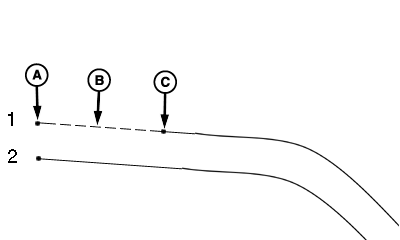
PC9297-UN-29JUL06
Straight Path Starting from Field Edge
A - Recording Turned On and Paused
B - Bridge Segment is Generated to Connect Points
C - Recording Resumed
Recording a Straight Path within a Curved Path
Straight Path Starts from Field Edge:
- Drive machine to designated starting spot in field. Turn curve track recording on and select pause.
- “Paused” is displayed under Record button.
- Start driving first pass. When spot in field is reached where pass starts to curve, select Pause again to start curve track recording.
- Drive to end of first pass.
- The straight path (B) is created when the recording is resumed.
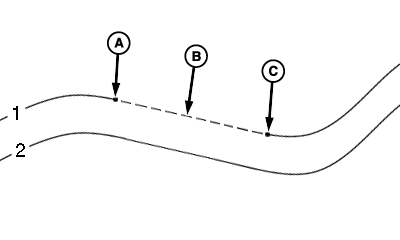
PC9298-UN-29JUL06
Straight Path Between Two Curves
A - Recording Paused
B - Bridge Segment is Generated to Connect Points
C - Recording Resumed
Recording a Straight Path within a Curved Path
Straight Path is Between Two Curves:
- Drive machine to designated starting spot in field, turn curve track recording on.
- Start driving curve path.
- Select Pause to start creating a straight path.
- Recording indicator turns black. “Paused” is displayed under Record button.
- Drive straight path.
- When at point where straight path ends, select Pause. Curve track starts recording again.
- Straight path (B) is created when recording is resumed.
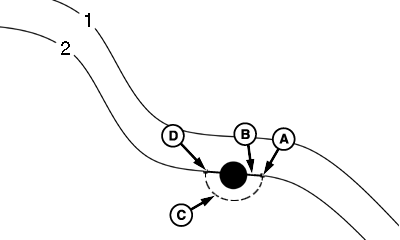
PC9284-UN-29JUL06
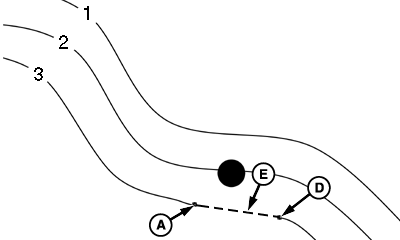
PC9285-UN-08AUG06
Pass 2
A - Recording Paused
B - Bridge Segment is Generated to Connect Two Points
C - Tractor Path Not Recorded While Paused
D - Recording Resumed
E - Path Recorded Without Machines Deviated Path
Guiding Around Obstacles in Field
IMPORTANT: Resume curve track recording after obstacle is navigated. Curve track continues to record driven path to propagate next pass.
Recording Paused:
If recording is paused when obstacle is approached and steered around and then recording is resumed once obstacle has been navigated. A straight-line segment connects points where curve track recording was paused and where it was resumed.
Next pass is propagated without a deviation or a gap around obstacle as occurs when recording is on or off when going around an obstacle.
If machine is navigating on curve path when recording is paused, curve path:
- Remains displayed on page, line machine up once obstacle is navigated. If path disappears from display due to exceeding 40% track spacing rule, manually line machine up on other side of obstacle. Line appears once previous pass is located again.
- AutoTrac™ can be activated while paused to get machine lined up on path before resuming curve track recording.
|
Parallel Tracking is a trademark of Deere & Company AutoTrac is a trademark of Deere & Company StarFire is a trademark of Deere & Company |
AE77568,00000ED-19-20150728 |