Tram Lines
PC14318CC-19-24OCT13
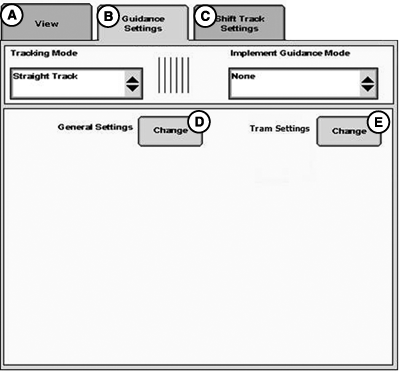
Guidance Settings - Tram Settings
A - View
B - Guidance Settings
C - Shift Track Settings
D - General Settings
E - Tram Settings
Tram Lines are guidance lines shown in a differentiating color to help machine operators distinguish between regular guidance lines and guidance lines where adjustments must be made to the implement. For example, manually turning off planter sections to allow a drivable pass in the field at a predetermined spacing.
Operators can set up Tram Lines and view them on Guidance maps. Tram lines are compatible with Straight Track, AB Curves, and Circle Tracks.
Tram Line spacing and Tram Shifts are saved to the guidance lines they were set up for. Operators can recall Tram Line settings when a guidance line with Tram Line setup is selected.
When viewing Tram Lines on guidance maps the Tram Line currently being tracked on is light blue. Planned Tram lines are shown in bright green.
NOTE: Tram Lines work with existing guidance lines. Guidance lines must be created before setting up Tram Lines.
Tram Line Setup
- Select Guidance Settings tab.
- Select Tram Settings button (E).
-
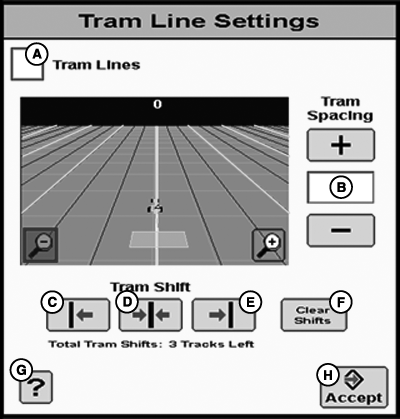
PC14317CC-19-24OCT13Tram Line Settings
A - Tram Lines Checkbox
B - Tram Spacing
C - Tram Shifts - Left
D - Tram Shifts - Center
E - Tram Shifts - Right
F - Clear Shifts
G - Info
H - Accept
Check the Tram Lines Checkbox (A) to turn on the ability to view projected Tram Lines on guidance map. -
Increase or Decrease the Tram Spacing (B) using the +/- buttons
to adjust the number of guidance lines between each projected tram
line.
NOTE: Tram Spacing is the number of guidance lines between Tram
lines.
Minimum spacing is 0 and maximum spacing is 20.
-
Select Center Shift button (D) to shift Tram Line to current
track.
Tram Shift function allows the operator to adjust which guidance lines are planned Tram Lines, but do not affect any guidance Shift Track settings.
NOTE: Direction of Shift and distance shifted is shown below the Tram Shift buttons.
The ‘?’ button (G) displays a popup with help text for the specific settings.
PC14319CC-19-24OCT13
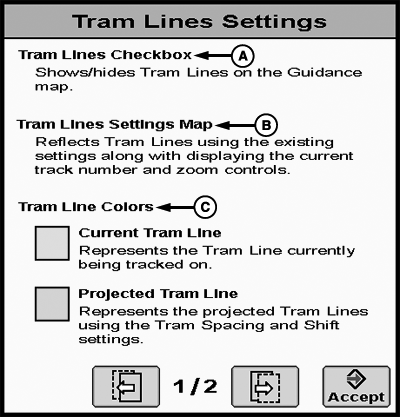
Tram Line Settings 1/2
PC14320CC-19-24OCT13
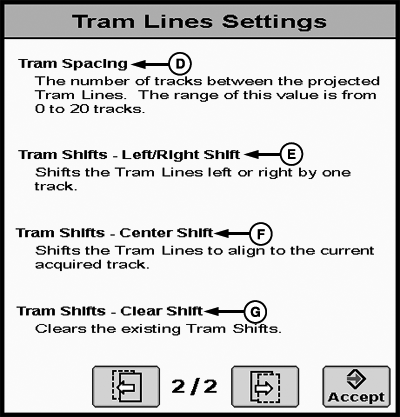
Tram Line Settings 2/2
(A) Tram Lines Checkbox
Shows/Hides Tram Lines on the Guidance map.
(B) Tram Lines Settings Map
Reflects Tram Lines using the existing settings along with displaying the current track number and zoom controls.
(C) Tram Line Colors
- Current Tram Line — Represents the Tram Line currently being tracked on.
- Projected Tram Line — Represents the projected Tram Lines using the Tram Spacing and Shift Settings.
(D) Tram Spacing
The number of tracks between the projected Tram Lines. The range of this value is from 0 to 20 tracks.
(E) Tram Shifts - Left/Right Shift
Shifts the Tram Lines left or right by one track.
(F) Tram Shifts - Center Shift
Shifts the Tram Lines to align to the current acquired track.
(G) Tram Shifts - Clear Shift
Clears the existing Tram Shifts.
|
BA31779,0000400-19-20131024 |