Shapefile Converter
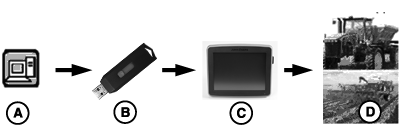
Shapefile converter converts shapefile prescriptions to a form used with GreenStar™ 3 System. Not all desktop software solutions are compatible with the GS3 2630 Display.
PC12853-UN-31AUG10
A - Desktop Software other than Apex
B - USB Drive
C - GS3 2630 Display
D - GreenStar™ Prescription Application
Shapefile Converter Process
Supported Shapefile format: ESRI format, WGS-84 non-projected
NOTE: Most farm management software creates a shapefile in WGS-84 non-projected format. To confirm prescription shapefile from third Party software program is compatible, test file using Shapefile Converter before field application.
GS3 2630 Display supports up to 120 shapefiles per USB drive.
Only use shapefile converter for prescription shapefiles.
Create a prescription (Rx) folder on USB drive. Save all prescription shapefiles to this folder. GS3 2630 Display references Rx folder to import prescription shapefiles.
PC12747CC-19-24OCT13
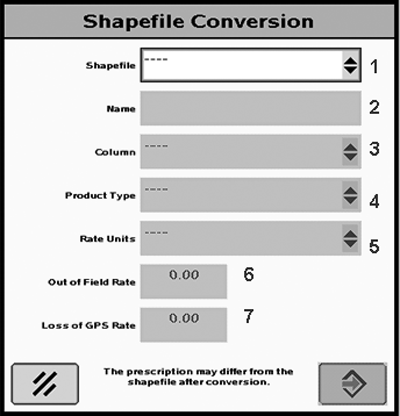
Shapefile Conversion Home Page
Shapefile Conversion Home Page
NOTE: Shapefiles must be in Rx folder on USB drive.
-
Select Shapefile to convert from dropdown menu.
-
Enter a name. Name automatically populates and can be edited.
-
NOTE: Selecting wrong column results in under or over application of product.
Select Column. Select column that contains product rate).
-
Select Product Type (chemical, fertilizer, or seed).
-
NOTE: Unit system setting (English or Metric) on GS3 2630 Display and shapefile are required to match.
Selecting wrong units results in under or over application of product.
Select Rate Units (pounds, tons, ounces, or seeds per acre).
-
Enter out of field rate. Out of field rate is default rate control rate used if outside field boundary.
-
Enter loss of GPS rate. Loss of GPS rate is default rate control rate used if GPS signal is lost).
-
Once steps 1-7 are completed, select Accept button.
-
To cancel all changes, select Cancel button.
PC12854CC-19-24OCT13
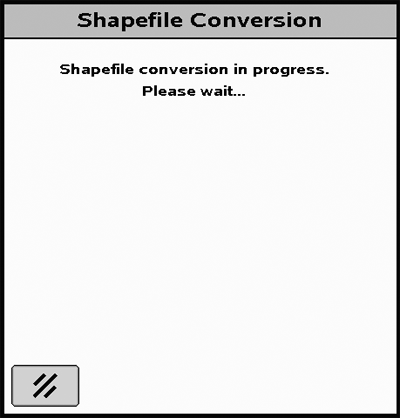
Shapefile Conversion in Progress
NOTE: Shapefile conversion process can take up to 30 sec.
Once correct shapefile is selected and values have been entered correctly in Shapefile Conversion page, shapefile conversion process begins.
Cancel button cancels shapefile conversion process. Shapefile Conversion page displays after selecting Cancel button.
PC12748CC-19-24OCT13
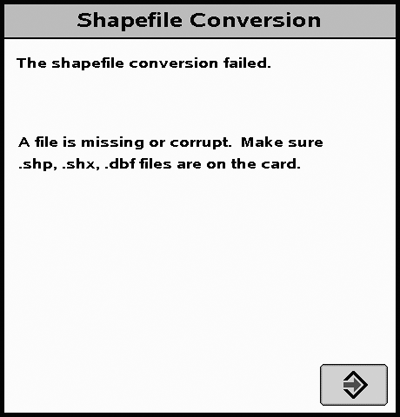
Shapefile Failed Page
Shapefile Conversion Failed
NOTE: If engine is shut off during shapefile conversion process, reconvert shapefile.
If shapefile cannot be converted, this page appears. Errors are:
-
File is missing or corrupt.
- Make sure matching .shp, .shx, and .dbf files are on USB drive.
- Include matching .shx and .dbf files or system cannot convert the shapefile.
- Make sure files are in Rx folder on USB drive.
-
Shapefile error.
- Shapefile format is not compatible.
-
Database file error, incorrect version.
- The dBase file version number incorrect.
-
Database file error, file format incorrect.
- The dBase file format is incorrect.
-
Index file error.
- The .shp file header does not match .dbf file header.
-
Projection file error.
- Validate shapefile is formatted in WGS84 projection.
-
Unknown error.
- The file could not be validated.
-
Field is too large.
- Cannot import a shapefile with maximum bounding rectangle (MBR) larger than 800 ha (1977 acre). MBR is latitude-longitude rectangle which encompasses a shapefile map. For example, an irregularly shaped field of less than 800 ha (1977 acre) could fulfill or exceed an MBR of 800 ha (1977 acre).
- If any of these messages are displayed, select Accept button to go back to Shapefile Conversion homepage.
PC12749CC-19-24OCT13
Maximum Number of Rates Page
Shapefile Conversion Maximum Number of Rates
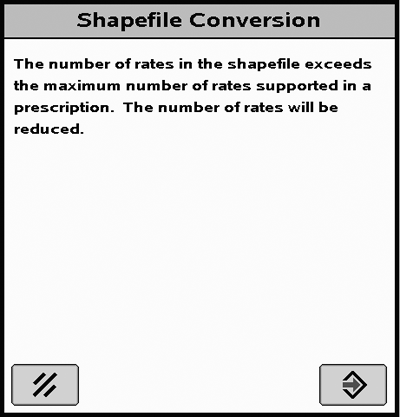
If more than 254 rates are present in a shapefile, this message appears:
The number of rates in the shapefile exceeds the maximum number of rates supported in a prescription. The number of rates will be reduced.
If message is displayed, GS3 2630 Display reduces number of rates by minimizing differences between shapefile and generated prescription.
PC13626CC-19-24OCT13
Shapefile Conversion Page
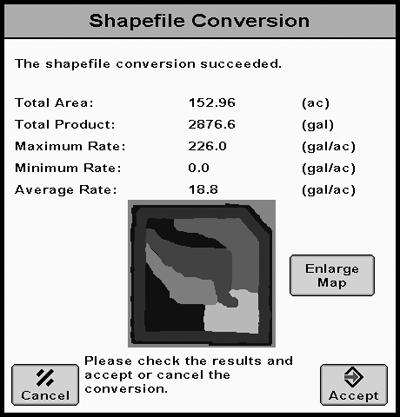
Shapefile Conversion Summary Page
NOTE: If Accept button is grayed out, product type or rate do not match rate units in original prescription. Select Cancel button to return to Shapefile Conversion homepage. Enter correct product type or rate units.
Area of prescription, assigned a zero rate, appears black on prescription map.
Once shapefile conversion is complete, this page appears. A preview map of prescription is displayed. Select Enlarge Map button for a detailed view.
Verify information is correct before accepting. Select Accept button to save converted shapefile.
|
BA31779,00006F8-19-20131024 |