Swap Track Mode
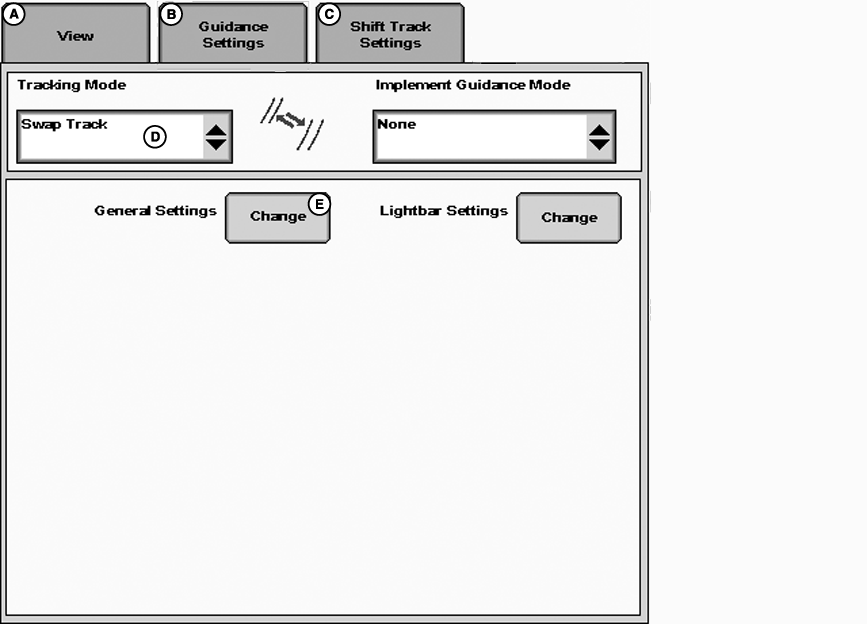
PC13627CC-19-24OCT13
Guidance Settings - Swap Track
A - View tab
B - Guidance Settings tab
C - Shift Track Settings tab
D - Tracking Mode selection
E - General Settings button
Swap track allows operators to switch between four guidance lines in the same field. Swap track can be used to switch between any Straight Track, Adaptive Curve, AB Curve or Circle Track guidance lines within a field.
Swap Track automatically changes the Tracking Mode and Track Name associated to the tracks selected without the operator having to change them.
NOTE: Swap Track works with existing guidance lines. Lines must be created before using Swap Track.
-
Select Guidance Settings tab
-
In Tracking Mode selection, choose Swap Track
-
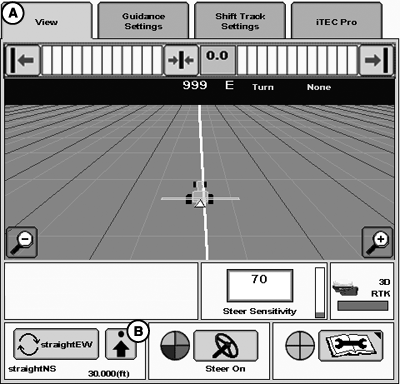
PC14247CC-19-24OCT13Guidance View - Swap Track
A - View tab
B - Swap Track Setup button
Select VIEW tab -
Select Swap Track Setup button.
-
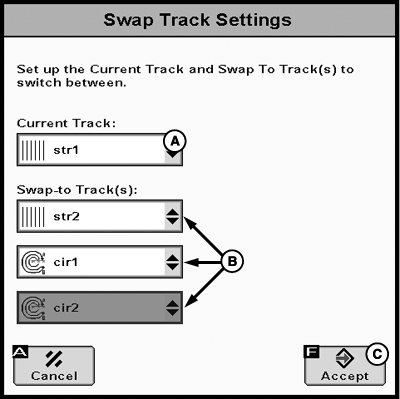
PC16149CC-19-24OCT13Setup Swap Tracks
A - Current Track selection
B - Swap-to Track selection
C - Accept button
If a guidance line has already been selected, it will be displayed as Current Track. Otherwise, set Current Track to guidance line that will be used first. -
In Swap- to Track(s) selection, choose the second guidance line that will be used in the field. Operators can also select the third and fourth guidance lines using the additional drop-down boxes.
NOTE: It is required to select at least one Swap-to Track.
NOTE: If any Swap-to Track(s) are left blank, the selected Swap-to Track(s) are grouped once the accept button is selected. This grouping allows the operator to toggle between selected tracks.
NOTE: Only existing guidance lines for the current field are displayed. Change tracking mode to Straight Track, Adaptive Curve, AB Curve, or Circle Track to create a new guidance line. Once created, return to Swap Track to use new guidance line with other existing lines.
NOTE: Guidance lines are arranged in order of mode (Straight, Curve, then circle) and then alphabetically within each of the modes.
-
Select Accept button.
NOTE: Changes to the Current Track and the associated information are not made until the Accept button is pressed.
-
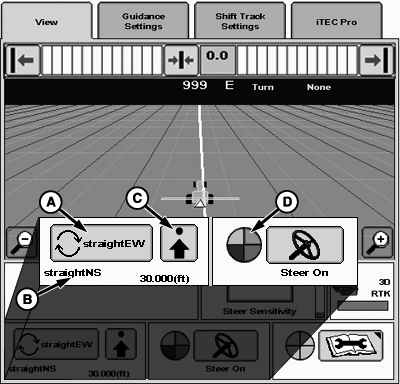
PC14248CC-19-24OCT13Guidance View - Swap Track Buttons
A - Swap Track Toggle button
B - Current Track
C - Setup button
D - AutoTrac Status Pie
The Current Track is displayed at the bottom of the View tab and the Swap-to Track is displayed within the Swap Track Toggle button.Select the Swap Track Toggle button to switch between selected guidance lines.
Changing Swap-to Track
While operating with the Current Track, the operator can select the Swap Track Setup button and change the Swap-to Tracks.
NOTE: The operator can change the order of guidance lines in the setup button.
Operating with AutoTrac
When the Swap Track Toggle button is selected and the system switches to the new guidance line, AutoTrac deactivates. The AutoTrac Status Pie shows three pieces of the pie. The operator only must press the resume switch to activate AutoTrac.
Changing the Current Track, while operating AutoTrac, deactivates AutoTrac when the Accept button is pressed.
Operator can access the Setup button and select the next desired track without deactivating AutoTrac.
NOTE: After the last Swap Track is selected the list will start over with the first track that was selected in the Swap Track Settings.
|
BA31779,000551F-19-20131024 |