Tank Mixes

PC8663-UN-29APR15
MENU button
PC17340-UN-24OCT13
GREENSTAR 3 PRO button

PC8678CC-19-24OCT13
DOCUMENTATION softkey
Press: Menu button >> GreenStar 3 Pro button >> DOCUMENTATION softkey
PC13222CC-19-24OCT13
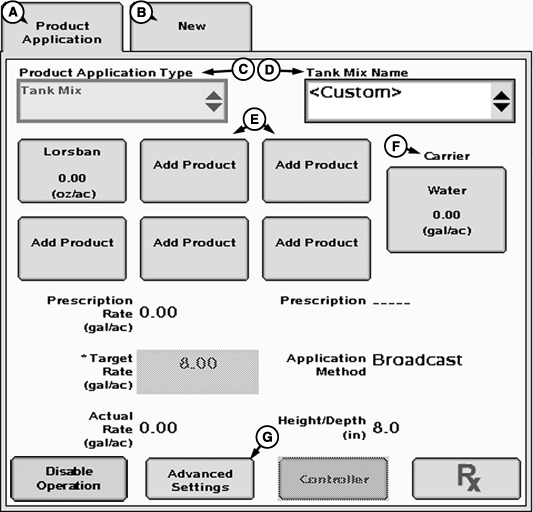
GreenStar 3 Pro - Documentation
A - Product Name tab
B - New
C - Product Application Type
D - Tank Mix Name
E - Add Product
F - Carrier
G - Advanced Settings
The operator can define and document tank mixes during product application operations. They can be created and stored using desktop software or while in the cab.
If a tank mix is created with desktop software and imported to documentation via the USB drive, it can be selected in the Tank Mix Name (D) drop-down box under "Custom." Tank mixes created with desktop software can be modified with the GS3 display but not permanently.
NOTE: Preferred Partner software may not support this function. For further details, refer to your Desktop Software User's Guide.
A tank mix can be created on the GS3 display by:
- Selecting a desired Product Application Type (C).
- Defining the ingredients by pressing Add Product buttons (E). Up to 6 defined ingredients per tank mix are supported.
- Specify the carrier by pressing the Carrier button (F).
Advanced Settings Button (G) allows operator to input the Application Method and the Height/Depth.
- If the tank mix being used was created in the GS3 display, PRODUCT APPLICATION will appear on the product tab (A).
PC13223CC-19-24OCT13
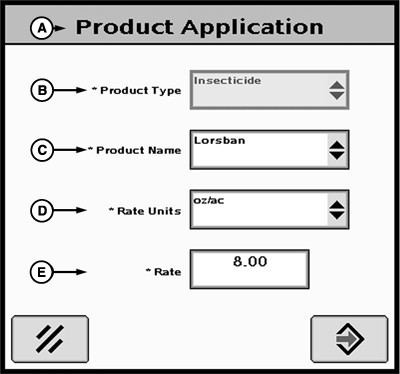
Product Application
A - Product Application
B - Product Type
C - Product Name
D - Rate Units
E - Rate
Define the ingredients by pressing Add Product button on GreenStar 3 Pro - Documentation screen.
PC13224CC-19-24OCT13
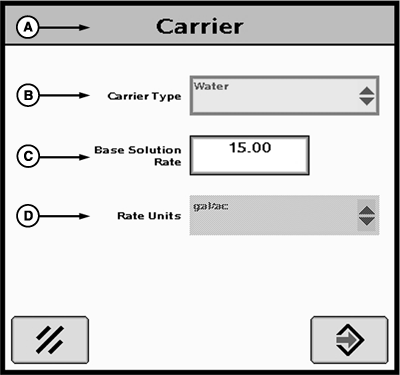
Carrier
A - Carrier
B - Carrier Type
C - Base Solution Rate
D - Rate Units
Specify the carrier by pressing the Carrier button on the GreenStar 3 Pro - Documentation screen.
|
CZ76372,00002BA-19-20131024 |