VIEW Tab
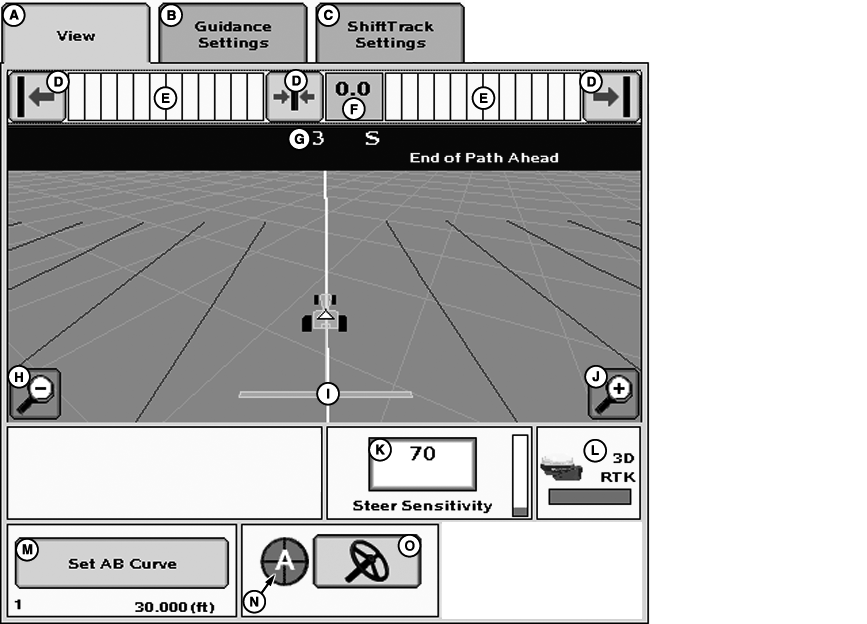
PC14314CC-19-24OCT13
GREENSTAR 3 PRO - GUIDANCE—VIEW tab
A - View tab
B - Guidance Settings tab
C - Shift Track Settings tab
D - Shift Track Buttons
E - Path Accuracy Indicator
F - Off-track Error
G - Track Number
H - Zoom Out button
I - Guidance Icon
J - Zoom In button
K - Steering Sensitivity
L - GPS Indicator
M - Set AB Curve button
N - AutoTrac Status
O - Steer On/Off
The VIEW tab allows the operator to view and/or change the following:
- Path Accuracy Indicator
- Off-track error
- Track number and direction
- AutoTrac deactivation messages
- Turn predictor or Headland Alert
- Guidance Icon
- Shift Track buttons
- AutoTrac Status Pie
- Steer on/off button
- GPS indicator
- Set Track 0 (set circle, record, set AB curve)
- Track 0 name
- Track spacing
- Steering Sensitivity
Path Accuracy Indicator—Is a visual indicator of off-track error. The indicator consists of eight arrows on each side of the off-track error box. The arrows will light up indicating the direction the vehicle must be steered to get back on the A-B line. Each arrow represents a distance. This distance is defined in the GUIDANCE SETTINGS tab under Accuracy Bar Step Size.
Example: The bar step size has been set to 10 cm (4 in.). This means that each arrow that lights up represents 10 cm (4 in.) of off-track error. If two arrows are lit up on the left side of the Path Accuracy Indicator it would represent the vehicle being 20 cm (8 in.) to the right of the desired A-B line. Thus the operator must steer the vehicle 20 cm (8 in.) to the left to get to the desired A-B line.
Off-track error—Total off-track error is numerically displayed in the box. Off-track error will be displayed in inches up to 99 cm (35 in.) of off-track error. If off-track error exceeds 99 cm (35 in.) the distance displayed will change to meters (feet).
Track number—Represents the track number the vehicle is guiding off of. It also tells which direction the track is located from the original Track 0 set for the field.
AutoTrac deactivation message—Each time AutoTrac is deactivated text is displayed indicating the reason why AutoTrac deactivated, in the upper left corner of the perspective view. Messages are also displayed as to why AutoTrac did not activate. The deactivation messages display for 3 seconds and then disappear. These messages can be turned off and on from the Guidance Settings tab.
AutoTrac Deactivation Messages
|
Deactivation Message |
Description |
|---|---|
|
Steering wheel moved |
Operator turned steering wheel |
|
Speed too slow |
Vehicle speed is below minimum required speed |
|
Speed too fast |
Vehicle speed is above maximum allowed speed |
|
Invalid gear |
Vehicle operating in an invalid gear |
|
Track number changed |
Track number changed |
|
Invalid GPS signal |
SF1, SF2, or RTK signal was lost |
|
SSU fault |
See John Deere dealer |
|
Invalid display messages |
Check display settings |
|
Invalid display settings |
Check guidance settings and Track 0 setup |
|
No AutoTrac Activation |
No AutoTrac Activation on GS3 |
|
Heading error too large |
Vehicle is at an angle greater than 45 degrees from track |
|
Off-track error too large |
Vehicle not within 40% of track spacing |
|
Out of seat |
Out of seat too long |
|
Oil temp too cold |
Hydraulic oil not above minimum required temperature |
|
No TCM corrections |
Make sure TCM is turned on |
|
Invalid SSU activation |
Need SSU activation code. See John Deere dealer. |
|
SSU in diagnostic mode |
Fuse is in diagnostic slot in vehicle fuse box – remove fuse. |
|
Header off |
Header was turned off |
|
Road mode |
In transport gear |
|
Invalid SSU voltage |
See John Deere dealer |
|
Reverse timeout |
In reverse gear for more than 45 seconds |
|
Vehicle too slow |
AutoTrac below minimum speed |
|
Curve too sharp |
Maximum curvature has been exceeded |
|
Vehicle not moving in a forward direction |
Vehicle must be in forward gear to activate |
|
Vehicle shutting down |
Vehicle is shutting down |
|
Gear data error |
See John Deere dealer |
|
Resume switch error |
See John Deere dealer |
|
Keyswitch error |
See John Deere dealer |
|
SPFH AutoTrac switch is not on |
Make sure SPFH AutoTrac switch is turned on |
|
SPFH Quick Stop switch is on |
Make sure SPFH Quick Stop switch is turned off |
Turn Predictor/Headland Alert—A visual indicator is displayed 10 seconds before approaching a predicted turning point or headland (must be defined). When the system detects a predicted turning point or headland, the distance to that turning point or headland will be displayed and will count down the intersection to that turning point or headland. The visual indication is accompanied by tones.
NOTE: If a headland boundary is defined and headland indicator is selected it will be displayed instead of turn predictor.
Guidance Icon—The icon represents the implement and the pointer on the icon represents the center of the implement. The icon changes width based upon the entered implement width.
GPS Indicator—Indicates what level of accuracy the StarFire receiver is currently operating at (3D, SF1, SF2, or RTK). If using a GPS receiver other than a StarFire, the text 3D GPS will be displayed but the indicator bar will not fill.
NOTE: AutoTrac SF1 must have a GPS accuracy level of SF1 and AutoTrac SF2 must have a GPS accuracy of SF2 or RTK.
Steer On/Off—The Steer On/Off button transitions AutoTrac from being disabled to an enabled mode.
Shift Track—Shift track is used to adjust position of machine left, center or right of set track. Shift track can be used to compensate for GPS drift. Drift is inherent to any satellite-based, differentially corrected GPS system.

PC8832-UN-25OCT05
Stage 1—INSTALLED

PC8833-UN-25OCT05
Stage 2—CONFIGURED

PC8834-UN-25OCT05
Stage 3—ENABLED

PC8835-UN-25OCT05
Stage 4—ACTIVATED
AutoTrac Status Pie Allows AutoTrac user to view the stage that AutoTrac is in.- INSTALLED (1/4 of pie)—AutoTrac SSU and all other hardware necessary for use are installed.
- CONFIGURED (2/4 of pie)—Valid AutoTrac Activation, Tracking Mode has been determined and a valid Track 0 has been established. Correct StarFire signal level for AutoTrac Activation is selected. Vehicle conditions met.
- ENABLED (3/4 of pie)—Steer Icon has been pressed and “Steer On” is displayed.
- ACTIVATED (4/4 of pie with “A”)—Resume switch has been pressed and AutoTrac is steering the vehicle.
(See AutoTrac Status Pie in this section for more information.)
|
HC94949,0000310-19-20131024 |