Troubleshooting
-
Verify display and modular telematics gateway (MTG) are powered up.
-
Verify there are no cracks, breaks, or visible damage to Ethernet cable.
-
Verify that there is an Ethernet cable connecting MTG to GreenStar™ 3 2630 Display and connections are tight.
-

PC13664-UN-07DEC112630 Ethernet Connection
A - Ethernet Connection
Verify Ethernet cable is connected to correct port on back of GS3 2630 Display.There are two ports on back of GS3 2630 Display. One is labeled Ethernet and other is labeled USB. The Ethernet cable needs to be connected to Ethernet Port.
-
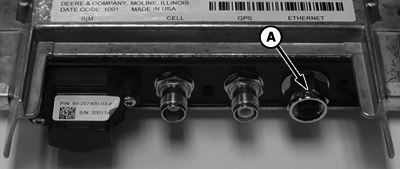
PC13665-UN-07DEC11MTG Ethernet Connection
A - Ethernet Connection
Ensure Ethernet cable is connected to correct port on MTG.There are three ports on the MTG. The port is labeled Ethernet. The other two ports are for the antenna. They are labeled GPS and Cell.
-
Verify GS3 2630 Display is updated to latest software version.
-
Select Menu > Message Center button > Reprogram softkey.
-
Scroll to find GS3 2630 Display in the list.
-
If the display does not have the latest software version, download the latest version from deere.com.
-
-
Verify that MTG is updated to the latest software version.
NOTE: GS3 2630 Display and MTG must have compatible software versions for remote display access (RDA) to function.
-
Select Main Menu > Message Center > Addresses softkey.
-
Select JDL from the drop-down menu and check address 103 for MTG software version.
-
If the MTG does not have the latest software version, obtain latest software from your John Deere dealer.
-
-
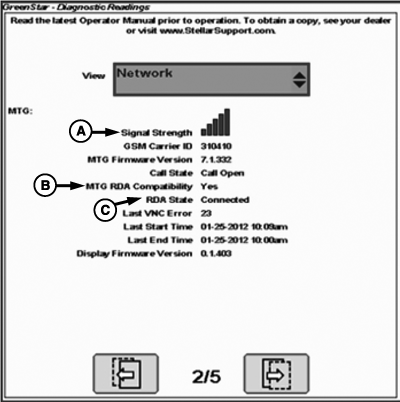
PC16162CC-19-24OCT13A - Signal Strength
B - MTG RDA Compatibility
C - RDA State
Verify MTG is communicating and has cell signal.-
Check signal indicator icons on the display. Select Main menu > GS3 > Diagnostics softkey. Select Network from the drop-down menu and navigate to page 2.
-
Check MTG for Cellular Status.
-
Select Menu button > Message Center button > Addresses softkey.
Select JDL from drop-down menu and check address 112.
Value Displayed
Description
0
No Error
1
Modem Unresponsive
2
No SIM
3
Network Registration Error
4
Error Establishing Calls
-
Select Menu button > Message Center button > Addresses softkey.
Select JDL from drop-down menu and check address 112.
-
-
Verify John Deere Data Usage Agreement has been accepted.
Cold boot display
-
Power down machine.
-
Disconnect harness from display.
-
Leave harness unplugged for 15–20 seconds.
-
Plug harness into display.
-
Power up machine.
Cold boot MTG
- Customers must contact their John Deere dealer.
- Dealers refer to DTAC Solution 89996.
|
GreenStar is a trademark of Deere & Company |
HC94949,0000946-19-20151209 |