Setup Wizard — Air Cart, Generic, and Spreader Tools

PC8663-UN-29APR15
Menu Button

PC22295-UN-21MAR16
John Deere Rate Controller 2000 Button

PC22296-UN-21MAR16
Setup Softkey
-
Select Menu button.
-
Select John Deere Rate Controller 2000 button.
-
Select Setup softkey.
-
PC22817-UN-30JUN16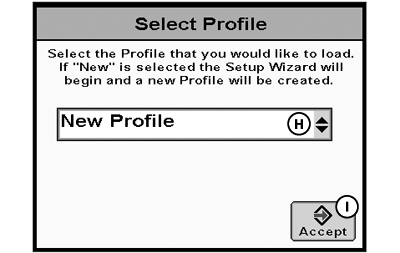
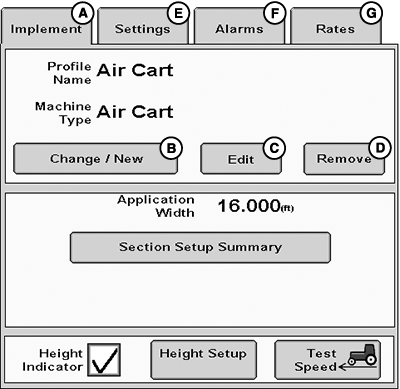
PC22298-UN-13APR16A - Implement Tab
B - Change / New Button
C - Edit Button
D - Remove Button
E - Setting Tab
F - Alarms Tab
G - Rates Tab
H - Select Profile Drop-down Menu
I - Accept Button
Select Implement tab (A). -
Select Change / New button (B).
NOTE: If a profile is already configured, selecting Edit button (C) starts setup wizard for selected profile and all steps must be completed to close the wizard.
A maximum of eight profiles can be saved. Selecting Remove button (D) deletes selected profile.
To edit individual settings without going through the wizard, select Settings (E), Alarms (F), or Rates (G) tabs.
-
Select New Profile from drop-down menu (H).
-
Select Accept button (I).
-
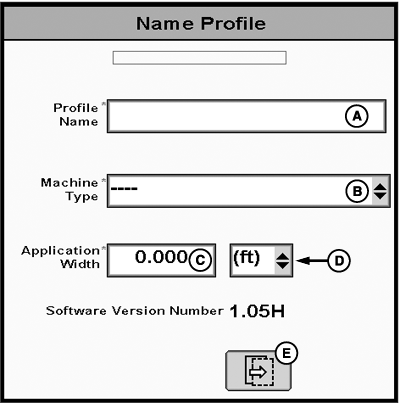
PC22300-UN-21MAR16A - Profile Name
B - Machine Type Drop-down Menu
C - Application Width
D - Units of Measurement Drop-down Menu
E - Next Page Button
Enter Profile Name (A). -
Select Machine Type from drop-down menu (B).
-
Enter Application Width (C).
-
Select units of measurement from drop-down menu (D).
-
Select Next Page button (E).
-
NOTE: Air carts, spreaders, and generic implements can be configured with up to five products. For ease of instruction, this setup wizard uses a single product. If multiple products are selected, follow the setup wizard prompts and set up section groups.
(Reference Setup Section Groups for more information.)
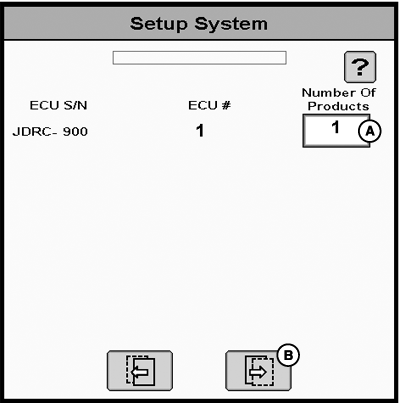
PC22351-UN-28MAR16A - Number of Products
B - Next Page Button
Enter the Number of Products (A). -
Select Next Page button (B).
-
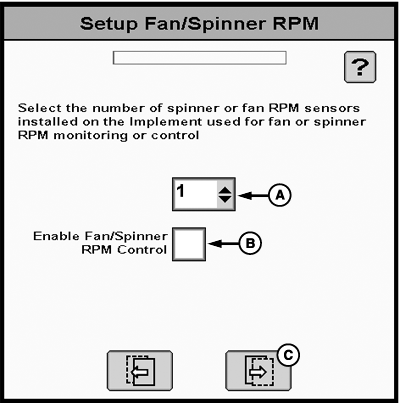
PC22613-UN-10MAY16A - Sensor Number Drop-down Menu
B - Enable Fan / Spinner RPM Control Checkbox
C - Next Page Button
Select number of spinner or fan RPM sensors from drop-down menu (A). -
NOTE: Enabling Fan / Spinner RPM Control (B) adds to product total. If five products were selected, Enable Fan / Spinner RPM Control is not an option.
If desired, select Enable Fan / Spinner RPM Control checkbox (B).
-
Select Next Page button (C).
-
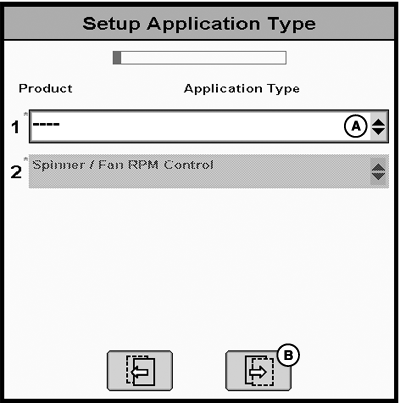
PC22615-UN-10MAY16A - Application Type Drop-down Menu
B - Next Page Button
Select application type from drop-down menu (A).NOTE: For ease of instructions, granular product is covered in this setup wizard. Liquid application setup is the same as sprayers and liquid fertilizer tools.
(Reference Setup Wizard — Sprayer and Liquid Fertilizer Tool or select help button for more information about liquid setup steps.)
- Granular Fertilizer
- Granular Seed
- Liquid (not an option for spreaders)
-
Select Next Page button (B).
-
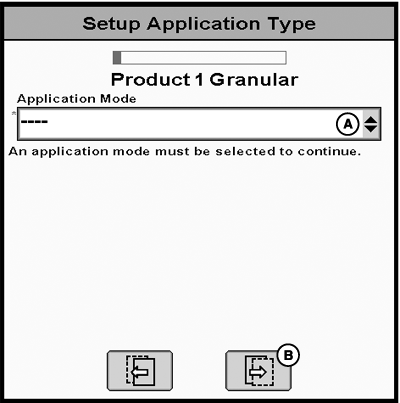
PC22617-UN-10MAY16A - Application Mode Drop-down Menu
B - Next Page Button
Select Application Mode from drop-down menu (A).- Granular Full Width Section – Dry or seed application using a single shutoff section.
- Granular Multi Section (RPM compensated) – Dry or seed application using multiple shutoff sections. Meter or conveyor RPM is controlled based on machine speed and active width as sections turn on and off.
- Granular Multi Section (RPM maintained) – Dry or seed application using multiple shutoff sections. Meter or conveyor RPM are controlled based on machine speed. Meter or conveyor RPM is not compensated for changes in active width as sections turn on and off.
- Granular Split Belt / Dual Encoder – Dry or seed applications using one control valve of a split meter or conveyor with shutoff control for two independent sections. Encoder feedback of meter or conveyor RPM is controlled based on machine speed. Meter or conveyor RPM are not compensated for changes in active width as sections turn on and off.
-
Select Next Page button (B).
-
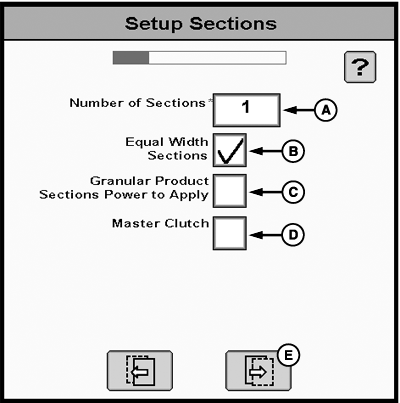
PC22619-UN-11MAY16A - Number of Sections
B - Equal Width Checkbox
C - Granular Product Sections Power to Apply Checkbox
D - Master Clutch Checkbox
E - Next Page Button.
Enter the Number of Sections (A). -
Select all that apply:
- Equal Width Sections checkbox (B) – If selected, total width is divided evenly among the number of sections entered.
- Granular Product Sections Power to Apply checkbox (C) – Select for controller to provide power to section signal wire when section is on. Deselect for controller to provide power to section signal wire when section is off.
- Master Clutch checkbox (D) – Select to enable master signal (air carts only).
-
Select Next Page button (E).
-
NOTE:
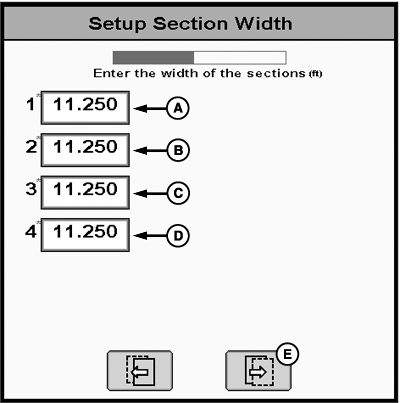
PC22305-UN-21MAR16A - Section 1 Width
B - Section 2 Width
C - Section 3 Width
D - Section 4 Width
E - Next Page Button
Total width of all sections must be equal to total application width. If Equal Width Sections was selected, application width is evenly divided by number of sections.Enter width for each section (A—D).
-
Select Next Page button (E).
-
NOTE:
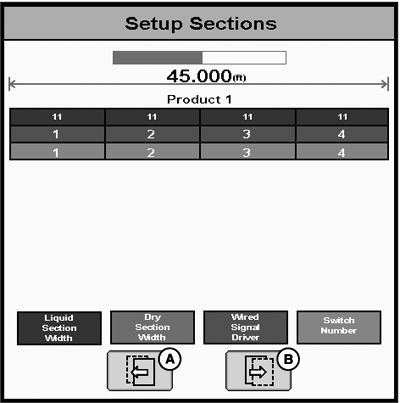
PC22306-UN-21MAR16A - Previous Page Button
B - Next Page Button
Graphic displays each section width and output driver that controls each section valve. Verify that implement wiring is correct. Application width and section widths may only be edited in the setup wizard. If needed, select Previous Page button (A) to make corrections.Review Setup Sections and select Next Page button (B).
-
NOTE:
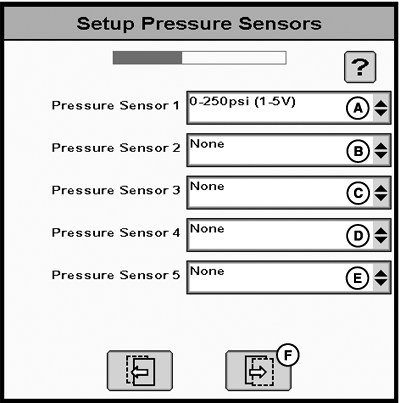
PC22620-UN-11MAY16A - Pressure Sensor 1 Drop-down Menu
B - Pressure Sensor 2 Drop-down Menu
C - Pressure Sensor 3 Drop-down Menu
D - Pressure Sensor 4 Drop-down Menu
E - Pressure Sensor 5 Drop-down Menu
F - Next Page Button
Sensors do not function properly until a calibration is completed.If equipped, select pressure sensor configuration from drop-down menus (A—E).
-
Select Next Page button (F).
-
NOTE:
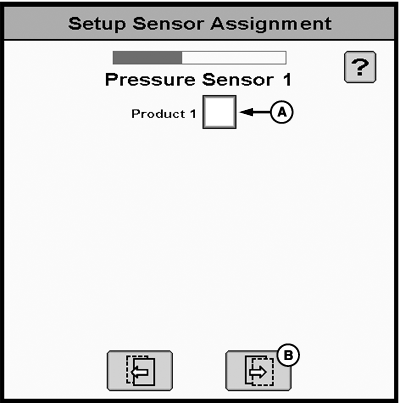
PC22622-UN-11MAY16A - Product Checkbox
B - Next Page Button
Pressure sensors can only be assigned in the setup wizard. Assigning a pressure sensor to a product allows high and low pressure alarms to be set up and enabled.To assign pressure sensor, select Product checkbox (A). Pressure sensors can be assigned to multiple products.
-
Select Next Page button (B).
-
NOTE:
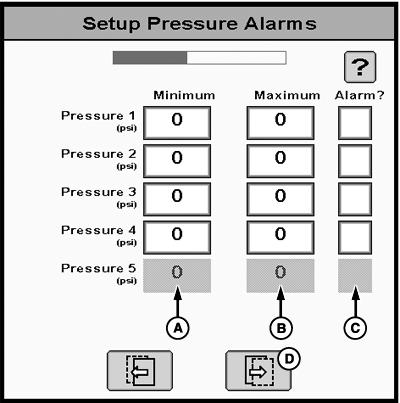
PC22625-UN-12MAY16A - Pressure Sensor Minimum
B - Pressure Sensor Maximum
C - Alarm Checkbox
D - Next Page Button
Pressure alarm settings are based on operator preference. Set up alarms so they notify operator before system needs attention.If sensors were specified, set up pressure alarms for each sensor:
-
Enter Minimum Pressure (A).
-
Enter Maximum Pressure (B).
-
To enable sensor minimum and maximum alarms, select Alarm checkbox (C)
-
Select Next Page button (D).
-
-
NOTE:
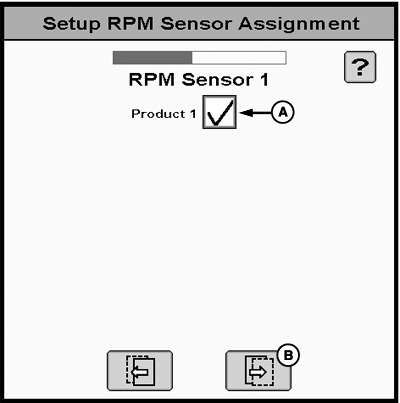
PC22626-UN-12MAY16A - Product Checkbox
B - Next Page Button
RPM sensors can only be assigned in the setup wizard. Assigning an RPM sensor to a product allows high and low pressure alarms to be set up and enabled.To assign RPM sensor, select Product checkbox (A). RPM sensors can be assigned to multiple products.
-
Select Next Page button (B).
-
NOTE:
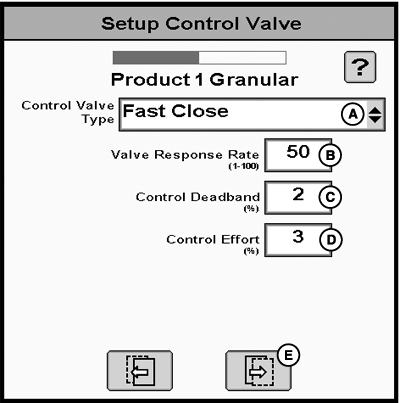
PC22630-UN-12MAY16A - Control Type Drop-down menu
B - Valve Response Rate
C - Control Deadband
D - Control Effort
E - Next Page Button
Controller utilizes control valve to manipulate application rates.Select Control Valve Type from drop-down menu (A).
-
NOTE: Entry fields vary for each control type selected. Use default values for initial setup.
(For more information, reference Adjust Control Valve.)
Enter Valve Response Rate (B).
-
Enter Control Deadband (C).
-
Enter Control Effort(D).
-
Select Next Page button (E).
-
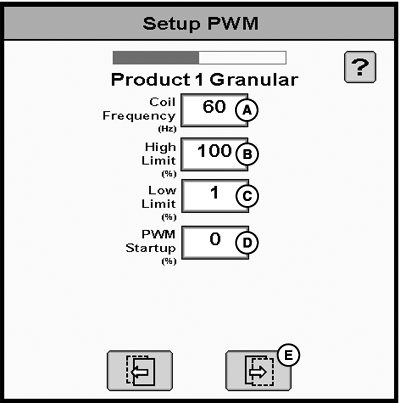
PC22631-UN-12MAY16A - Coil Frequency
B - High Limit
C - Low Limit
D - PWM Startup
E - Next Page Button
If PWM Close was selected as control type valve:-
Enter Coil Frequency (A).
(Reference control valve manufacturer Operator’s Manual for coil frequency.)
-
NOTE: High and low limits from the GreenStar™ Rate Controller are based on a 1-255 scale. To use these values for the John Deere Rate Controller 2000, divide the high and low limits by 255. Enter this percentage for High (B) and Low Limits (C).
Enter High Limit (B).
-
Enter Low Limit (C).
-
Enter PWM Startup (D) for PWM valve or PWM Standby for PWM close valve.
-
Select Next Page button (E).
-
-
NOTE:
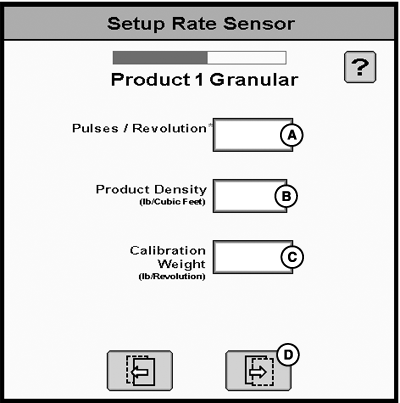
PC22634-UN-12MAY16A - Pulse / Revolution
B - Product Density
C - Calibration Weight
D - Next Page Button
Most RPM sensors are marked with a calibration number and pulse / revolutions to use for the initial setup. Additional RPM sensor calibration is recommended.(For more information, reference Calibrate RPM Sensor.)
Enter Pulse / Revolution (A).
-
Enter Product Density (B).
-
Enter Calibration Weight (C).
-
Select Next Page button (D).
-
NOTE:
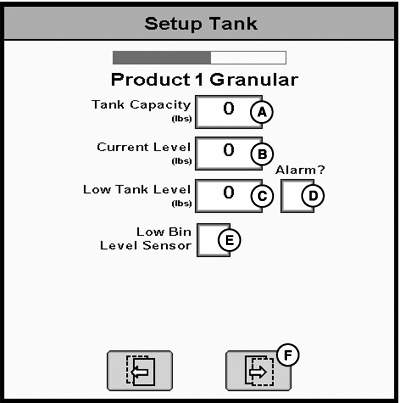
PC22635-UN-12MAY16A - Tank Capacity
B - Current Level
C - Low Tank Level
D - Low Tank Level Alarm Checkbox
E - Low Bin Level Sensor Checkbox
F - Next Page Button
John Deere Rate Controller 2000 estimates tank level based on the calculated applied volume.Enter Tank Capacity (A).
-
Enter Current Level (B).
-
If desired, enter Low Tank Level (C) and select Low Tank Level Alarm checkbox (D).
-
If equipped, select Low Bin Level Sensor checkbox (E).
-
Select Next Page button (F).
-
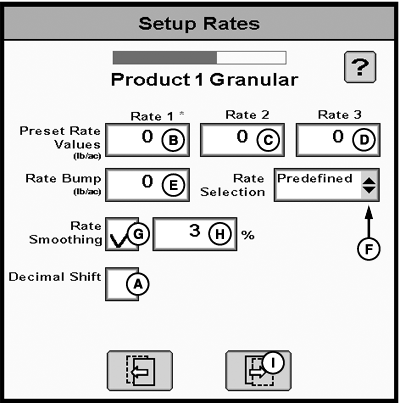
PC22636-UN-12MAY16A - Decimal Shift Checkbox
B - Rate 1 Preset Value
C - Rate 2 Preset Value
D - Rate 3 Preset Value
E - Rate Bump
F - Rate Selection Drop-down Menu
G - Rate Smoothing Checkbox
H - Rate Smoothing Percentage
I - Next Page Button
To enter values with a decimal, select Decimal Shift checkbox (A). -
Enter up to three Preset Rate Values (B—D). Rate 1 preset value is required.
-
Enter Rate Bump (E).
-
Select Rate Selection from drop-down menu (F) to choose rate type displayed on main run page.
- Predefined — Displays selection buttons for Preset Rate Values.
- Rate Bump — Displays plus (+) and minus (-) buttons that increment target rate by Rate Bump value.
-
Map Based — Displays prescription target rate for current
GPS location.
(Reference Apex™ or MyJohnDeere.com for more information about creating prescriptions.)
-
NOTE: Rate smoothing removes small fluctuations in the as-applied rate values. The displayed as-applied rate remains constant until rate increases or decreases by more than the set rate smoothing percentage.
Default is 3% and can be set between 3—15%.
If desired, select Rate Smoothing checkbox (G) and enter Rate Smoothing Percentage (H).
-
Select Next Page button (I).
-
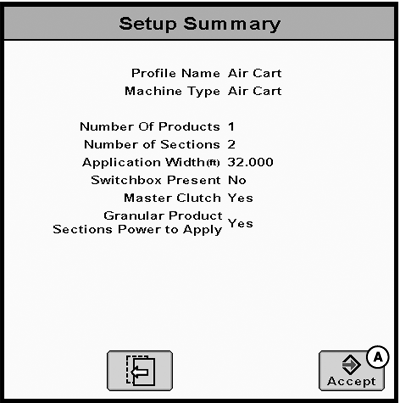
PC22637-UN-12MAY16A - Accept Button.
If Spinner / Fan Control was selected, repeat steps 38—59 to set up spinner or fan control valve. -
Review Setup Summary and select Accept button (A).
|
GreenStar is a trademark of Deere & Company Apex is a trademark of Deere & Company |
RW00482,0000695-19-20160630 |