Setup Section Groups
PC22655-UN-17MAY16
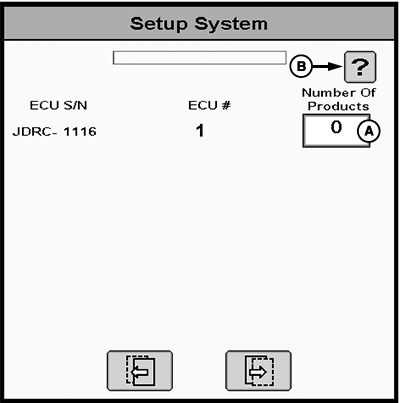
A - Number of Products
B - Help Button
Section groups allow operator to assign products and sections to a particular group to ensure accurate control and documentation. If Number of Products (A) is greater than one, the setup wizard guides the operator through setting up section groups and assigning drivers based on options selected. Select Help button (B) for more information about a step.
-
Select the best-fit application type to start the setup wizard and follow instructions to Setup Section Groups page.
(Reference Setup Overview for more information.)
-
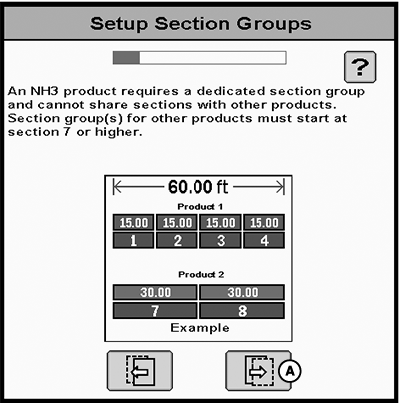
NOTE: For NH3 applications, the first six section drivers can only be assigned to NH3 section valves. The second section group starts at section driver seven or higher.
PC22656-UN-17MAY16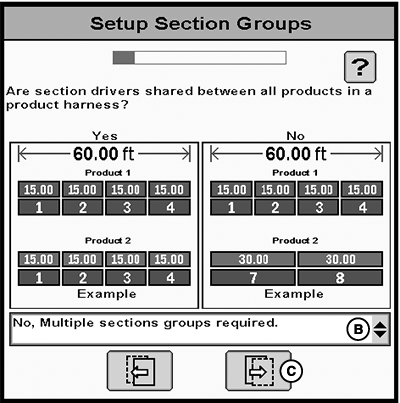
PC22670-UN-19MAY16A - Next Page Button
B - Shared Section Drivers Drop-down Menu
C - Next Page Button
If configuring:- For NH3 applications, read message and select Next Page button (A).
-
For applications other than NH3:
-
Select Shared Section Drivers option form drop-down menu (B).
– Yes, all products share same section drivers.
– No, multiple section groups are required.
- Select Next Page button (C).
-
Select Shared Section Drivers option form drop-down menu (B).
-
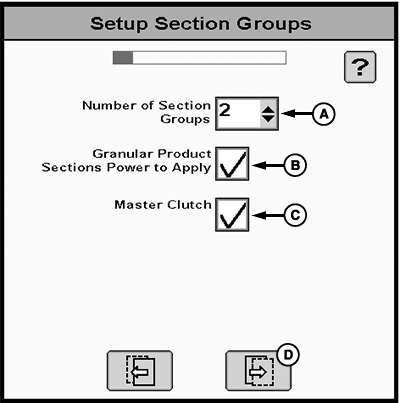
PC22657-UN-02JUN16A - Number of Sections Drop-down Menu
B - Granular Product Sections Power to Apply Checkbox
C - Master Clutch Checkbox
D - Next Page Button
Select Number of Section Groups from drop-down menu (A). -
Select all that apply:
- Granular Product Sections Power to Apply checkbox (B) – Select for controller to provide power to section signal wire when section is on. Deselect for controller to provide power to section signal wire when section is off.
- Master Clutch checkbox (C) – Select to enable master signal (air carts only).
-
Select Next Page button (D).
-
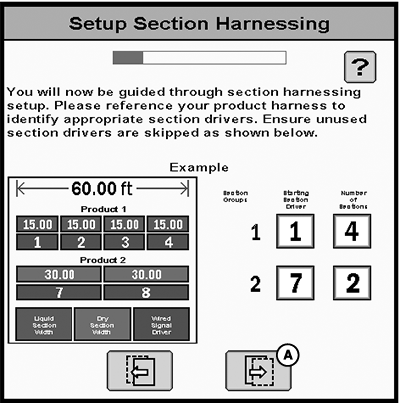
PC22658-UN-18MAY16A - Next Page Button
If configuring products that requires multiple sections, read message and select Next page (A). -
NOTE:
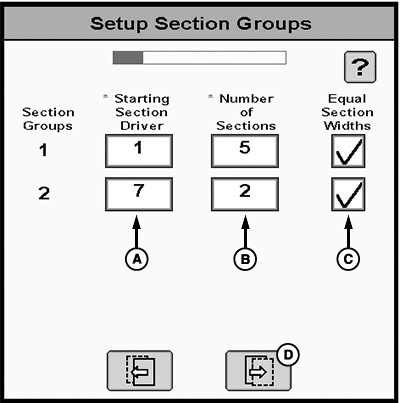
PC22661-UN-18MAY16A - Starting Section Driver
B - Number of Sections
C - Equal Section Width Checkboxes
D - Next Page Button
For NH3 applications, the first six section drivers can only be assigned to NH3 section valves. The second section group starts at section driver seven or higher.Enter Starting Section Driver (A) and Number of Sections (B) for each section group. Skip any unused section drivers. Product harness wiring to section valves and clutches determine the starting section drivers.
(Reference Sections for more information on maximum number of available sections.)
(Reference harnessing Installation Instructions or schematics for more information.)
-
If applicable, select Equal Section Width checkboxes (C).
-
Select Next Page button (D). If all products share same section drivers, skip ahead to step 12.
-
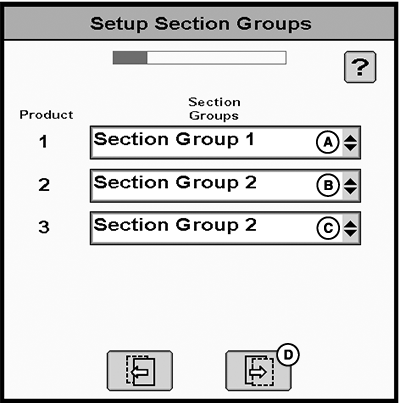
PC22667-UN-19MAY16A - Product 1 Section Group Drop-down Menu
B - Product 2 Section Group Drop-down Menu
C - Product 3 Section Group Drop-down Menu
D - Select Next Page Button
For each product, select Section Group from drop-down menus (A—C). -
Select Next Page button (D).
-
NOTE:
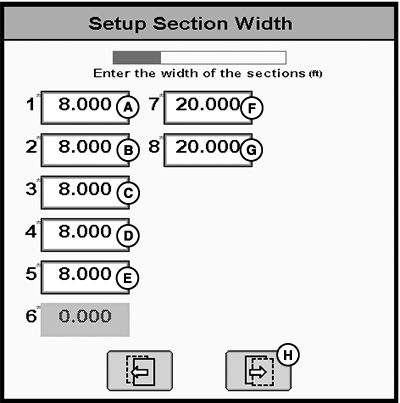
PC22668-UN-19MAY16A - Group 1, Section 1 Width
B - Group 1, Section 2 Width
C - Group 1, Section 3 Width
D - Group 1, Section 4 Width
E - Group 1, Section 5 Width
F - Group 2, Section 7 Width
G - Group 2, Section 8 Width
H - Next Page Button
Total width of all sections must be equal to total Section Group width. If Equal Width Sections was selected, Section Group width is evenly divided by number of sections.Enter width for each section (A—G).
-
Select Next Page button (H).
-
NOTE:
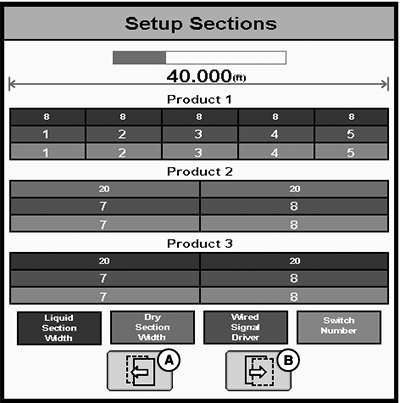
PC22669-UN-19MAY16A - Previous Page Button
B - Next Page Button
Graphic displays each section width and output driver that controls each section valve. Verify that implement wiring is correct. Section Group width and section widths may only be edited in the setup wizard. If needed, select Previous Page button (A) to make corrections.Review Setup Sections and select Next Page button (B).
-
Continue the rest of setup wizard for selected configuration.
|
RW00482,00006AF-19-20160609 |