Select Optional Guidance Features
Follow Mode (Implement Steering Only)

PC8663-UN-29APR15
Menu Button

PC14926-UN-27APR12
Application Controller 1100 Button

PC13072-UN-16NOV10
Application Controller Main Softkey

PC18007-UN-07NOV13
Implement Steer Main Button
PC19792-UN-14AUG14
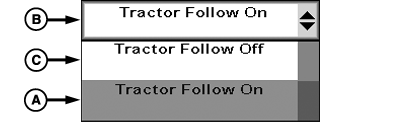
A - Tractor Follow On
B - Tractor Follow Drop-down
C - Tractor Follow Off
 CAUTION: Do not use Follow Mode on roadways.
To prevent serious injury, read and follow instruction in this manual to disable Active Implement Guidance before entering roadways.
NOTE: Follow Mode turns off if speed is greater than 35 km/h (21.7 mph).
Follow Mode turns off if speed is less than 0.7 km/h (0.45 mph) for more than 30 seconds.
Follow mode sets implement guidance path in same path as the machine receiver, including turns on end rows. Using Follow mode allows Active Implement Guidance to operate while operator is driving machine without a guidance line defined. Follow mode is useful during the first pass through field when guidance line is being defined.
-
Select Menu button.
-
Select Application Controller 1100 button.
-
Select Application Controller Main softkey.
-
Select Implement Steer Main button.
-
Select Tractor Follow On (A) from drop-down (B).
-
Set AB line. Operator is able to Engage and Disengage AutoTrac™.
To disengage Follow Mode, select Tractor Follow Off (C) from drop-down.
Shifter Stay On Mode (Implement Shifting Only)
PC8663-UN-29APR15
Menu Button
PC14926-UN-27APR12
Application Controller 1100 Button
PC13072-UN-16NOV10
Application Controller Main Softkey

PC19780-UN-07JUL14
Implement Shift Main Button
PC19905-UN-11AUG14
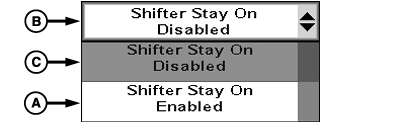
A - Shifter Stay On Enabled
B - Shifter Stay On Drop-down
C - Shifter Stay On Disabled
Shifter Stay On mode allows implement to follow guidance line independent of machine AutoTrac™ state. Shifter Stay On Enabled is used in applications where operator manually drives machine while implement follows guidance line. Use Shifter Stay On Disabled when AutoTrac™ is used to guide machine.-
Select Menu button.
-
Select Application Controller 1100 button.
-
Select Application Controller Main softkey.
-
Select Implement Shift Main button.
-
Select Shifter Stay On Enabled (A) form drop-down (B).
-
Drive towards the guidance line.
-
Select AutoTrac™ resume.
-
Disengage machine's AutoTrac™ by moving steering wheel. Implement will continue to track guidance line.
-
When completing a turn, select Shifter Stay On Disabled (C) or implement will continue to steer towards the guidance line unless automatic disengagement distance from the guidance line is met.
Global Line Shifts (Implement Steering Only)
PC14926-UN-27APR12
Application Controller 1100 Button
PC13072-UN-16NOV10
Application Controller Main Softkey

PC17968-UN-07NOV13
Implement Steer Setup Button

PC23215-UN-19OCT16
Global Line Shifts Button
PC23216-UN-19OCT16
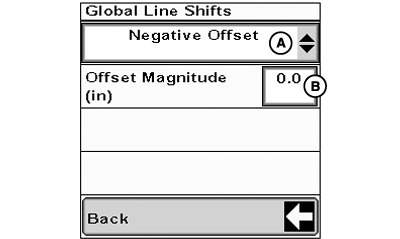
A - Offsets Drop-Down Menu
B - Offset Magnitude
NOTE: Global line shifts only work with straight track guidance lines.
Use global line shifts to offset the implement based on heading. For example, an implement is traveling north and it is offset to the east. When it is turned around for the next pass and is traveling south, it will still be offset to the east.
Global line shifts support controlled traffic applications where the machine uses permanent traffic lanes in the field. The machine follows the guidance line (tram line) on the permanent track while the application controller commands the implement steering system to shift the implement. Examples of controlled traffic applications are:
- Planting between the crop stubble
- Inter-planting crops
To enable global line shifts, specify offset magnitude and direction. Application controller automatically adjusts implement position from pass to pass.
Positive and negative offset direction is determined by travel heading when the feature is turned on. For headings from 0° to less than 180°, shifting to the right is positive and left is negative. For headings from 180° to less than 360°/0°, shifting to the right is negative and left is positive.
-
Select Menu button.
-
Select Application Controller 1100 button.
-
Select Application Controller Main softkey.
-
Select Implement Steer Setup button.
-
Select Global Line Shifts button.
-
Select either Positive Offset or Negative Offset from drop-down menu (A).
-
Enter Offset Magnitude (B).
|
AutoTrac is a trademark of Deere & Company |
RW00482,000006D-19-20170105 |