Operating Intelligent Total Equipment Control (iTEC™) While Stationary
NOTE: The tractor can not be in park while learning or executing a sequence. Tractor drive lever must be in a forward position to begin learning or executing set speeds, gears, or Automatic Power Shift (APS).
-
Select iTEC.

RXA0103927-UN-24JUL09iTEC
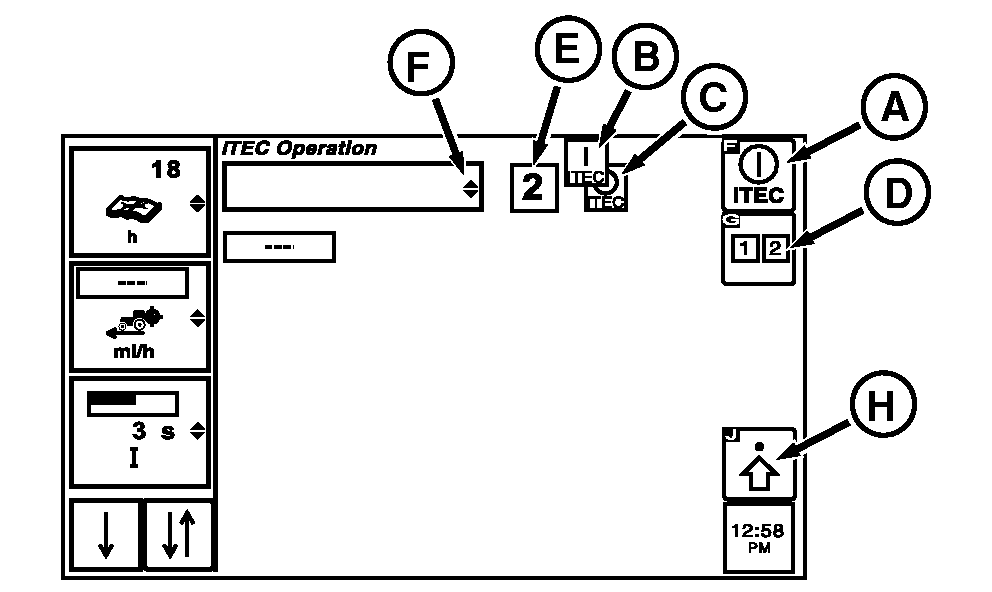
RXA0104369-UN-25AUG09Operations Page
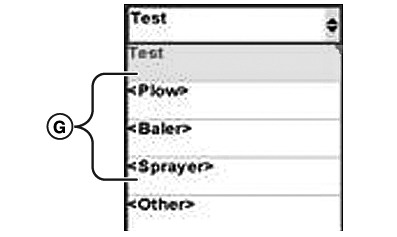
RXA0104305-UN-25AUG09Implement Name Drop Down Box Options
A - iTEC Softkey
B - iTEC ON Indicator
C - iTEC OFF Indicator
D - Sequence Softkey
E - Sequence
F - Implement Name Drop Down Box
G - Loaded Implement Names
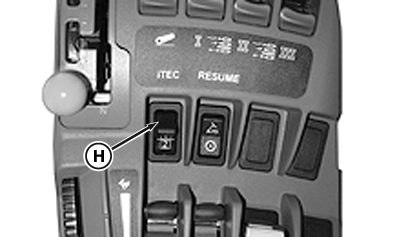
H - Advanced Settings Softkey
-
Select iTEC softkey (A).
NOTE: iTEC icon is either ON (B) or OFF (C). When iTEC system is on, icon is highlighted. If iTEC is on and recording, iTEC icon is highlighted and flashing.
-
Check to ensure iTEC ON indicator (B) is displayed.
NOTE: When sequence is selected, that sequence number (E) is displayed on page.
-
Select Sequence softkey (D) for sequence 1 or 2.
-
Scroll thumb wheel to Implement Name drop down box (F) and press Confirm button for list of loaded implement names (G).
NOTE: If implement name has not been loaded, refer to Entering Equipment On iTEC Editing Page in this section of the Operator's Manual.
-
Scroll thumb wheel to selected implement name in drop down box.
-
Select Confirm button.
-
To load program for sequence, 1 or 2, select advanced settings softkey (H).
-
NOTE: For a complete list of functions available, see Description And Display in this section of Operators Manual.
Rotate thumb wheel to the first Function drop down box (A).
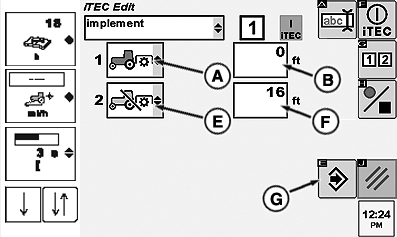
RXA0104368-UN-25AUG09iTEC Edit Page
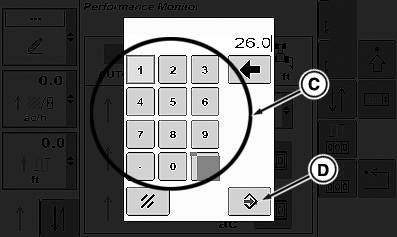
RXA0104371-UN-26AUG09Key Pad
RXA0104367-UN-25AUG09Sequence Switch
A - First Function Drop Down Box
B - First Distance Drop Down Box
C - Key Pad
D - Enter Button
E - Second Function Drop Down Box
F - Second Distance Drop Down Box
G - Save/Enter Softkey
H - Sequence Switch
-
Select function, PTO On for example.
-
Because PTO On does not have an operation available, rotate thumb wheel to edit distance drop down box (B) and select Confirm button.
-
When key pad displays, using key pad keys (C) select distance before function begins.
-
Press Save/Enter key (D).
-
Rotate thumb wheel to the second Edit Function drop down box (E) and select function, PTO Off for example.
-
Rotate thumb wheel to Edit Distance drop down box (F) and select Confirm button.
-
When key pad displays, using key pad keys select distance before function begins.
-
Press Save/Enter key.
-
Continue to load functions, operations and distances, up to 20 functions.
-
When sequence is complete, select Save/Enter softkey (G) to load program.
NOTE: Execution of a sequence cannot start below 0.5 km/h (0.3 mph). If during execution a sequence speed drops below 0.5 kph (0.3 mph), no further function execution via iTEC will occur until speed is greater than 0.5 kph (0.3 mph).
-
Place tractor in motion and press sequence switch (H) forward for sequence #1 or rearward for sequence #2. The sequence will play just like it has been recorded.
|
iTEC is a trademark of Deere & Company |
OURX935,0000155-19-20101109 |