CommandCenter™ Input Fields

RXA0110754-UN-16SEP10
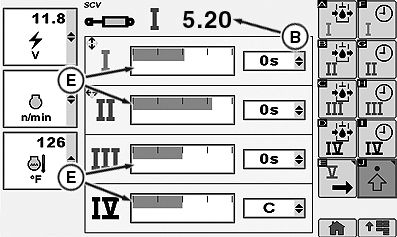
Example Of CommandCenter™ Drop Down Boxes, Check Boxes, Input Boxes, Softkeys, and Bar Graphs
RXA0106062-UN-14JUL10
Input Boxes And Bar Graphs
There are a variety of input fields and buttons that allow the operator to navigate through pages and the ability to change values.(A) — Drop-Down Boxes
Drop-down box has a border with a numeric or text value and up/down arrows on the right side that allow operator to select specific value from a pre-populated list.
Highlight drop-down box, list will appear then make selection from options available.
To close drop-down box without making a selection, select Cancel button. List will close and original value will remain.
(B) — Input Box
Input box has a border with a numeric value or text. This allows the operator to select and enter new values or text.
NOTE: If using thumb wheel, the faster thumb wheel is rotated, the faster values will incrementally change. Rotating thumb wheel forward increases value and rotating thumb wheel rearward decreases value.
To change a value, highlight input box, then make selection.
If there is a large range of values, a numeric key pad will appear, allowing selection of each digit.
(C) — Check Box
Check box is a square with a border. The function controlled by a check box will toggle on or off depending if box is checked or left unchecked respectively.
(D) — Softkeys
Select softkeys to activate a prescribed function or navigate to a page.
(E) — Bar Graph
To change a value, highlight bar graph and make selection.
|
CommandCenter is a trademark of Deere & Company |
OURX935,0000012-19-20100921 |