Cab Lighting
Select Menu button.
Select Display.
RXA0098156-UN-07NOV08CommandARM™ Menu Button
RXA0099747-UN-14JUL10Display
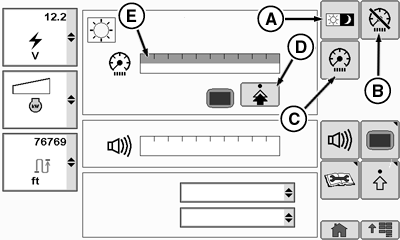
RXA0112572-UN-22DEC10Display Main Page — Day Lighting
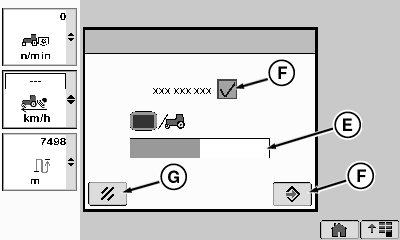
RXA0112570-UN-22DEC10Backlight Settings Page
A - Day/Night Toggle Softkey
B - Dim Mode Softkey
C - Cab Dim Softkey
D - Backlight Settings Softkey
E - Cab Dim Bar Graph
F - Sync With Cab Box
G - Cancel Softkey
H - Confirm Softkey
Selecting Day/Night Toggle softkey (A) dims or brightens the CommandCenter™ for day or night operations. This option is only available when Stand Alone Mode is activated in the Backlight Settings menu.
Selecting Dim Mode softkey (B) darkens CommandCenter™. This feature allows operator to go from field operations when CommandCenter™ is required, to driving on road without CommandCenter™, when illumination may affect drivers night vision.
NOTE: The same result can be achieved by holding down the Home shortcut key on the CommandARM™ for 5 seconds.
Selecting Cab Dim softkey (C) navigates to Cab Dim bar graph (E).
NOTE: As bar graph value goes up, cab lighting brightens. As bar graph value decreases, cab lighting dims.
Select Backlight Settings softkey (D) to navigate to the Backlight Settings Page.
Toggle between Stand Alone Mode or Sync With Cab Mode by selecting box (F).
When Sync With Cab Mode is selected, cab dim bar graph (E) will be activated.
Save changes by selecting Confirm softkey (H). Cancel by selecting Cancel softkey (G).
CommandARM is a trademark of Deere & Company CommandCenter is a trademark of Deere & Company | ZE59858,00003A1-19-20101220 |