Accessing Video Capability
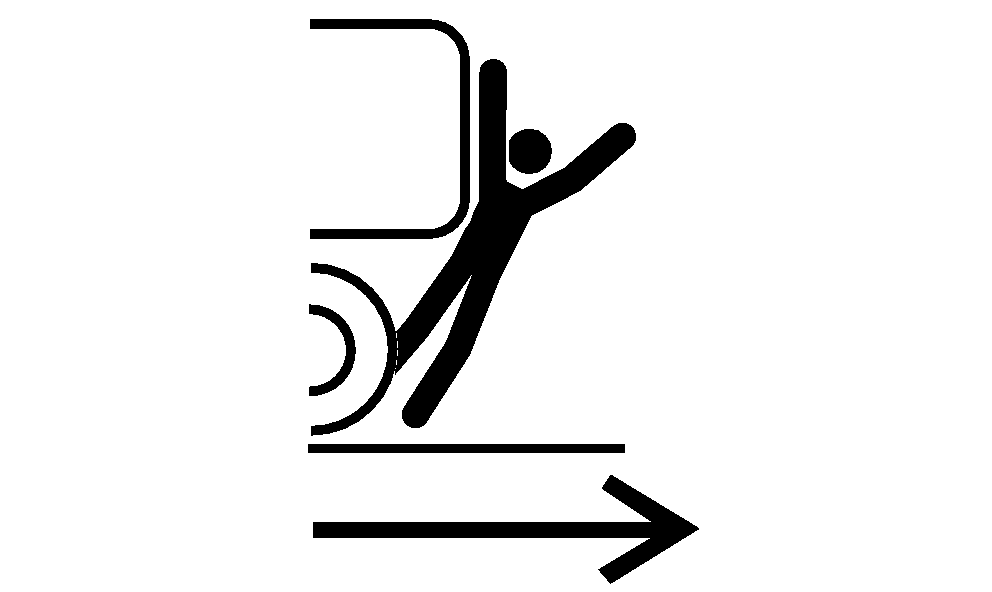
Avoid Backover Accidents
RXA0109491-UN-05AUG10
Avoid Backover Accidents
 CAUTION: Before moving machine, be sure that
all persons are clear of machine path. Give audio warning by
sounding horn. Turn around and look directly for best visibility.
Use mirrors to assist in checking all around machine. Keep windows
and mirrors clean, adjusted, and in good repair. Use a signal person
when backing if view is obstructed or when in close quarters.
CAUTION: Before moving machine, be sure that
all persons are clear of machine path. Give audio warning by
sounding horn. Turn around and look directly for best visibility.
Use mirrors to assist in checking all around machine. Keep windows
and mirrors clean, adjusted, and in good repair. Use a signal person
when backing if view is obstructed or when in close quarters.
Do not rely on a camera to determine if personnel or obstacles are behind the machine. The system can be limited by many factors including maintenance practices, environmental conditions, and operating range.
CAUTION: Do not rely on a camera for collision avoidance or
bystander detection. To avoid possible injury or death to operator
or others, always remain alert and aware of surroundings when operating
the machine. Read and understand AVOID BACKOVER ACCIDENTS in this
section.
RXA0110047-UN-26AUG10
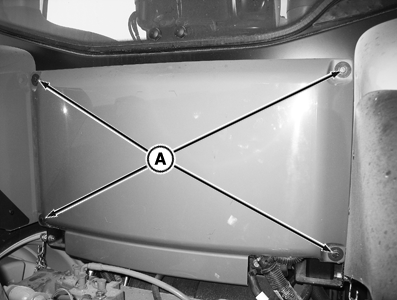
Remove Rear Panel
RXA0127243-UN-01AUG12
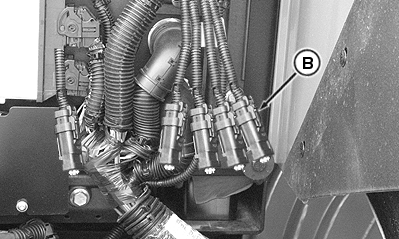
Video Connector Location
A - Cap Screws
B - Video Connector
IMPORTANT: Avoid damage to equipment. Correctly understand whether the camera is ”mirrored” and whether the video application is mirrored.
- Mount camera(s) in a sturdy and secure location.
- Understand the camera(s) field of view.
- Keep the camera(s) properly serviced.
- Keep the camera(s) lens clean.
Tractors are equipped with video four pin plugs to connect to your video camera(s). Remove cap screws (A), then remove cab rear panel to connect camera’s to video connector (B).
RXA0107925-UN-28MAY10
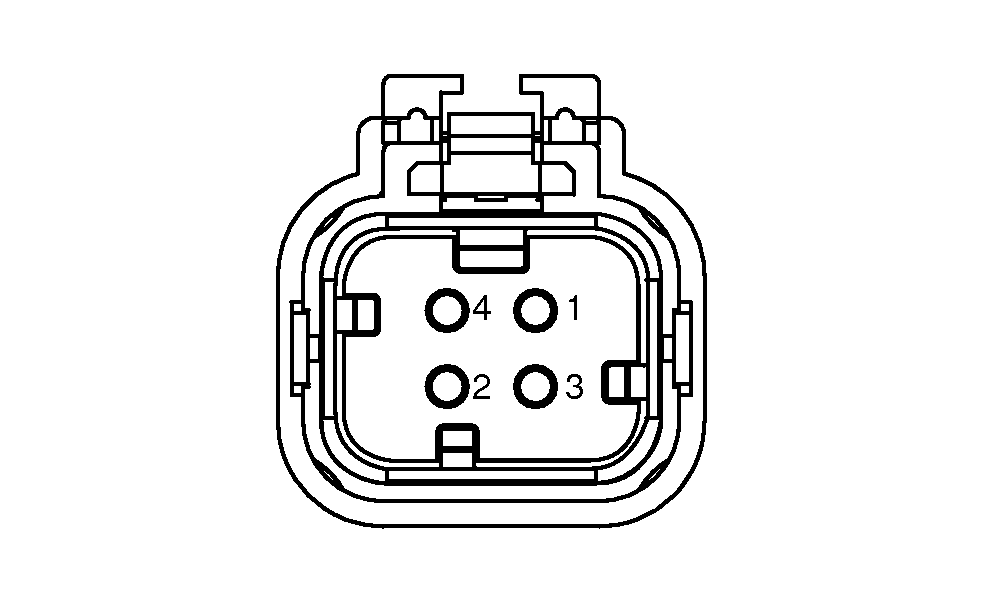
Video Connector Pin Identification
|
Pin Number |
Function |
|
1 |
Power |
|
2 |
Ground |
|
3 |
Signal |
|
4 |
Signal—Ground |
-
NOTE: Camera placement is limited to wire length and safety considerations for your camera.

RXA0117216-UN-16MAY11Menu → Video
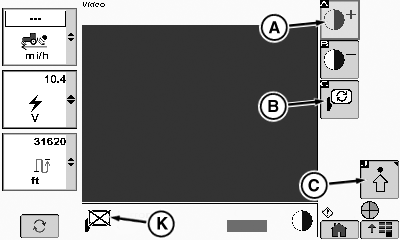
RXA0107758-UN-02AUG10Video Page
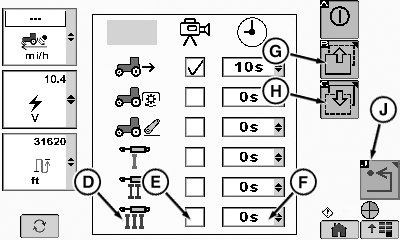
RXA0107759-UN-02AUG10Video Settings Page
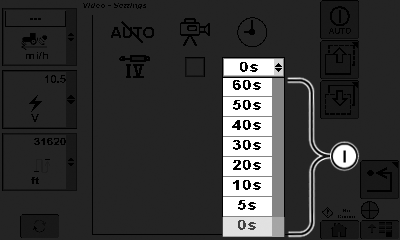
RXA0107760-UN-04JUN10Extended Time Drop Down Box Options
A - Increase Contrast Softkey
B - Mirror Softkey
C - Advanced Settings Softkey
D - Trigger Options
E - Trigger Option Check Box
F - Extended Time Drop Down Box
G - Page Up Softkey
H - Page Down Softkey
I - Extended Time Options
J - Back Softkey
K - Mirror Indicator
IMPORTANT: Avoid damaging camera by mounting camera securely to equipment and in a location in which camera will not be pinched, crushed, kicked or knocked off.
Connect your camera into four pin plug, route wire and mount camera at desired location.
-
Install back panel on tractor.
-
Select CommandARM Menu button.
-
Select video.
-
Select softkeys plus or minus (A) to adjust video focus.
NOTE: Selecting mirror softkey allows operator to choose either a mirror image or a standard view of what the camera is viewing.
-
Use mirror softkey (B) to switch between mirror image and standard view. Mirrored image will be on and displayed at mirror indicator (K) or off and mirror indicator displays an X as shown.
-
Select advanced settings softkey (C).
NOTE: Trigger is an action which will activate camera to display video. Operator has the ability to set extend time from 5 seconds up to 60 seconds at which video page displays. For example, if hitch is the trigger and extend time is set to 0, video page activates precisely when hitch is activated and video activation ceases immediately when hitch movement is complete. If extend time is set to 60 seconds video page activates at the moment when hitch is activated, then remains active 60 seconds after hitch movement is complete.
Up to six trigger options are displayed per page. If more than six options are available, select page up softkey (G) or down softkey (H) to view additional options.
-
Select desired trigger from options (D) available on left side of page and select check box (E) for appropriate trigger.
-
Select drop down box (F) in page right column to select desired extended time (I).
-
Select Back softkey (J) to return to previous page.
|
OURX935,00002EF-19-20120910 |