Manually Programming A Sequence While Stationary
-
NOTE: If implement name has not been loaded or requires editing, refer to Entering Or Editing Equipment Name in this section of the Operator's Manual.
Select iTEC.
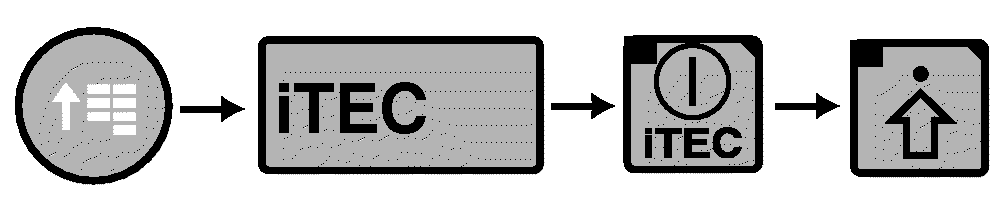
RXA0116590-UN-12MAY11CommandCenter Main Menu → iTEC → iTEC On → Advanced Settings
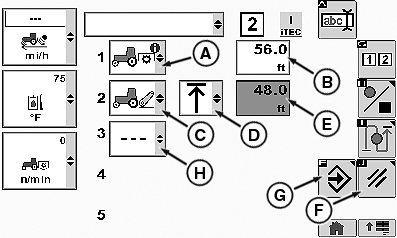
RXA0108920-UN-29JUL10Edit Page

RXA0109992-UN-20AUG10Insert Function
A - First Function
B - First Function Distance Input Box
C - Second Function
D - Operation
E - Second Function Distance Input Box
F - Cancel Softkey
G - Save/Enter Softkey
H - Delete Function
I - Insert Function
-
Select iTEC On/Off softkey.
-
Select Advanced Settings softkey.
NOTE: For a complete list of functions available, see Description And Display in this section of Operators Manual. To delete a function, select Delete Function (H). To insert a function in a sequence, select Insert Function (I).
-
Select first function (A) drop down box.
-
Select function, PTO On for example.
-
Because PTO On does not have an operation available, select distance input box (B).
-
Select second Function drop down box (C) and select function, rear hitch for example.
-
Select Operation drop down box (D).
-
Select Distance input box (E).
-
Continue to load functions, operations and distances, up to 20 functions.
NOTE: To cancel a sequence, select Cancel softkey (F).
After selecting Save/Enter softkey, sequence is sorted by ascending distances, i.e. in the graphic to the right, the second function with a distance of 48 ft. will be listed as the first function. The depicted PTO On function beginning at 56. ft. will be the second function on the page.
-
When sequence is complete, select Save/Enter softkey (G) to save program.
|
OURX935,00002FA-19-20110517 |