Configuring Selective Control Valves On CommandCenter
 CAUTION: Do not operate front loaders in conjunction with Intelligent
Total Equipment Control (iTEC™) to avoid sudden movements and
possible accidents.
CAUTION: Do not operate front loaders in conjunction with Intelligent
Total Equipment Control (iTEC™) to avoid sudden movements and
possible accidents.
RXA0116593-UN-12MAY11
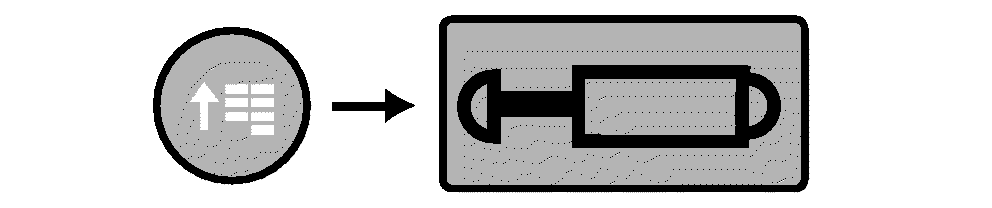
CommandARM Menu Button → iTEC → iTEC On Softkey
RXA0107017-UN-04AUG10
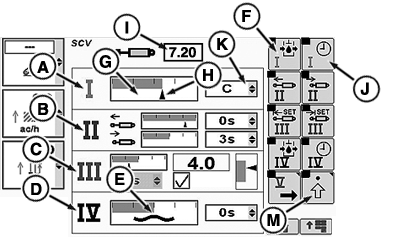
SCV Page
RXA0102608-UN-06MAY09
A - SCV I—Standard Mode
B - SCV II—Independent Mode
C - SCV III—Feature Mode
D - SCV IV—Float Operation
E - Float Symbol
F - Detent Flow Softkey
G - Flow Bar Graph
H - Current Flow Bar Graph Indicator
I - Detent Flow Box
J - Detent Time Softkey
K - Detent Time Drop Down Box
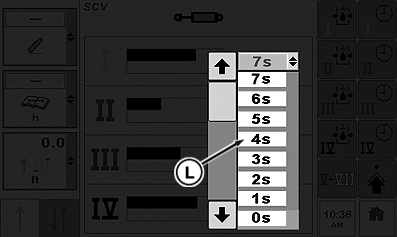
L - Detent Time Selections
M - Advanced Settings Softkey
Each SCV can be configured to three different modes: standard mode displayed in SCV I (A), independent mode displayed in SCV II (B) or feature mode displayed in SCV III (C).NOTE: Current estimated SCV flow is indicated by current flow bar graph indictor (H).
Additionally when SCV is set to float as in SCV IV (D) the CommandCenter display for that individual SCV will show the float symbol (E).
Standard Mode
SCV I in standard mode has flow and detent time setting which adjusts both extend and retract.
-
Select Menu button
-
Select SCV.
-
Press Detent Flow softkey (F) to highlight flow bar graph (G).
NOTE: Current flow bar graph indicator depicts amount of flow. Flow is displayed in increments of 0.04 beginning at 0.04 through 10 in box (I).
-
Rotate CommandARM controls thumb wheel forward or rearward while watching current flow bar graph indictor move right or left respectively. Value in detent flow box (I) increases or decreases as thumb wheel is rotated.
NOTE: When selected, detent time drop down box (K) will display amount of time in 1 second increments up to 10, then increments of every two seconds; 12, 14, 16, 18, up to 20, then 25, 30, 40, 50, 60, 90 seconds or C for continuous.
-
Select detent time softkey (J) to navigate to detent time drop down box (K). Open drop down box displaying available detent time selections (L).
-
Press Confirm button to select desired time. Desired time will now appear in drop down box.
NOTE: To set any SCV in independent mode select advanced settings softkey (M).
Independent Mode
RXA0116594-UN-12MAY11
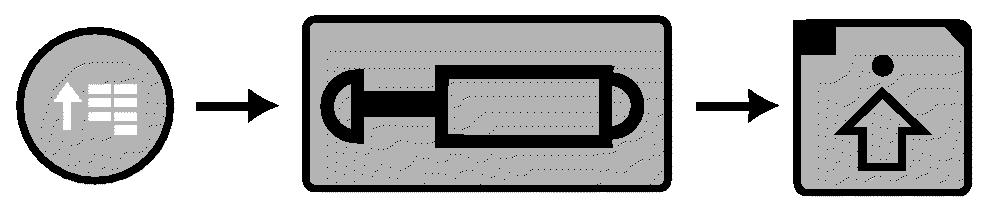
CommandARM Menu Button → iTEC → iTEC On Softkey → Settings Softkey
RXA0117824-UN-27JUN11
SCV Page
RXA0107019-UN-04AUG10
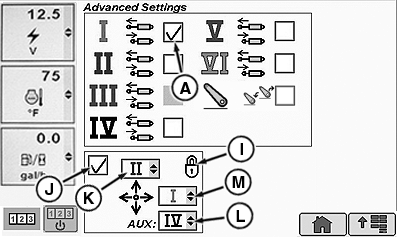
A - Independent Mode Check Box
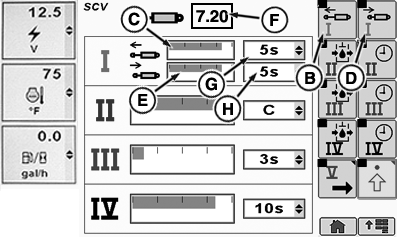
B - Extend Softkey
C - Extend Flow Bar Graph
D - Retract Flow Softkey
E - Retract Flow Bar Graph
F - Detent Flow Box
G - Extend Detent Time Drop Down Box
H - Retract Detent time Drop Down Box
I - Lock (Single Lever Control)
J - Single Lever Control Check Box
K - Fore/Aft SCV Drop Down Box
L - Aux SCV Drop Down Box
M - Side to Side SCV Drop Down Box
-
Select Menu button
-
Select SCV.
-
Select Settings softkey.
-
At the advanced settings page, place check in independent mode check box (A).
-
SCV I now has unique flow and detent times which are adjusted by selecting extend softkey (B), highlighting extend flow bar graph (C). Selecting retract softkey (D) highlights retract flow bar graph (E).
NOTE: Bar graph depicts amount of flow. Flow is displayed in increments of 0.04 beginning at 0.04 through 10 in detent flow box (F).
-
Rotate thumb wheel forward or rearward while watching specified bar graph indicator move right or left respectively. Value in detent flow box increases or decreases as thumb wheel is rotated.
NOTE: Detent time drop down box (G for extend or H for retract ) will display amount of time in 1 second increments up to 10, then increments of every two seconds; 12, 14, 16, 18, up to 20, then 25, 30, 40, 50, 60, 90 seconds or C for continuous.
-
Using thumb wheel, navigate to drop down box (G or H), then press Confirm button.
-
When drop down box opens, rotate thumb wheel to detent time selections and press Confirm button.
-
Desired detent time now appears in respective drop down box (G or H).
Advanced Settings Page—Single Lever Control
NOTE: When activating/deactivating single lever control (J) assigned SCV s detent times are zeroed.
Single lever control check box (J) when checked, gives control of SCV to single lever control. When unchecked, SCV is controlled by SCV lever. Fore/Aft SCV drop down box (K) allows any SCV I through SCV V to be selected. Side to Side SCV drop down box (M) allows any SCV I through SCV V to be selected. Aux SCV drop down box (L) allows any SCV I through SCV V to be selected. Lock (I) indicates lock/unlock state of single lever control.
Feature Mode
RXA0116594-UN-12MAY11
CommandARM Menu Button → iTEC → iTEC On Softkey → Settings Softkey
RXA0119790-UN-17AUG11
SCV Page Advanced Page
RXA0119789-UN-17AUG11
SCV Page
RXA0102615-UN-06MAY09
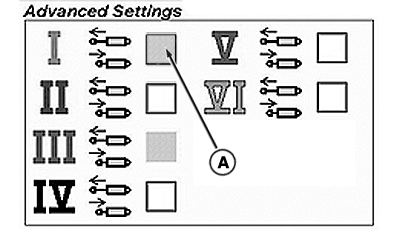
A - Independent Mode Check Box
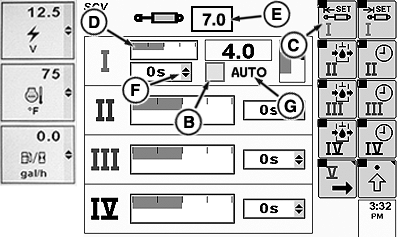
B - Feature Mode Check Box
C - Extend Set Softkey
D - Detent Flow Bar Graph
E - Detent Flow Value Box
F - Detent Time Drop Down Box
G - Feature Status Indicator (Normal Operation)
H - Feature Status Indicator (Fault Identified)
I - Feature Status Indicator (Turned Off)
NOTE: To use feature mode, connect implement to tractor. SCV page with feature option will be displayed for selected SCVs. On advanced page, specified SCV independent mode check box (A) is grayed out.
Available feature modes are:
- TouchSet control
- Laser Scraper control
- AccuDepth control
-
Select Menu button
-
Select SCV.
-
Select Settings softkey.
-
NOTE: When connected through CAN Bus or implement connector, SCV (s) will automatically enter feature mode.
Connect tractor to implement.
-
Select Extend Set softkey (C) to navigate to bar graph (D). Press Confirm button to highlight. Rotate thumb wheel to adjust flow, then press Confirm button again.
NOTE: As in previous SCV applications, bar graph (D) will depict detent flow and amount of detent flow will be shown in box (E).
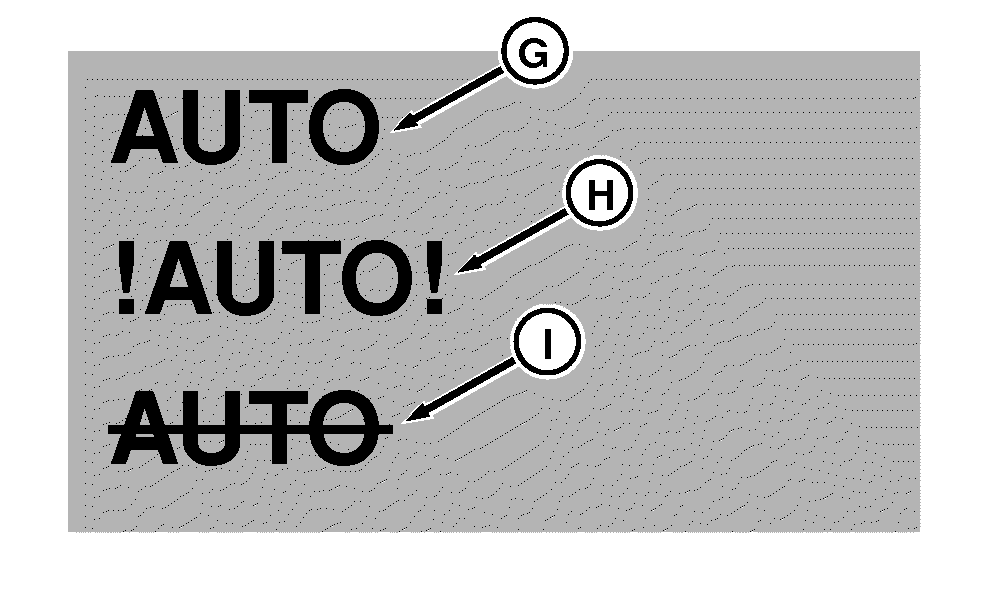
AUTO (G) displayed indicates normal feature operation. !AUTO! (H) indicates there is a fault and feature mode is inoperable. AUTO with a slash across it (I) indicates that AUTO is not active.
NOTE: Detent time drop down box (F) can only be adjusted when feature mode check box (B) is un-checked. See Standard Mode. If feature mode check box is checked, detent time cannot be adjusted. See Standard Mode when adjusting detent time.
-
To adjust detent, rotate thumb wheel to check box (B) to the left of AUTO (G), then press Confirm button. AUTO will have a slash across it, the check box will be unchecked.
|
OURX935,000030C-19-20120507 |