Premium Radio Settings on the CommandCenter™
RXA0119441-UN-09AUG11
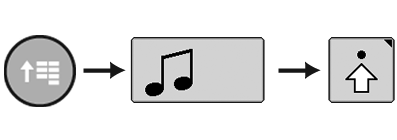
CommandARM™ Menu Button → Radio Softkey → Advanced Settings Softkey
RXA0118806-UN-21JUL11
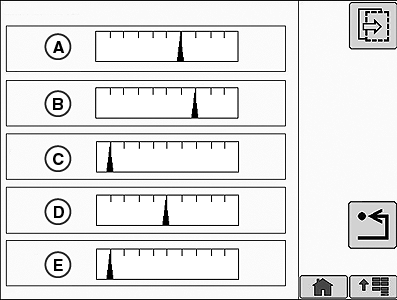
Radio Settings Page 1
RXA0118807-UN-21JUL11
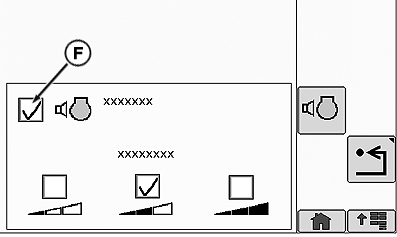
Radio Settings Page 2
A - Bass
B - Treble
C - Middle
D - Balance
E - Fade
F - Volume Compensation
- Select Menu button.
- Select Radio softkey.
- Select Advanced Settings softkey.
The operator can change Bass (A), Treble (B), Middle (C), Balance (D), and Fade (E) on Audio Settings page 1. Volume compensation is located on Audio Settings page 2. Volume compensation automatically adjusts the radio's volume based on external noise. To enable/disable volume compensation select the volume compensation check box (F). Volume sensitivity can be adjusted to low, medium, or high.
Radio Data System (RDS)
If Premium radio is set to European standards, see Changing World Tuner Setting—Premium Radio in this section, additional options are available on Radio Settings Page 2. Check boxes allow them to be enabled. Softkeys allow them to be selected on CommandCenter display. Options available are:
-
RDS (Radio Data System) — Allows
display of radio station selected, artist, and song information.
NOTE: RDS must be enable to allow AF (Alternative Frequency)
and TA (Traffic Announcement) to function.
- AF (Alternative Frequency) — Allows radio to retune to different frequency providing same station when first station’s signal becomes too weak.
- TA (Traffic Announcement) — Stops or Pauses CD play or retunes station to receive a traffic bulletin. Radio volume will automatically be raised for traffic bulletin.
|
OURX935,00005A2-19-20110912 |