Phone Settings on the CommandCenter™
RXA0117320-UN-18MAY11
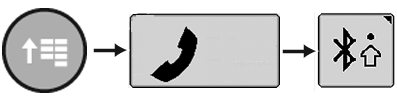
CommandARM™ Menu Button → Phone → Bluetooth® Settings Softkey
RXA0113278-UN-27JAN11
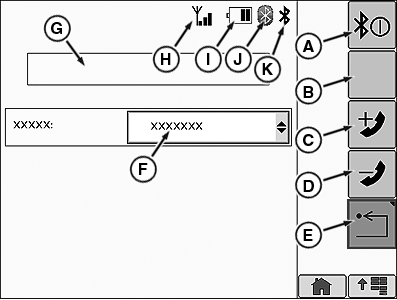
A - Bluetooth On/Off
B - Change Active Phone
C - Add Phone
D - Delete Phone
E - Return
F - Paired Phone List
G - Message Box
H - Phone Signal Strength
I - Phone Battery Strength
J - Paired Bluetooth® Indicator
K - Bluetooth® Power Indicator
Select Menu button.
Select Phone softkey.
Select Bluetooth® Settings softkey.
To turn the radio's Bluetooth® feature ON, select the Bluetooth® ON/Off softkey (A). When the radio's Bluetooth® feature is ON, Bluetooth® Power Indicator (K) is active.
To add a phone:
-
Select the Add Phone softkey (C).
Adding Phone is displayed in the Message Box (G).
- On your cell phone, select Add New Device in the Bluetooth® menu.
- Select DEA355 Radio from the list of available Bluetooth® devices on your cell phone.
-
Select Bond With Device on your cell phone. PIN for the Delphi
radio is 0000.
NOTE: Not ALL cell phones will be able to use the radio's Bluetooth®
feature.
Once a cell phone is connected successfully, Phone Connected is displayed in the Message Box (G). When a cell phone is actively connected to the radio, Paired Bluetooth® Indicator (J) is active. Up to 16 cell phone pairings can be stored in the radio's Bluetooth® feature.
When a phone is first paired with the radio’s Bluetooth® feature, the cell phone is automatically in sync with its phone book.
To change an active cell phone:
Select the desired cell phone from the Paired Phone List (F). Once the desired cell phone is selected, select the Change Active Phone softkey (B). The first phone in the Paired Phone List (F) is the current active phone.
To re-sync your cell phone:
- Turn cell phone Off, then back On.
- Turn key switch Off, wait 1 minute, then turn key switch back On.
Once the key switch is turned back on, the cell phone that is in range of the tractor’s radio will automatically sync its phone book.
To re-pair your cell phone with the radio's Bluetooth® feature, cycle the power of the radio's Bluetooth® with the Bluetooth® ON/OFF softkey (A).
NOTE: Make sure that your cell phone's Bluetooth® ability is enabled when trying to pair a cell phone to the radio Bluetooth® feature.
To delete a cell phone:
Make sure that the desired cell phone is selected in the Paired Phone List (F), next select the Delete Phone softkey (D).
Five Phone Signal Strength bars (H) indicate maximum cell phone signal strength.
Four phone Battery Strength bars (I) indicate maximum cell phone battery strength..
|
OURX935,0000508-19-20110914 |