Recording A Sequence While Driving
NOTE: The tractor can not be in park while learning a sequence. Tractor drive lever must be in a forward position to begin learning or executing set speeds or gears.
During Learn mode, the set speed may be changed more than once. iTEC will record the time of the first set speed change in the sequence. If additional changes occur at less than two second intervals, they will be combined with the first into a single event. The final set speeds in the two second intervals will be recorded.
-
Select iTEC.

RXA0108933-UN-29JUL10iTEC
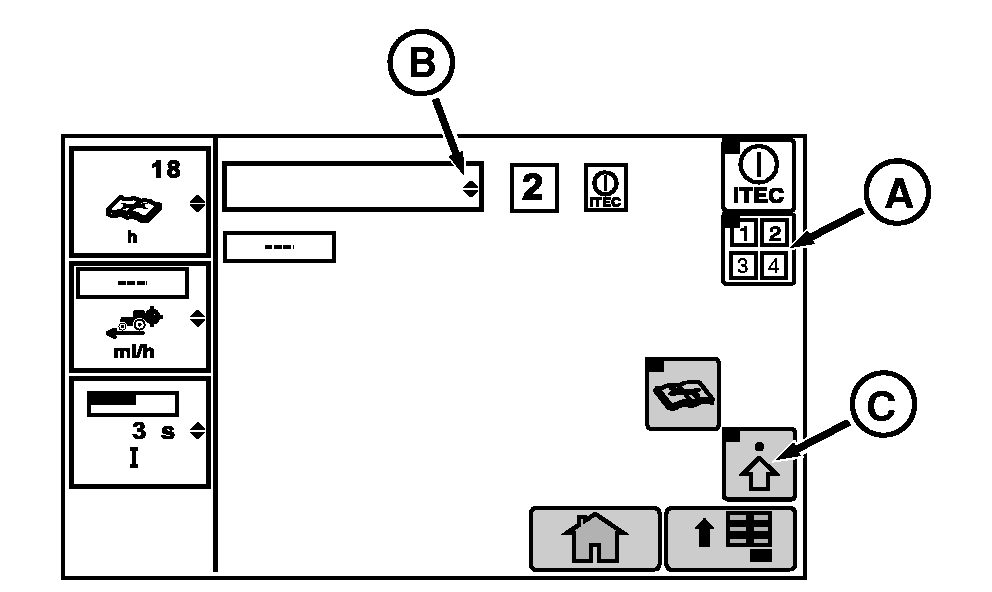
RXA0110312-UN-23SEP10Operations Page
A - Sequence Softkey
B - Implement Name Drop Down Box
C - Advanced Settings Softkey
-
Select iTEC softkey .
NOTE: If iTEC is on and recording, iTEC icon is highlighted and flashing. When sequence is selected, that sequence number is displayed on page.
-
Select Sequence softkey (A) for sequence number selection.
-
Select Implement Name drop down box (B). Drop down opens displaying list of loaded implement names.
NOTE: If implement name has not been loaded or requires editing, refer to Entering Or Editing Equipment Name in this section of the Operator's Manual.
-
Select desired implement name in drop down box.
-
Select advanced settings softkey (C) to go to iTEC Edit page which allows modification to sequence, equipment, function, operation or distance.
-
Select Start/Stop Record Sequence softkey (A).
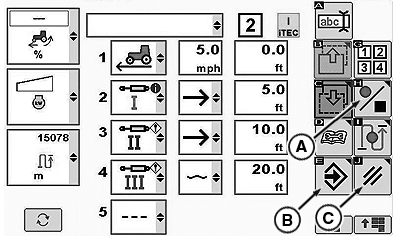
RXA0110313-UN-22SEP10iTEC Edit Page
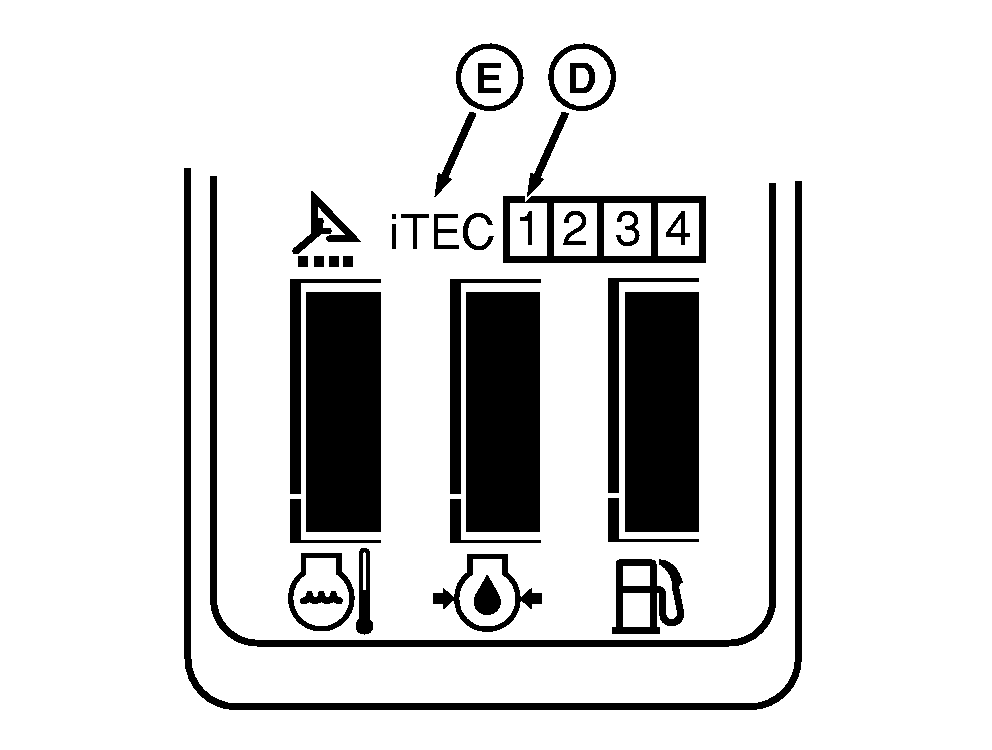
RXA0109226-UN-30JUL10Corner Post Display
A - Start/Stop Record Sequence Softkey
B - Save/Enter Softkey
C - Cancel Softkey
D - Sequence Number
E - iTEC
NOTE: For a complete list of functions available, see Description And Display in this section of Operators Manual.
Sequence can be aborted at anytime by selecting Cancel softkey (C).
While recording sequence number (D) and iTEC (E) will display on corner post display.
-
Place tractor in motion and operate functions manually.
-
After all functions are loaded, select Save/Enter softkey (B).
|
OURX985,000008C-19-20101028 |