Auxiliary Controls
RXA0116556-UN-16MAY11
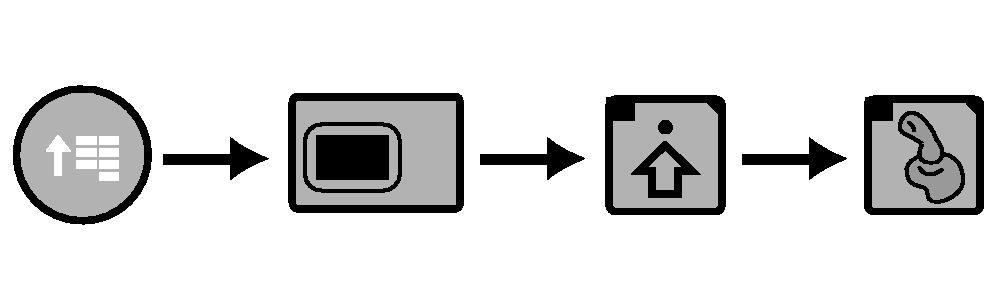
CommandARM™ Menu Button →→Display → Advanced Settings → Auxiliary Control
RXA0111786-UN-28OCT10
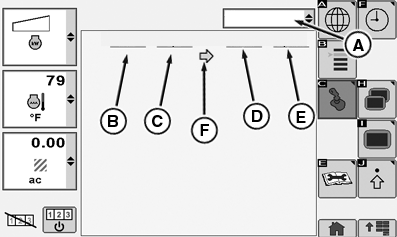
Display Auxiliary Controls Page
A - View Drop Down Box
B - Input Device
C - Input
D - Function
E - Implement
F - Status Indicator
The following message occurs when the system detects an auxiliary control. If necessary, review or change the auxiliary control mappings. Immediately after the message the operator can either decline or accept by using thumb wheel and scrolling to appropriate box. Select appropriate response by pressing the Confirm button. If ”Decline” is selected, all auxiliary controls will be disabled. If ”Accept” is selected, all auxiliary controls are enabled.NOTE: If a different control is installed, Auxiliary Control will need to be remapped to introduce new control inputs to implement functions. When Auxiliary Controls are detected or have changed, the operator is responsible to ensure:
- All users know which function is mapped to each control.
- Controls are properly labeled.
- Controls provide safe implement operation.
- Return to Auxiliary Control Setup and remap controls.
 CAUTION: Auxiliary Control detected Improper operation can cause
unintended implement movement.
CAUTION: Auxiliary Control detected Improper operation can cause
unintended implement movement.
To avoid death or serious injury to a bystander, ensure:
- All users know which function is mapped to each control.
- Controls are properly labeled.
- Controls provide safe implement operation.
If ”Decline” is selected, all auxiliary controls will be disabled.
ISO compliant auxiliary controls may be used to control ISO compliant implement functions. Display Auxiliary Controls page is used to configure implement functions to available controls. The display does not operate the implement functions, but is used as an interface to map functions to input controls.
A two-switch ISO compliant auxiliary control device is used to control a drawn sprayer equipped with an ISO implement controller. The sprayer has two controlled functions: pump on/off and boom on/off. Using Auxiliary Control feature, each function may be mapped to one of the Auxiliary Control device switches.
Auxiliary Controls Setup:
-
Select Menu button.
-
Select Display.
-
Select Advanced Settings softkey.
-
Select Auxiliary Control softkey.
NOTE: Auxiliary Controls page allows the user to match inputs (C) with various implement functions (D). This process is called ”Mapping” an input to a function. Once this ”Mapping” is completed, a function may be performed by activating the associated input.
The available functions and inputs depend on the ISO compliant implements/controls (E) that are currently connected.
-
Select View drop-down box A.
NOTE: An input device (B) consist of a number of inputs. These inputs may be buttons, switches, or dials.
-
Select input device.
-
Function and Implement will display, along with Auxiliary Control icon, when control is enabled.
To assign an input device’s input controls to an implement’s functions:
-
Select an implement function.
-
The row that contains the currently selected implement function will be indicated by a cursor colored rectangle.
-
Select the list control under the ”Input Device” column in the currently selected row.
-
Choose an ”Input Device” by selecting one of the items listed in this control.
-
Another list control will appear in the ”Input” column (B).
-
Select an item from this list to select the specific input to map to the currently selected implement ”Function”.
Functions which are in use are grayed out, but can be selected.
IMPORTANT: The input device selection list only shows inputs which are compatible to the implement functions.
-
A status indicator (F) will appear to indicate if the input device’s input (B) control was successfully mapped to the implement "Function" or not.
- A green status indicator indicates that the mapping is completed successfully.
- A red status indicator indicates that the mapping was not successful. In this case, check the assignments and change as necessary.
|
CommandARM is a trademark of Deere & Company |
RW29387,0000070-19-20120413 |