Configuring Home Page
-
Select Menu button.

RXA0110781-UN-09SEP10CommandArm Controls Menu Button→Layout Manager Icon
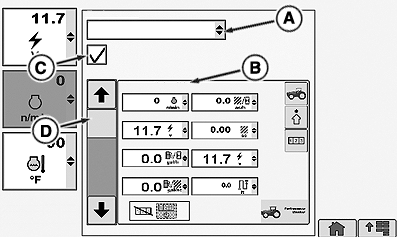
RXA0111403-UN-26OCT10Layout Manager—Selected Home Page
A - Home Page Drop Down Box
B - Page Name
C - Include In Home Page Cycle Check Box
D - Drop Down Box
-
Select Layout Manager
-
Layout Manager opens to any previously displayed home page.
-
Select Home Page drop down box (A) displays options which include three home page options and 10 softkeys options.
↑
Home Page 1
Home Page2
Home Page 3
Softkey A
Softkey B
Softkey C
Softkey D
Softkey E
Softkey F
Softkey G
Softkey H
Softkey I
↓
Softkey J
-
Place check in Home Page Cycle check Box (C) to have desired page displayed.
-
To view home pages after they are included in the home page cycle, on CommandARM™ select Home button displaying home page 1. Selecting Home button repeatedly displays consecutive home pages, 1, 2, or 3.
-
Open drop down box (A) to select pages or softkeys available for your tractor configuration.
NOTE: Page Name (B) is printed across the top of page. All pages are not identified with a specific page.
-
To remove page from Layout Manager, select check box (C) again. Check box is unchecked and page is no longer displayed in Layout Manager.
-
The 10 softkeys can also be programmed with the softkey options available to each. The selected softkey would then appear on the selected home page.
The default home page can be configured to monitor a number of on going tractor functions (A) normally monitored in the left region.
RXA0110781-UN-09SEP10
CommandArm Controls Menu Button→Layout Manager Icon
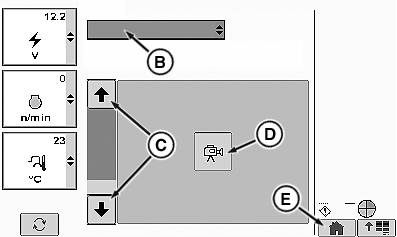
RXA0110932-UN-16SEP10
Adding Video Softkey
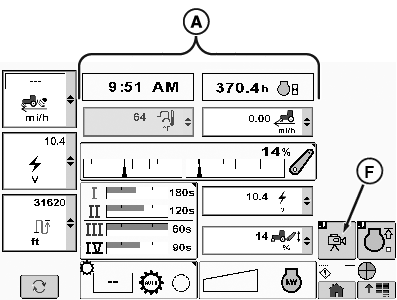
RXA0107757-UN-16SEP10
Default Home Page
A - Tractor Functions
B - Home Page Drop Down Box
C - Arrow Up/Down
D - Softkey (Video)
E - Home
F - Softkey (Video)
NOTE: Softkey layouts are only visible on Home pages that support re configurable softkeys.
To Add configurable softkey To Home Page:
-
Select Main Menu.
-
Select Layout Manager.
-
Select Home Page drop down box (B).
-
Select desired softkey identified for renaming, A though J, softkey E for example.
-
Using Up/Down arrows (C) scroll to desired softkey (D).
-
Select home soft key (E) at the bottom of right region.
-
Selected softkey (F) is then added to right region of home page.
|
CommandARM is a trademark of Deere & Company |
RW29387,0000709-19-20101013 |