Using TouchSet™ Depth Controls
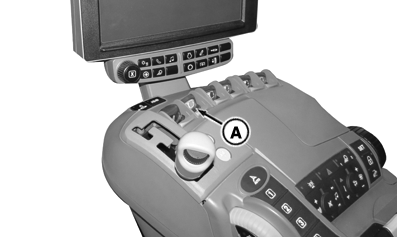
RXA0130050-UN-26AUG13
RXA0133709-UN-16JUL13
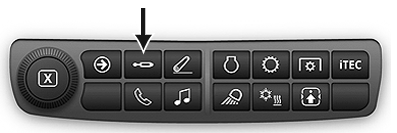
SCV Shortcut Button on Navigation Bar
RXA0127933-UN-04SEP12
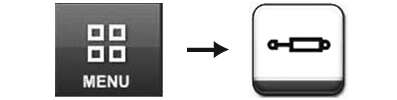
Menu → SCV Icon
RXA0136283-UN-23OCT13
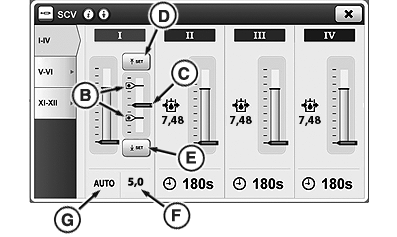
SCV Main Page
A - SCV I Control Lever
B - Implement Range
C - Implement Position Indicator
D - Upper Setpoint Button
E - Lower Setpoint Button
F - Implement Position
G - Automation Mode Status
 CAUTION: Avoid personal injury
or death. Do not attempt to install depth control sensors on implements
not intended for this system. See implement operator's manual.
CAUTION: Avoid personal injury
or death. Do not attempt to install depth control sensors on implements
not intended for this system. See implement operator's manual.
Moving implement control unit, sensor, connectors, or linkages, when engine is running, may cause unexpected movement. Stay clear of implement when starting engine.
Tractor selective control valve (SCV I) is used to electronically control raising, lowering, and setting of implement depth, without leaving cab.
-
Connect implement to tractor.
-
Press SCV shortcut button on Navigation Bar or follow alternative path.
-
Select Menu.
-
Select SCV Icon.
NOTE: When using TouchSet™, SCV must be set for feature mode. See Hydraulics and Selective Control Valves Section 60.
Height setting is upper setpoint implement range (B). Lower limit (depth setting) is bottom portion of implement range. Actual implement position is depicted by indicator (C).
Moving SCV 1 lever (A) into extend or retract detent position with TouchSet™ in AUTO (G) will command implements's position to established set point.
Rapidly moving SCV I lever into extend or retract region and returning to center position with TouchSet™ in AUTO will adjust implement's position up or down by a fixed amount. Repeated lever ”flick” movements will be summed.
-
Using SCV I lever, lower implement to desired depth while watching implement and CommandCenter™ Implement Position (F).
-
When implement is at desired depth, press button (E).
-
Using SCV I lever, raise implement to desired height while watching implement and CommandCenter™ Implement Range (B).
-
When implement is at desired height, press button (D).
TouchSet™ Continued - Setting Flow
-
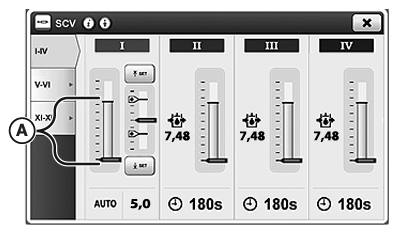
RXA0136281-UN-23OCT13SCV Main Page
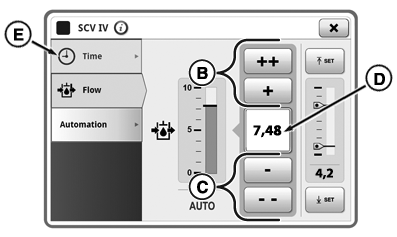
RXA0136282-UN-23OCT13Flow Tab
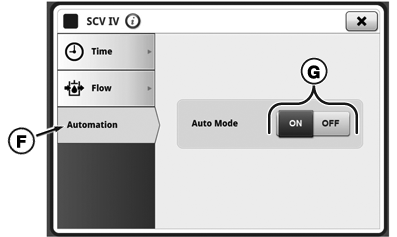
RXA0131882-UN-26AUG13Automation
A - Detent Flow Bar Graph
B - Increase Flow Buttons
C - Decrease Flow Buttons
D - Input Box
E - Detent Time Drop
F - Automation Tab
G - ON/OFF Toggle Button
Touch bar graph (A) on main SCV Screen to bring up flow tab overlay. Increase flow by pushing button (B) or to decrease flow push buttons (C) to set desired flow.NOTE: Bar graph (A) depicts detent flow and amount of detent flow will be shown in box (D). Detent time drop down box (E) cannot be adjusted when Automation Mode (F) is enabled. See Configuring Selective Control Valves - Standard Mode in Hydraulics and Selective Control Valves Section 60.
NOTE: Flow is displayed in increments of 0.04 beginning at 0.04 through 10 located in input box (D). Pushing (+) will increase flow by 0.04, pushing (++) increases flow by 1.00, and by pushing (-) and (- -) will decrease flow setting by same increments.
-
Press Automation tab (F) then ON or OFF toggle button (G), to activate the Automation feature.
|
RD47322,0000321-19-20140102 |